.png?fit=max&auto=format&n=kg7DOeb3LjeDp7us&q=85&s=97f9180a06d637bed699a5478a30463b)

Passkey Recovery
Enta signs you in with a passkey rather than a password, so there’s no “forgot password” link. If you lose the device holding your passkey, or it’s wiped, passkey recovery is how you get back in — you create a new passkey and prove it’s you with two separate email codes.This page is under Settings > Individual > Security. See also: Passkey & Devices and Recovery.
1. Start from the sign-in screen
Recovery begins where you’d normally sign in. “Sign in to Enta” shows your email address and a Continue with passkey button. Beneath it are two smaller actions: Change email and Recover Passkey. Tap Recover Passkey.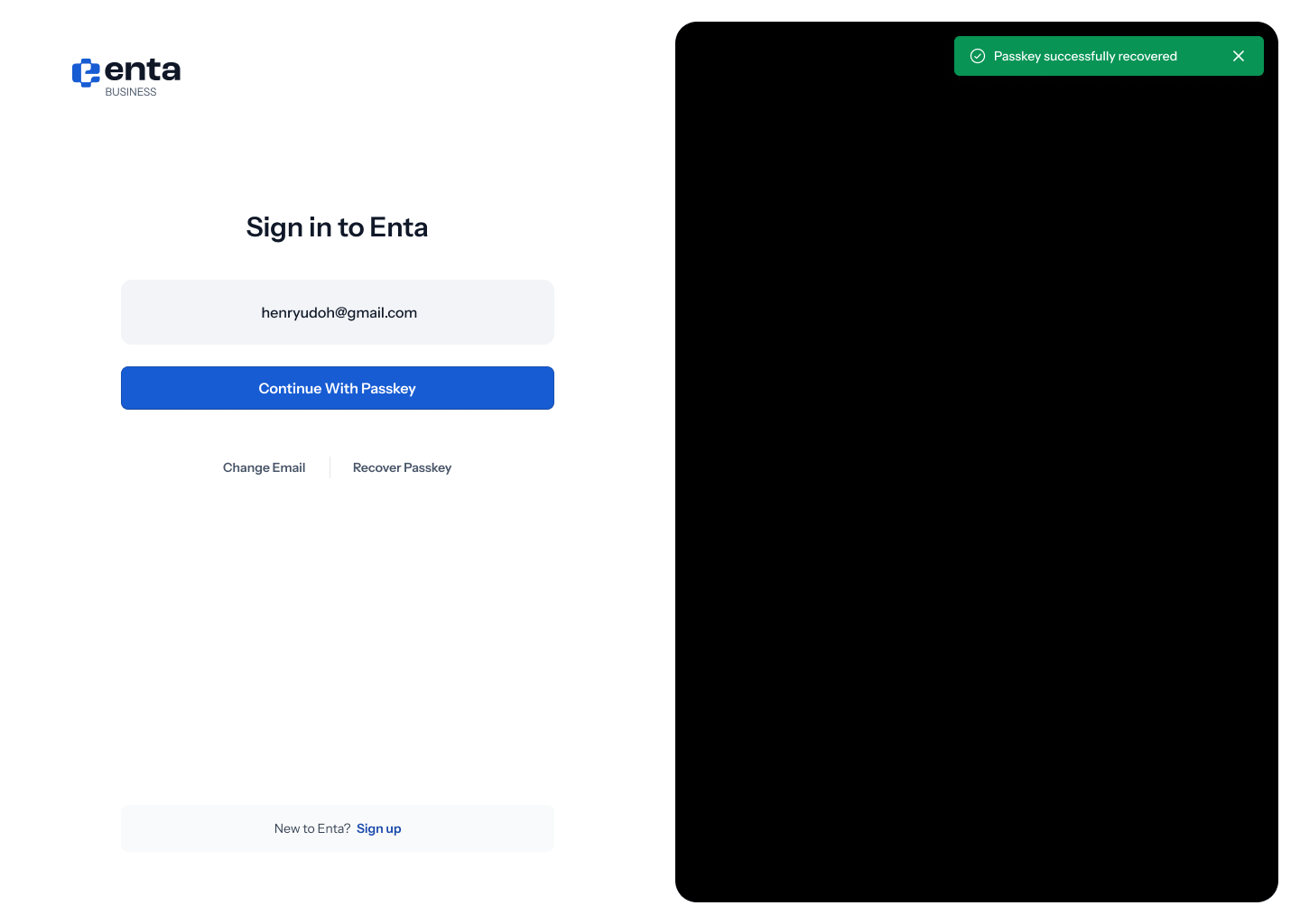
2. Ask for a recovery link
“Recover your account” — “Enter your email and we’ll send a recovery link.” Enter the email on the account and tap Start recovery. If something looks wrong, Having issues? offers Contact support.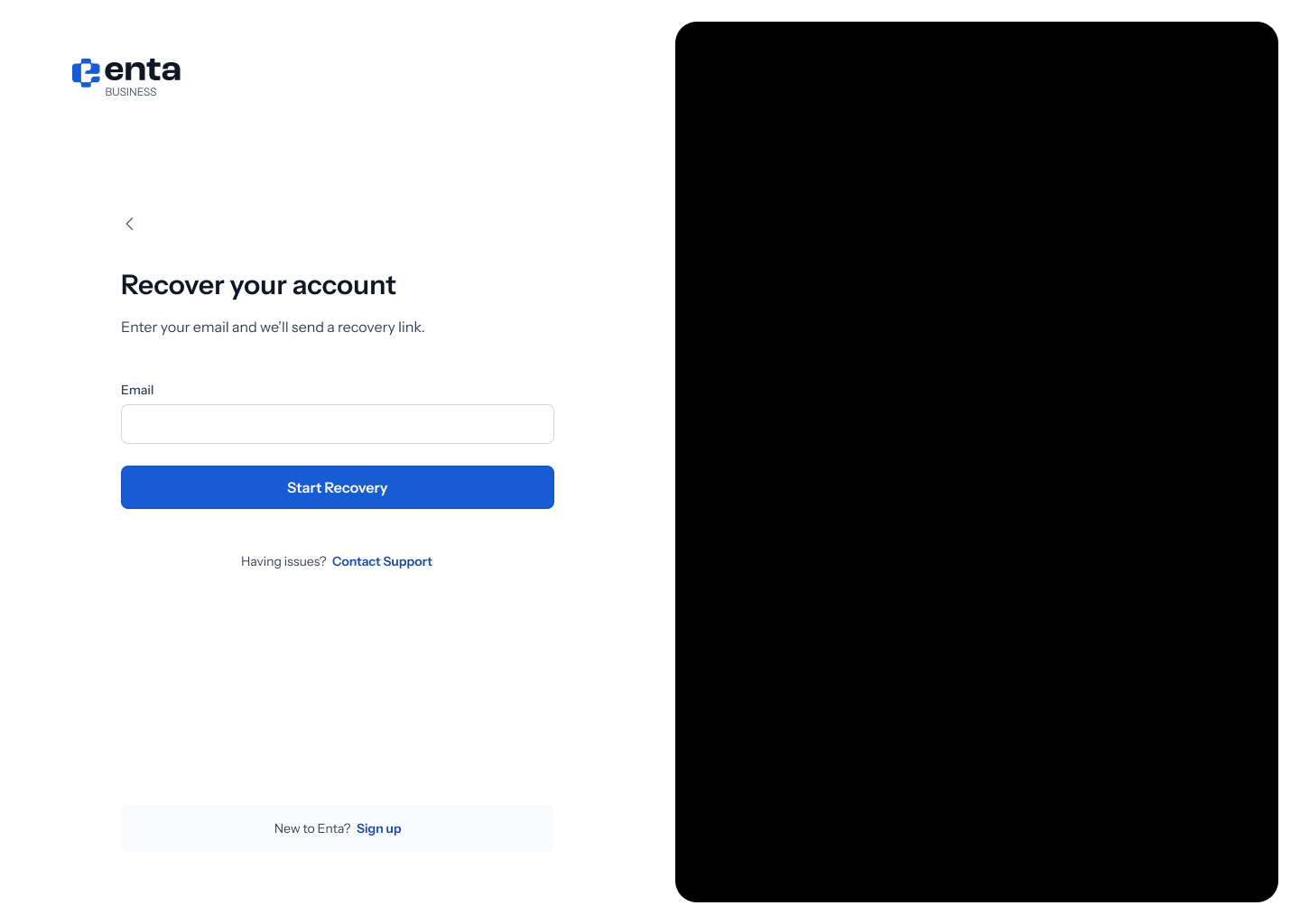
3. Open the link in your inbox
“Check your inbox” — “We’ve sent you a temporary recovery link. Check” followed by your address. There’s nothing to type here. Go and open the email.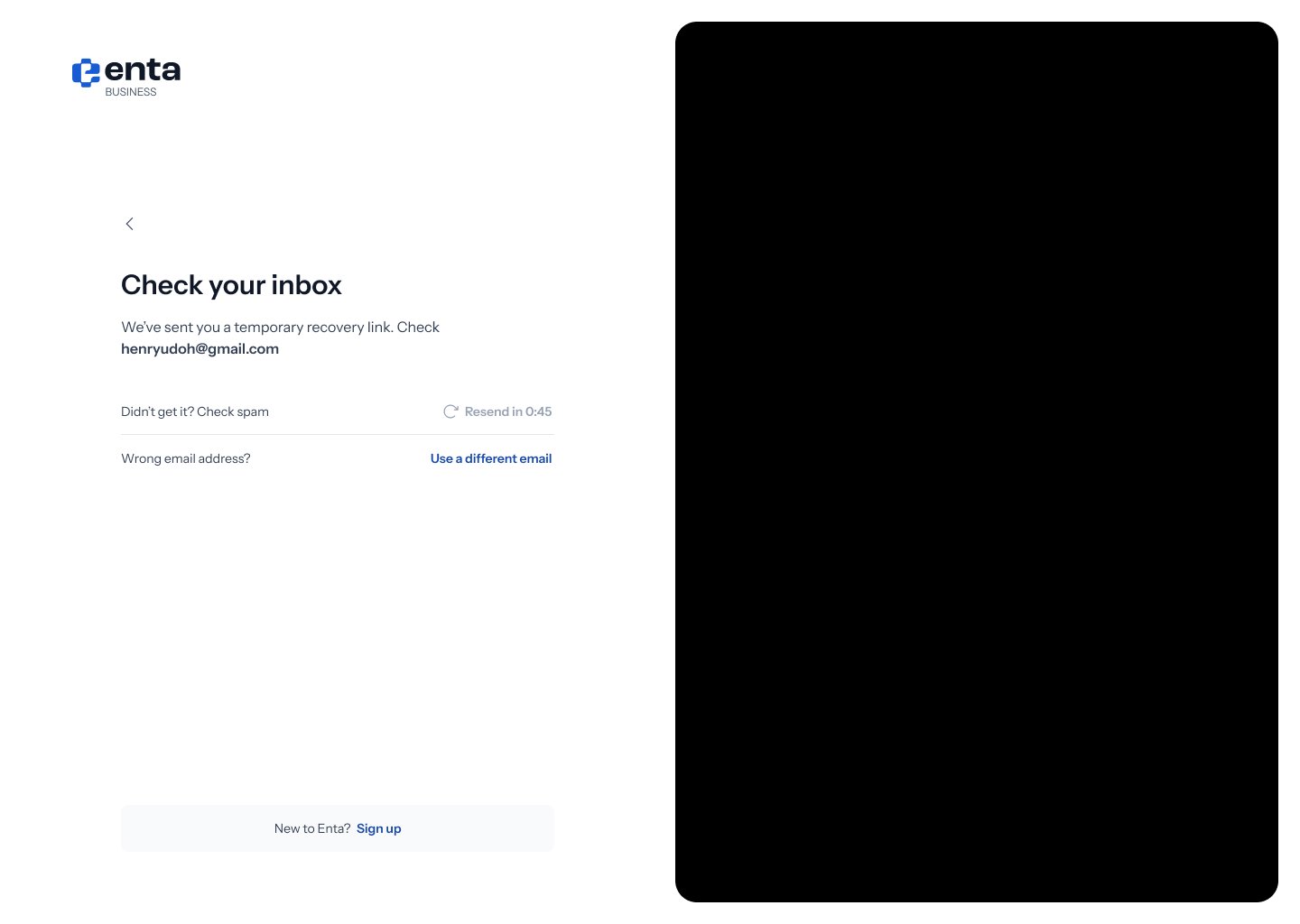
The link is temporary. If you leave it too long you’ll need to start again from step 2 — no harm done, it just re-sends.
4. Create your new passkey — step 1 of 4
Opening the link confirms “Email verified. Create new passkey” — “New passkey will replace the previous one.” From here a four-step counter appears, so you can see how far along you are.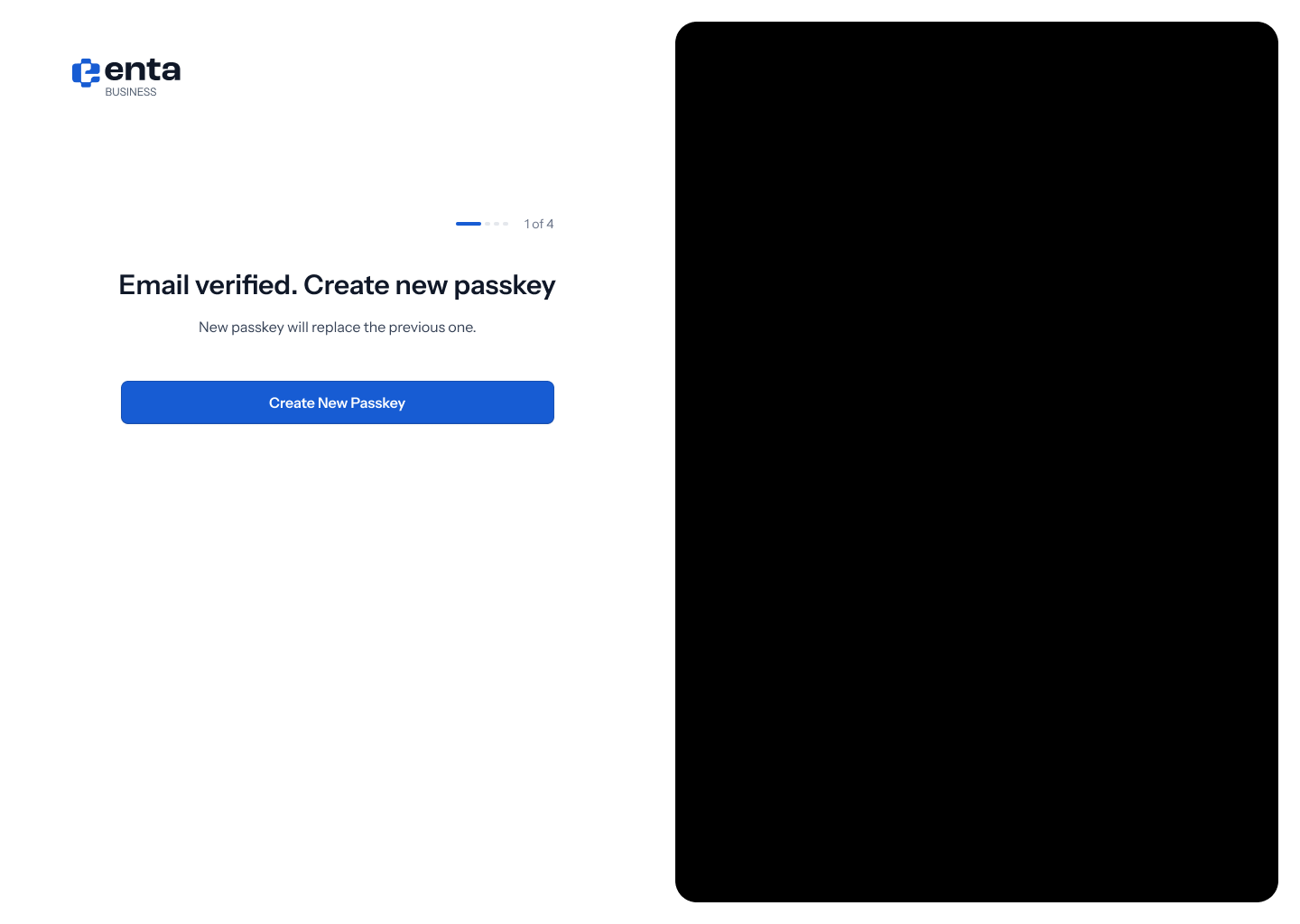 Tap Create new passkey, and your browser or device takes over with its own prompt — “Create a passkey for Enta”, with Continue, Use a different device, or Cancel.
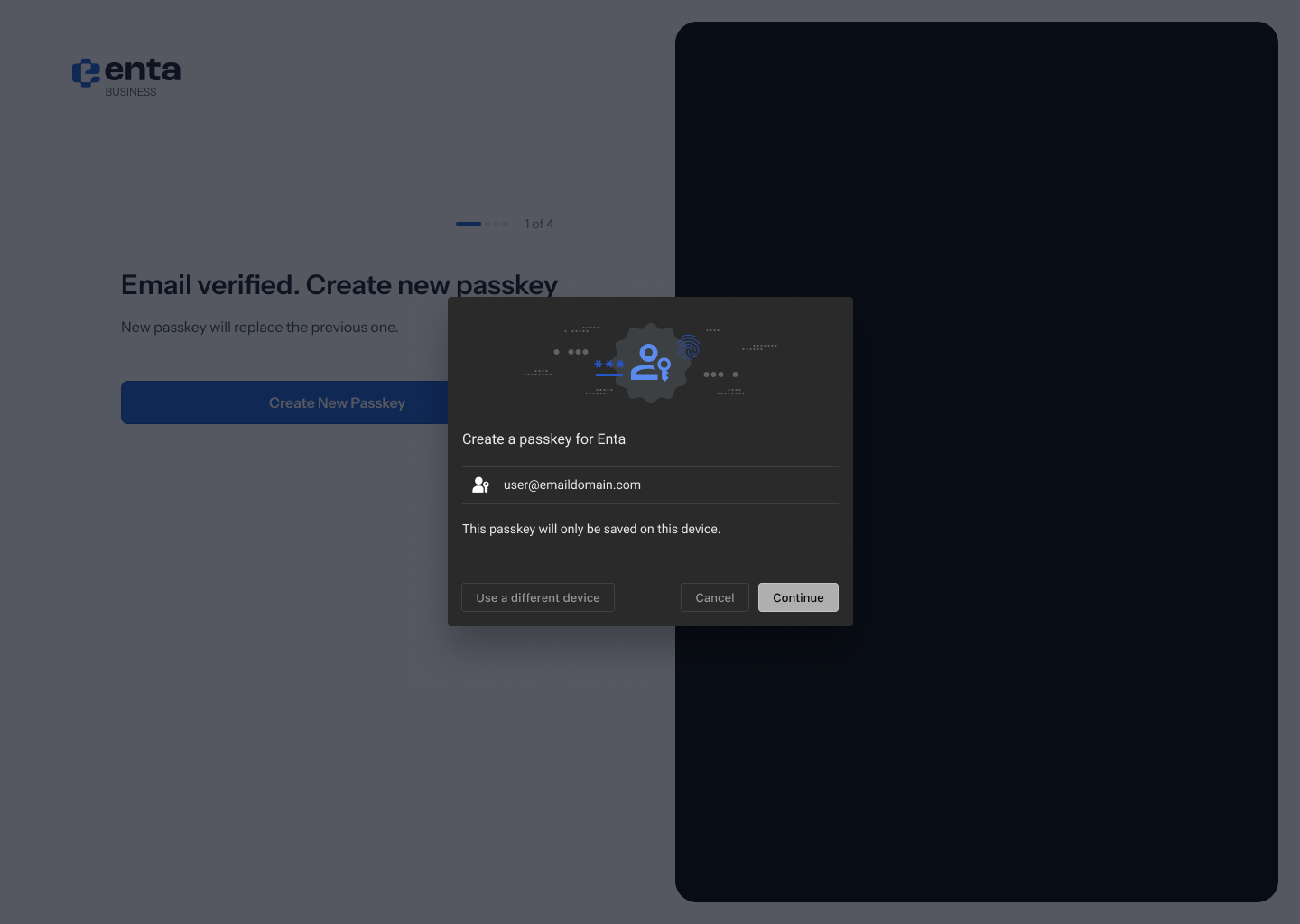
That dialog comes from your browser or operating system, not from Enta, so its exact wording and buttons depend on whether you’re on Chrome, Safari, Windows or a Mac.
5. Enter the code sent to your email — step 2 of 4
“Enter email OTP” — “We’ve sent a verification code to” followed by your account email. Type the six-digit code into the boxes. “Didn’t get it? Check spam” sits underneath with a Resend in 0:45 countdown.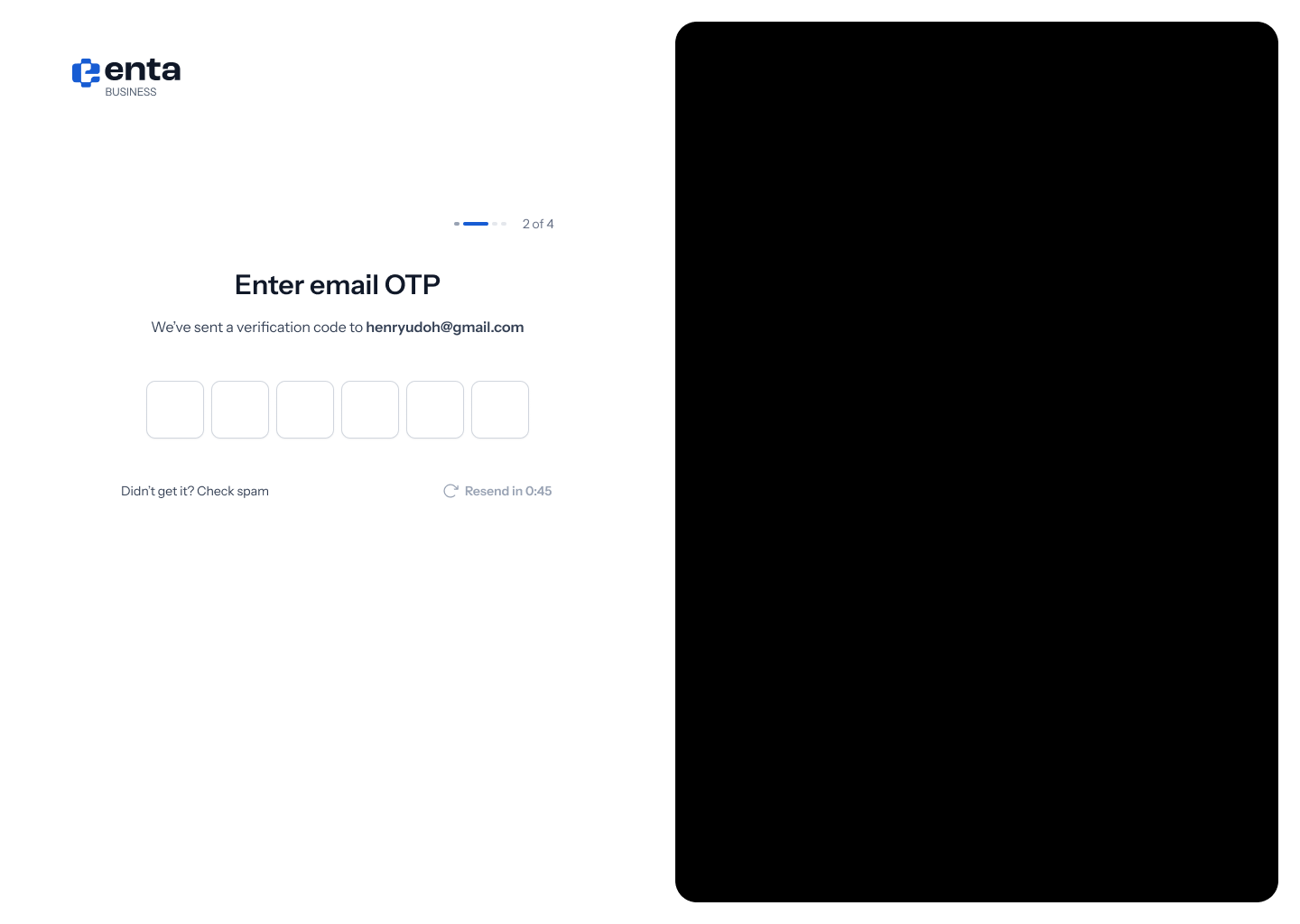
6. Enter the code sent to your recovery email — step 3 of 4
“Enter recovery email OTP” — “We’ve sent a second verification code to” followed by your recovery address. This is a different code, sent to a different inbox.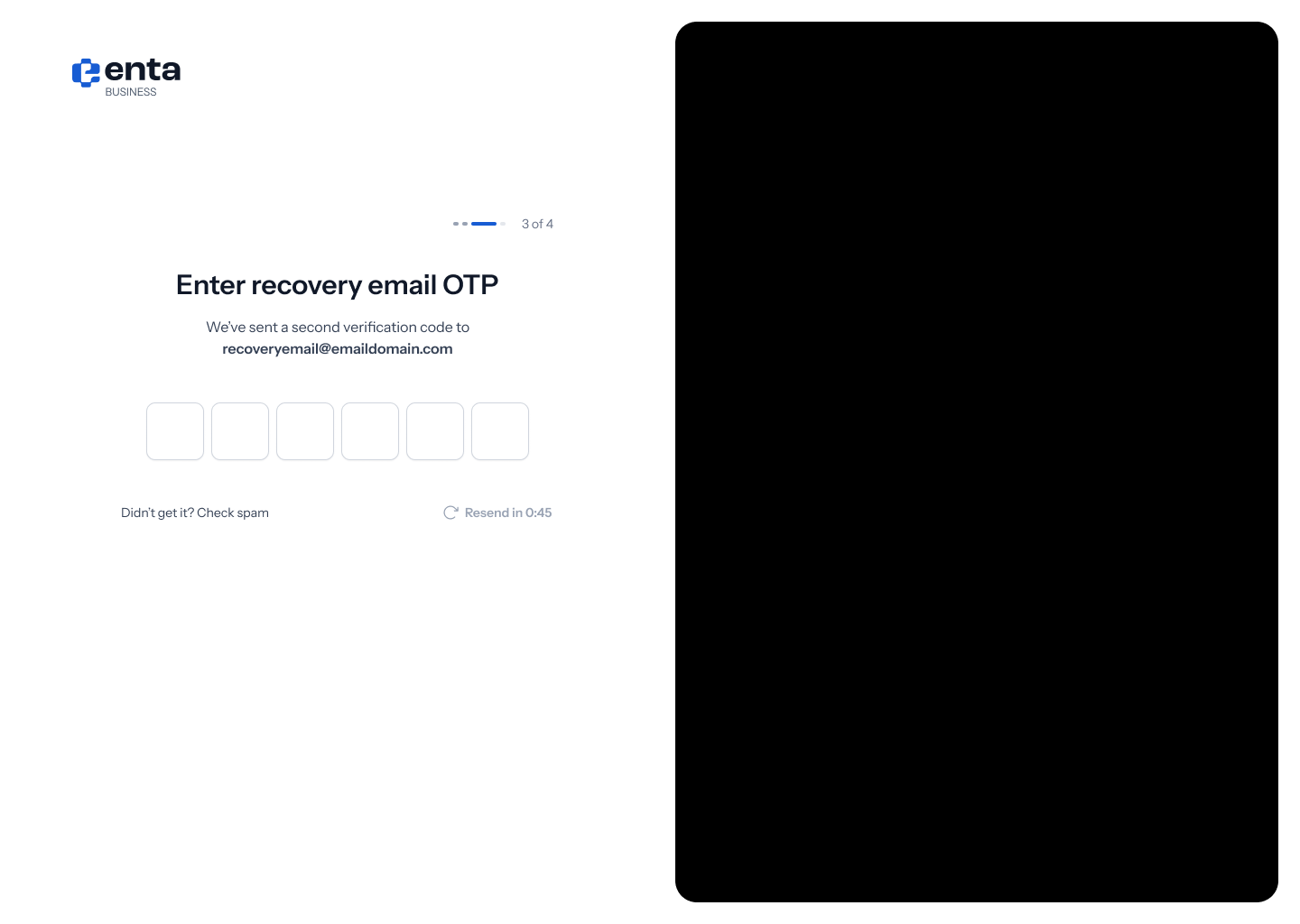
7. Approve the recovery — step 4 of 4
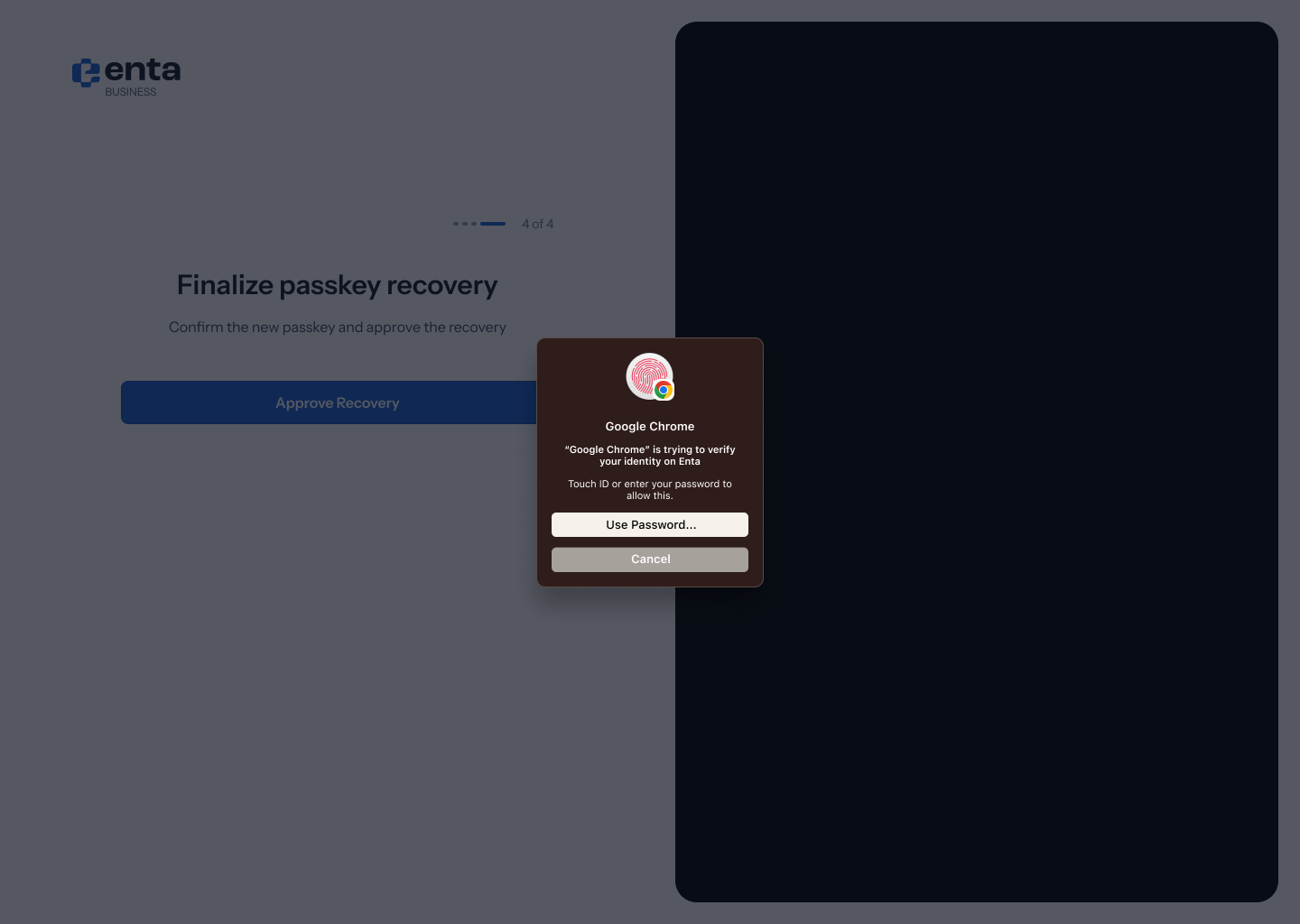
“Finalize passkey recovery” — “Confirm the new passkey and approve the recovery”. Tap Approve recovery.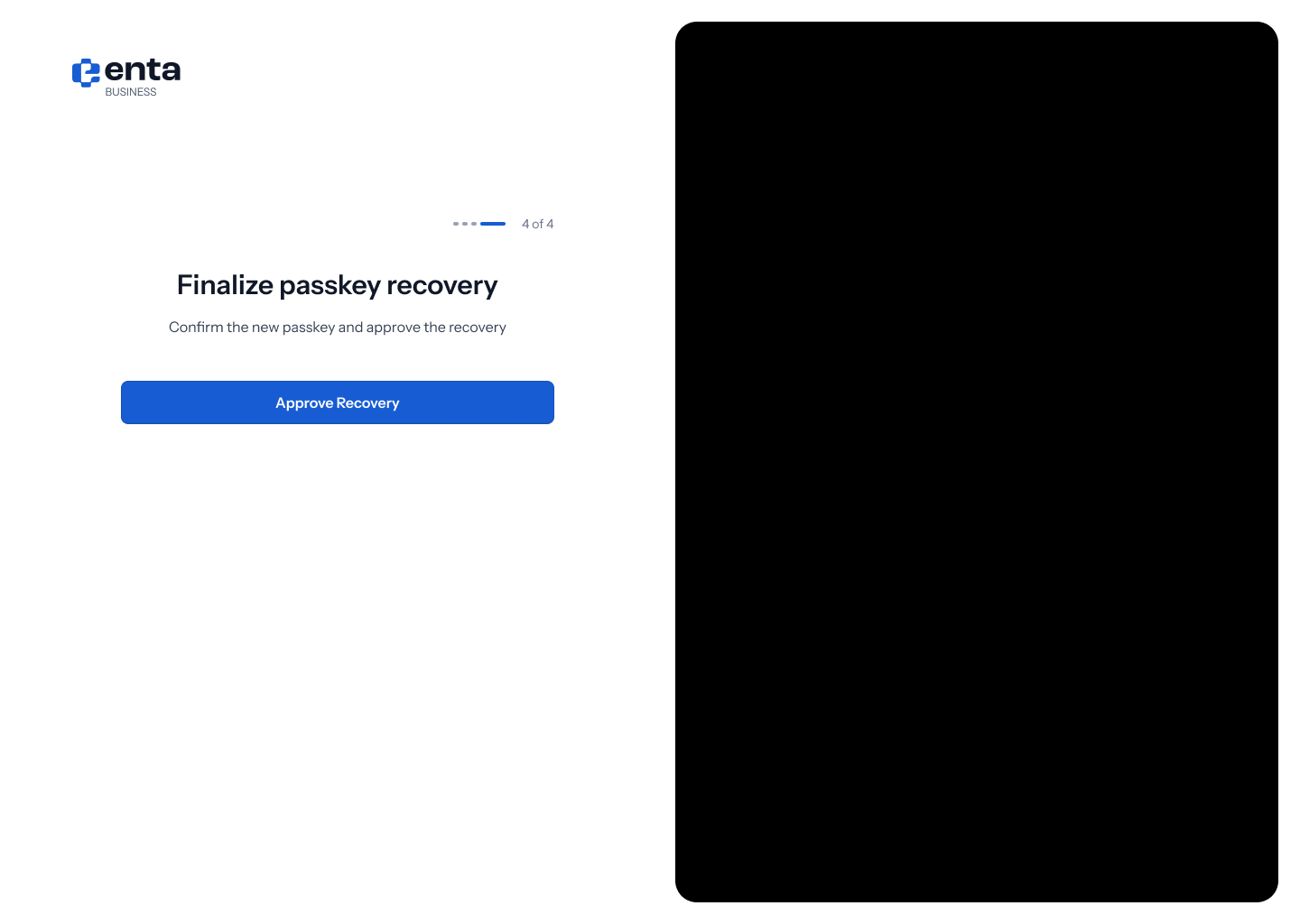 Your device asks you to confirm one last time — Touch ID, Face ID, Windows Hello, or your device password.
8. The 72-hour wait
You land on the sign-in screen with a green confirmation: “Passkey successfully recovered”. That confirms your new passkey is registered and the recovery request is in — not that access has moved yet. The mandatory 72-hour wait runs from here, and once it completes you sign in with Continue with passkey as normal, using your new one.Nothing happens to your money during the wait. Your balances, addresses and history are untouched — the only thing changing is how you get in.