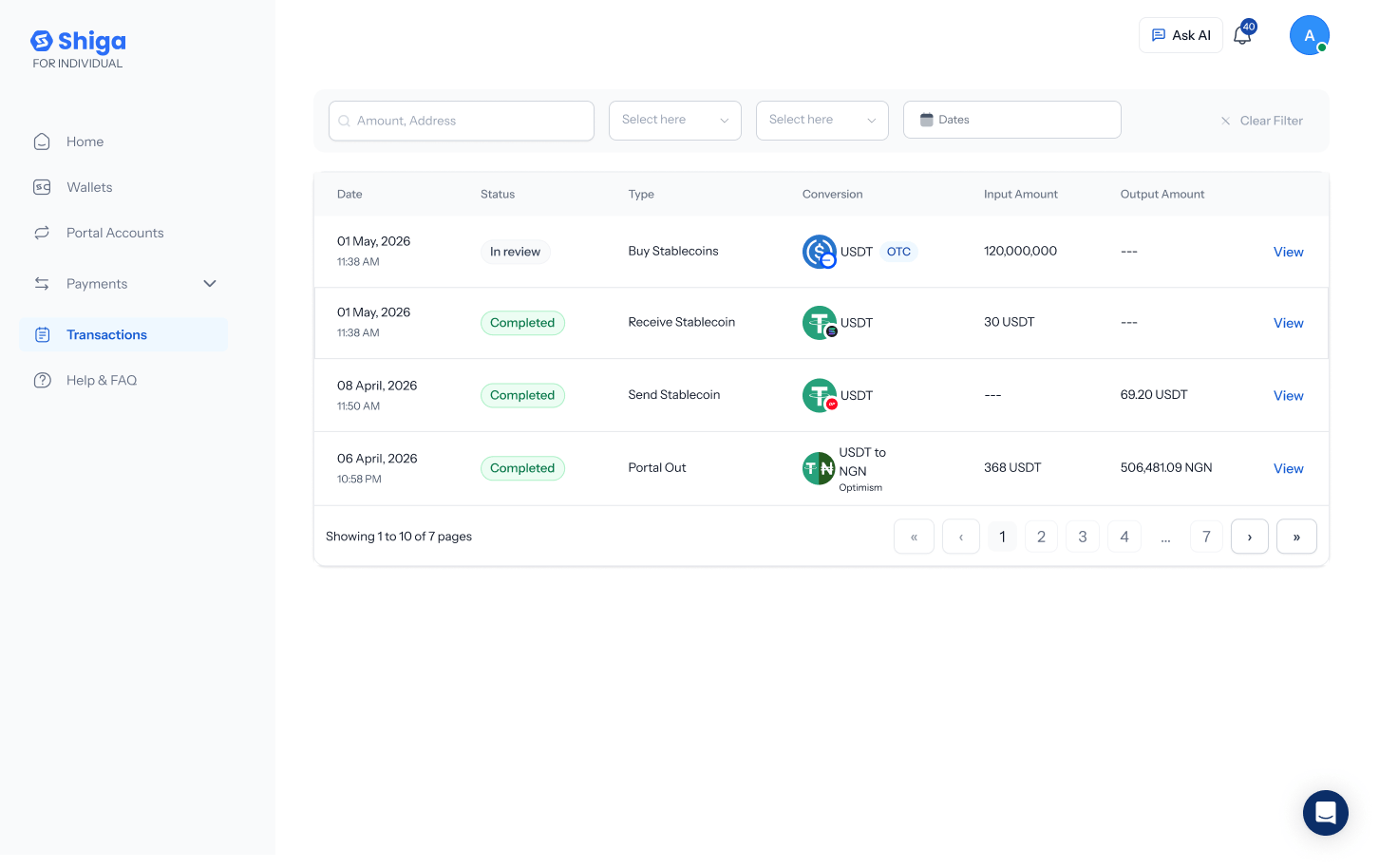
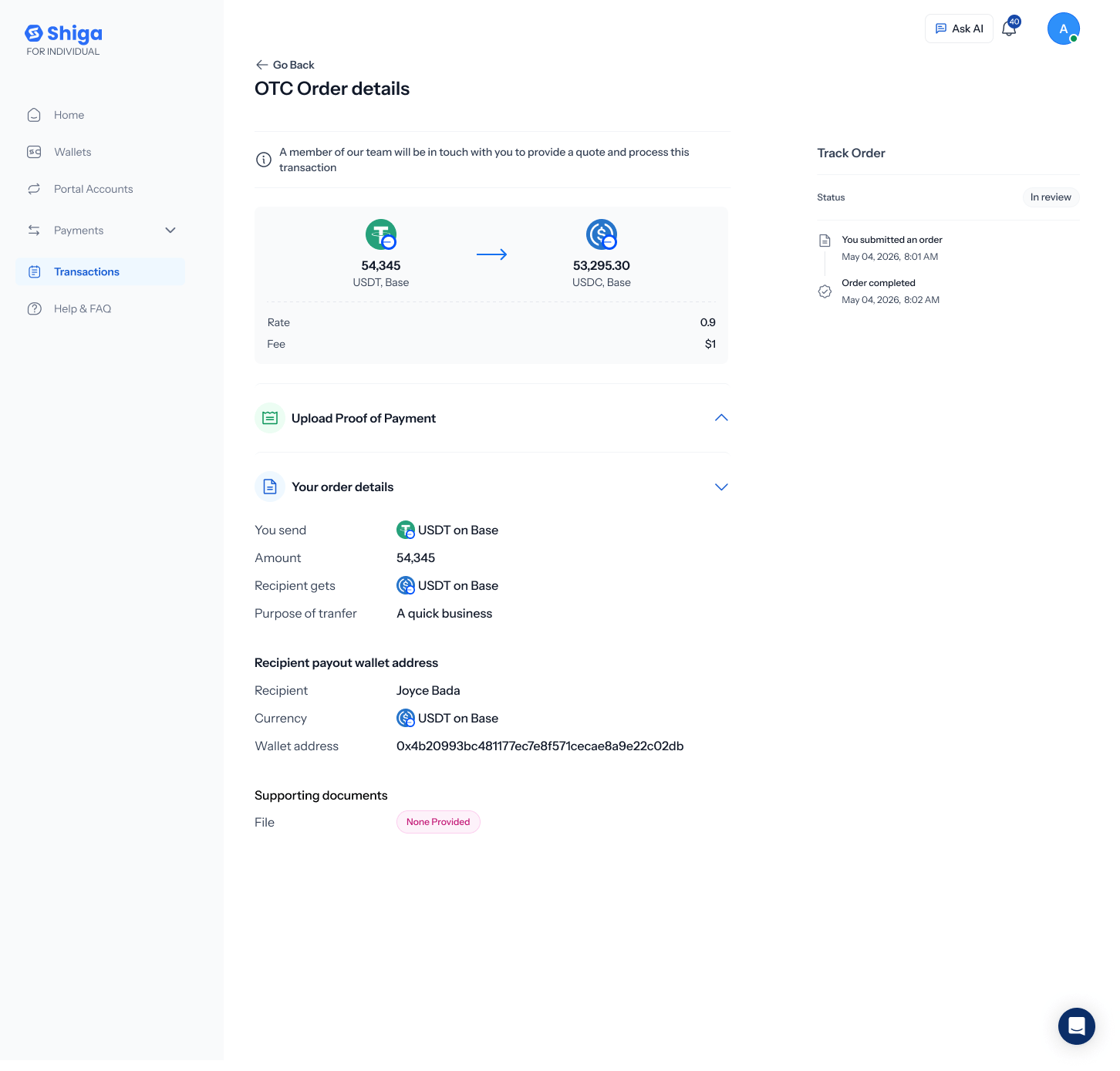
.png?fit=max&auto=format&n=kg7DOeb3LjeDp7us&q=85&s=97f9180a06d637bed699a5478a30463b)

This is one of five OTC flows under Product > Enta STS. See also: the OTC Guided Tour, Bank Account to Enta Wallet, Bank Account to Bank Account, and Enta Wallet to Bank Account.
1. Start the swap
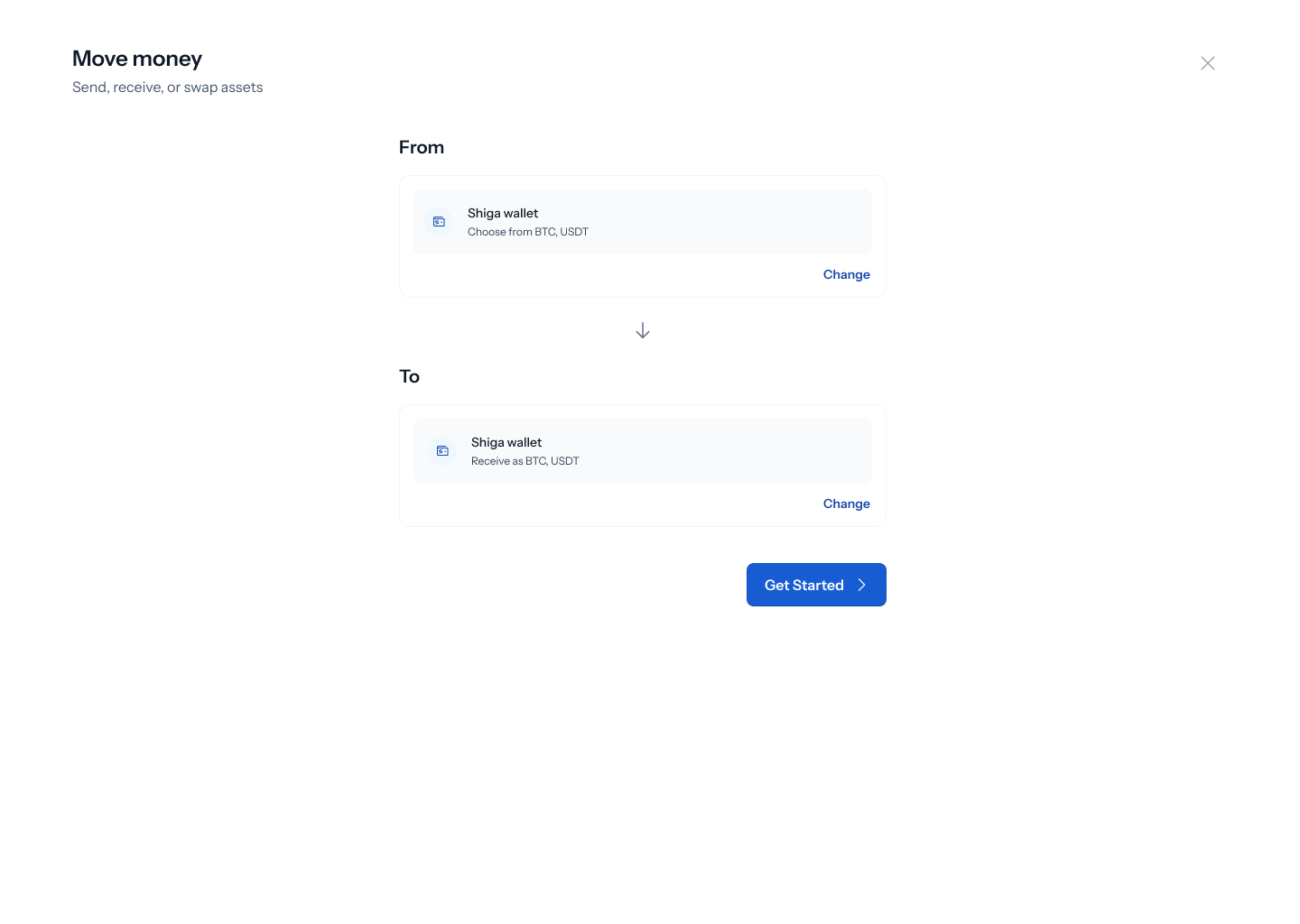
- From the sidebar, go to Product > Enta STS.
- On the Move money screen, choose From: Enta wallet and To: Enta wallet.
- Click Get started.
2. Choose the assets to swap
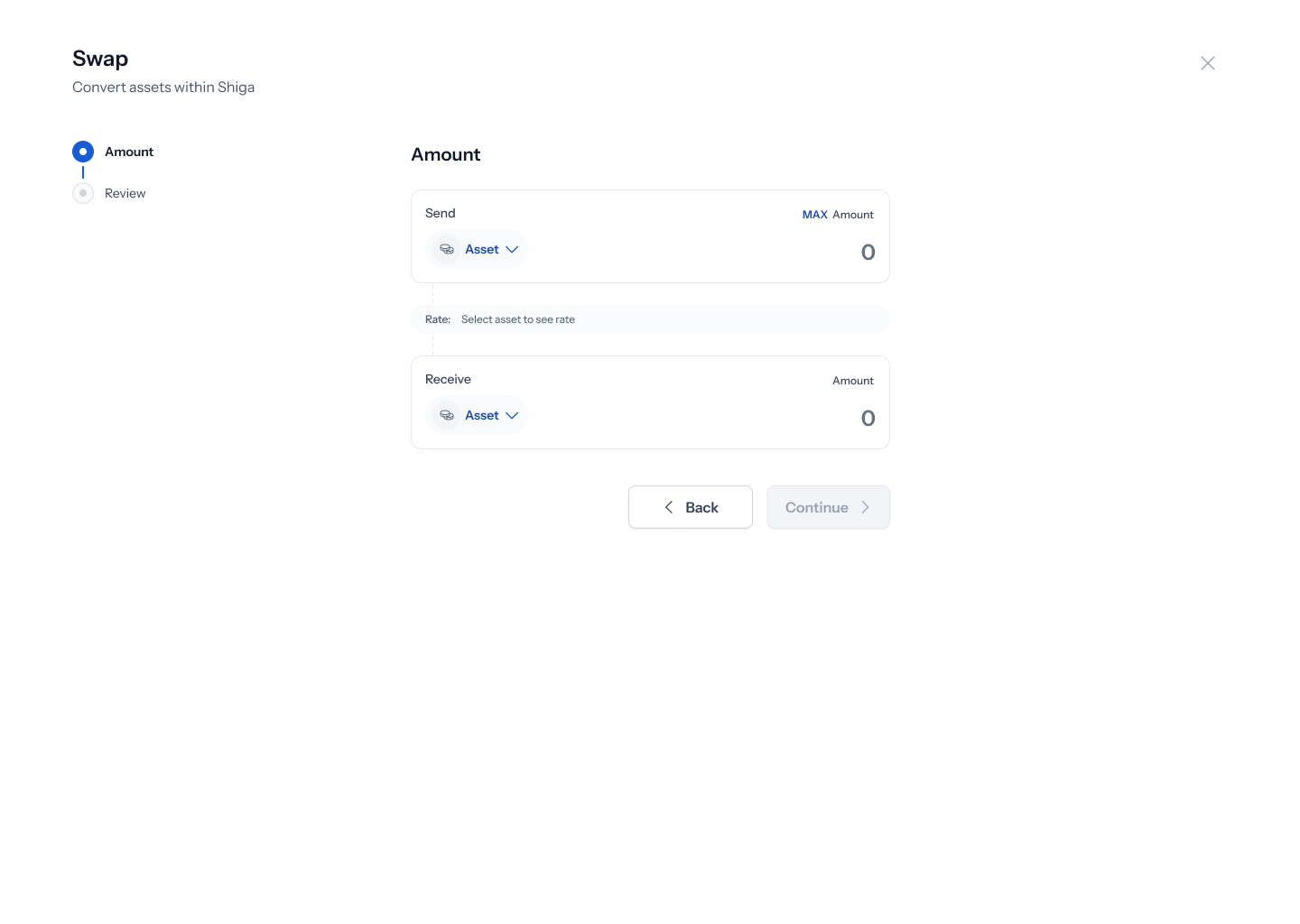
- Under Send, click the asset picker and choose what you’re swapping from.
- Under Receive, choose what you want to swap into.
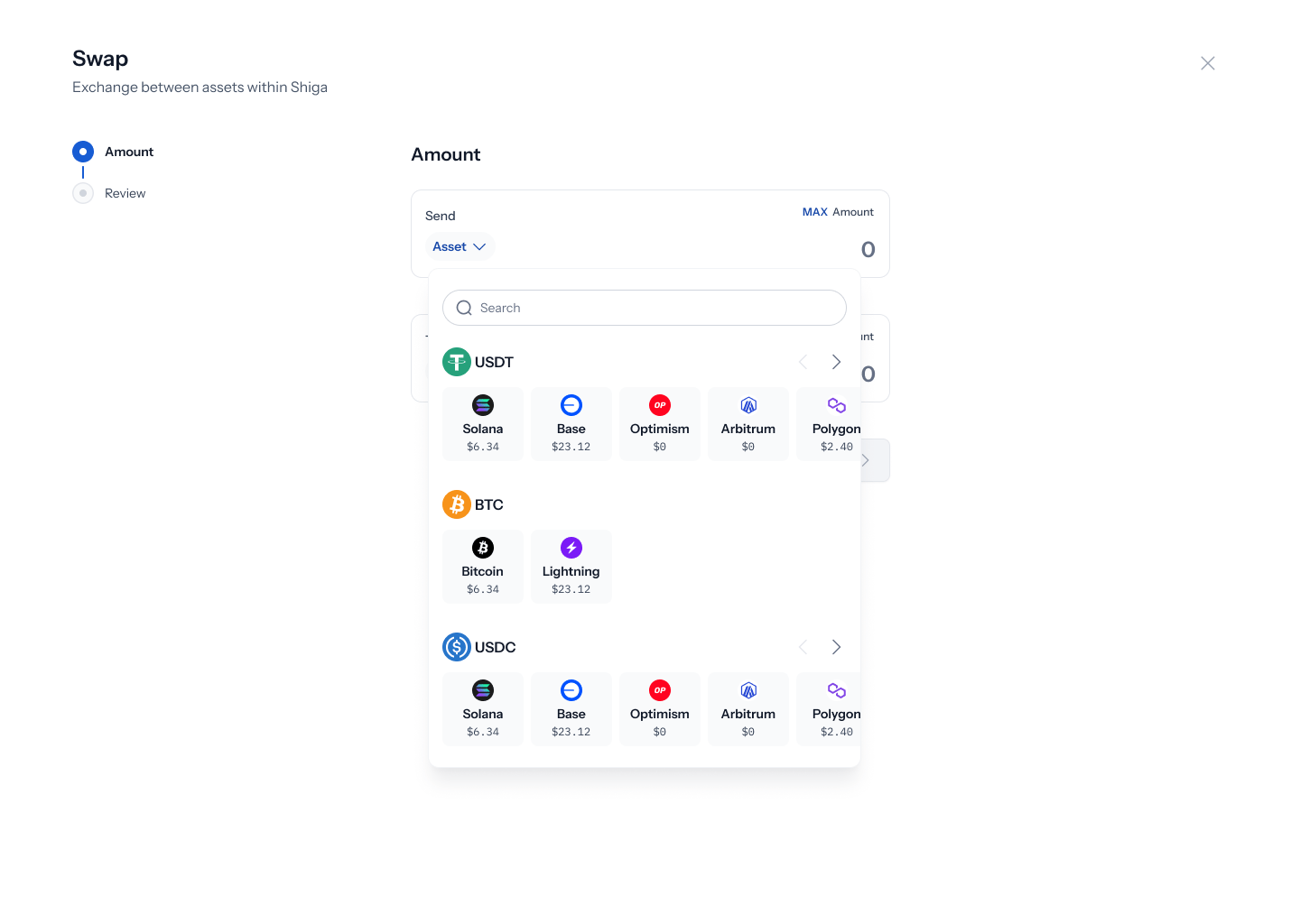
3. Enter the amount
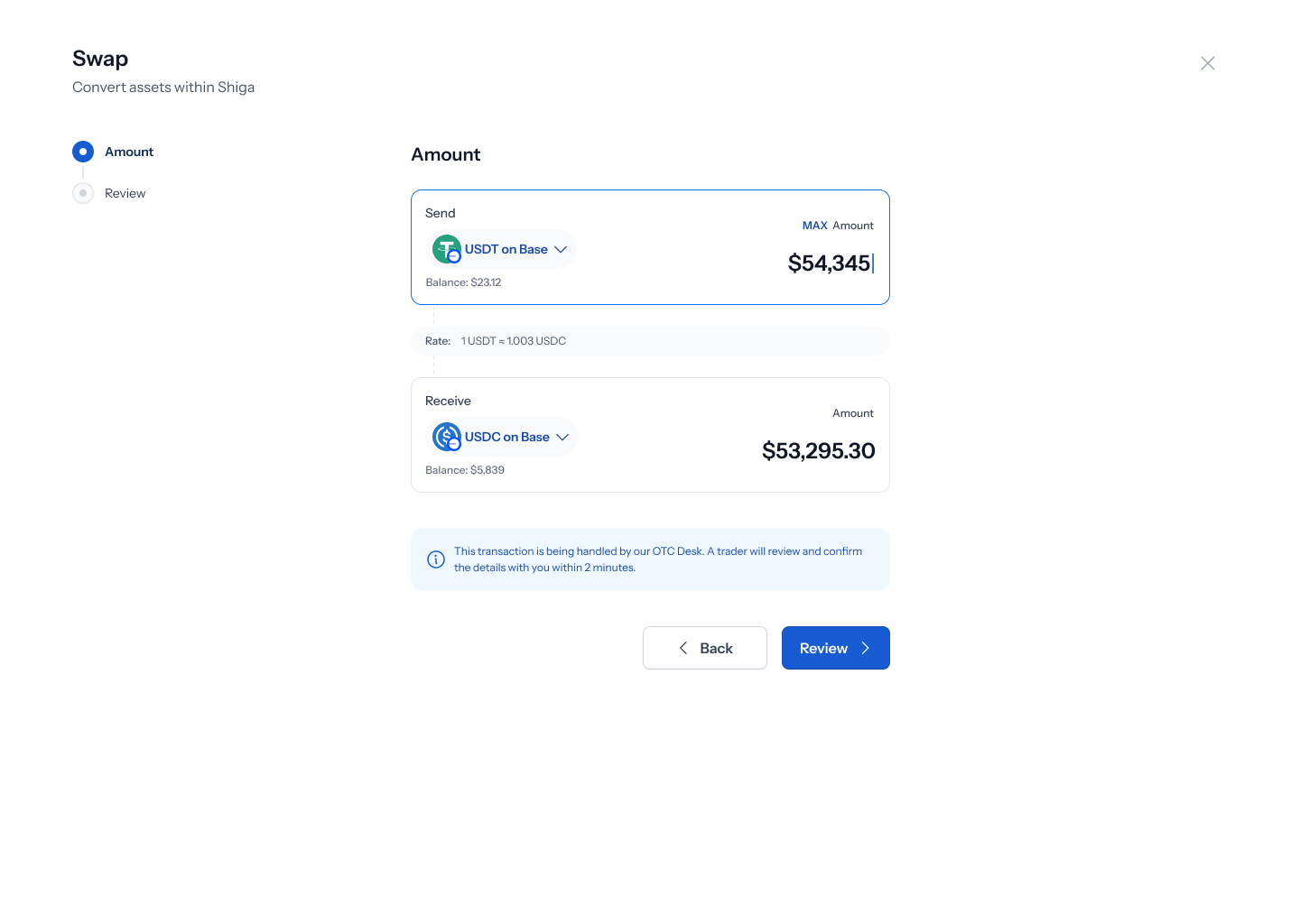
- Enter the amount you want to send — your balance is shown for reference, and the amount you’ll receive updates based on the live rate.
- Click Review.
Large swaps trigger the same OTC threshold banner seen in other flows: “This trade is over the OTC threshold. Get a hand-quoted custom rate from a trader within 2 minutes.”
4. Review and submit
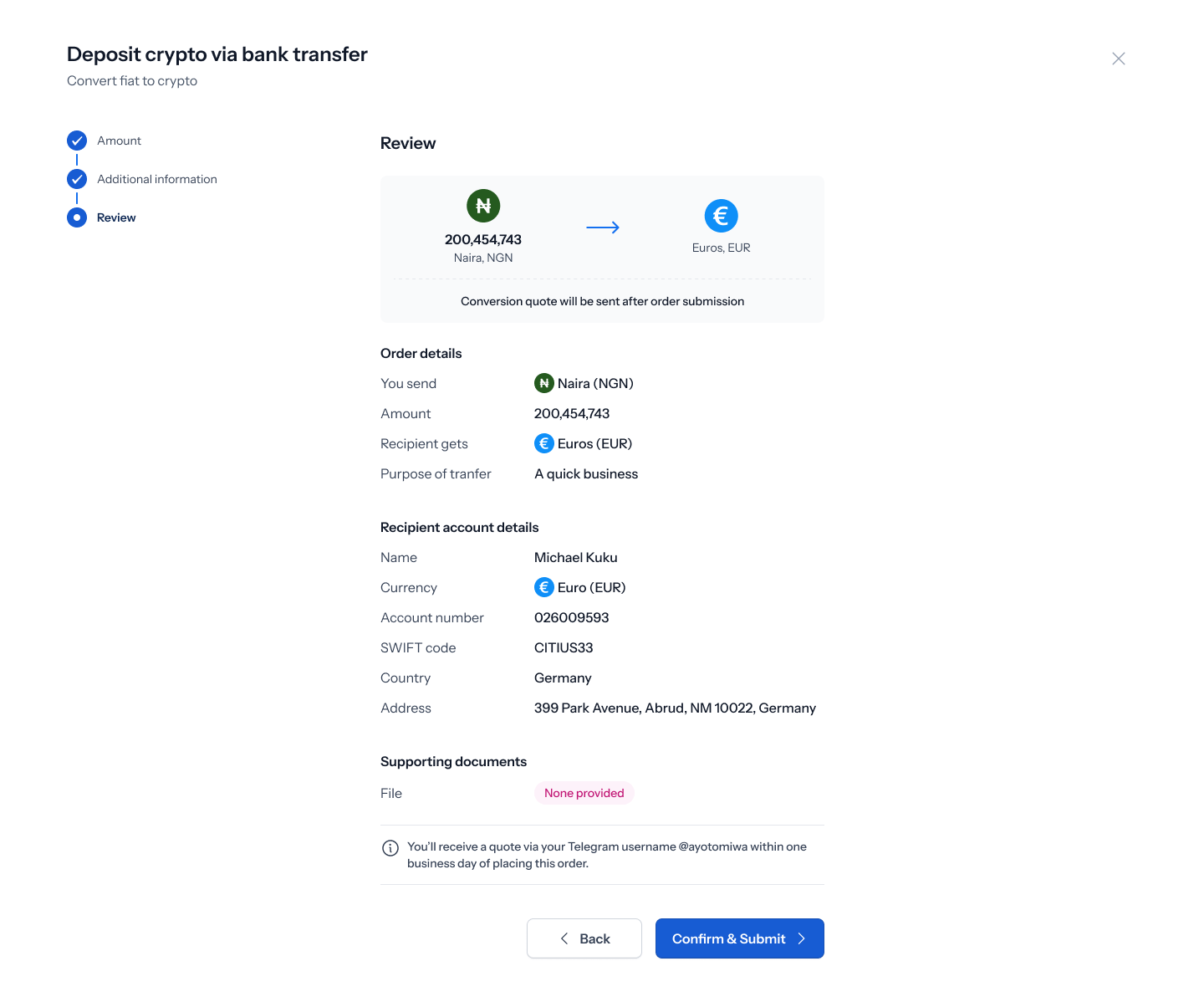
- Review the swap details, then click Confirm & Submit.
5. Confirmation
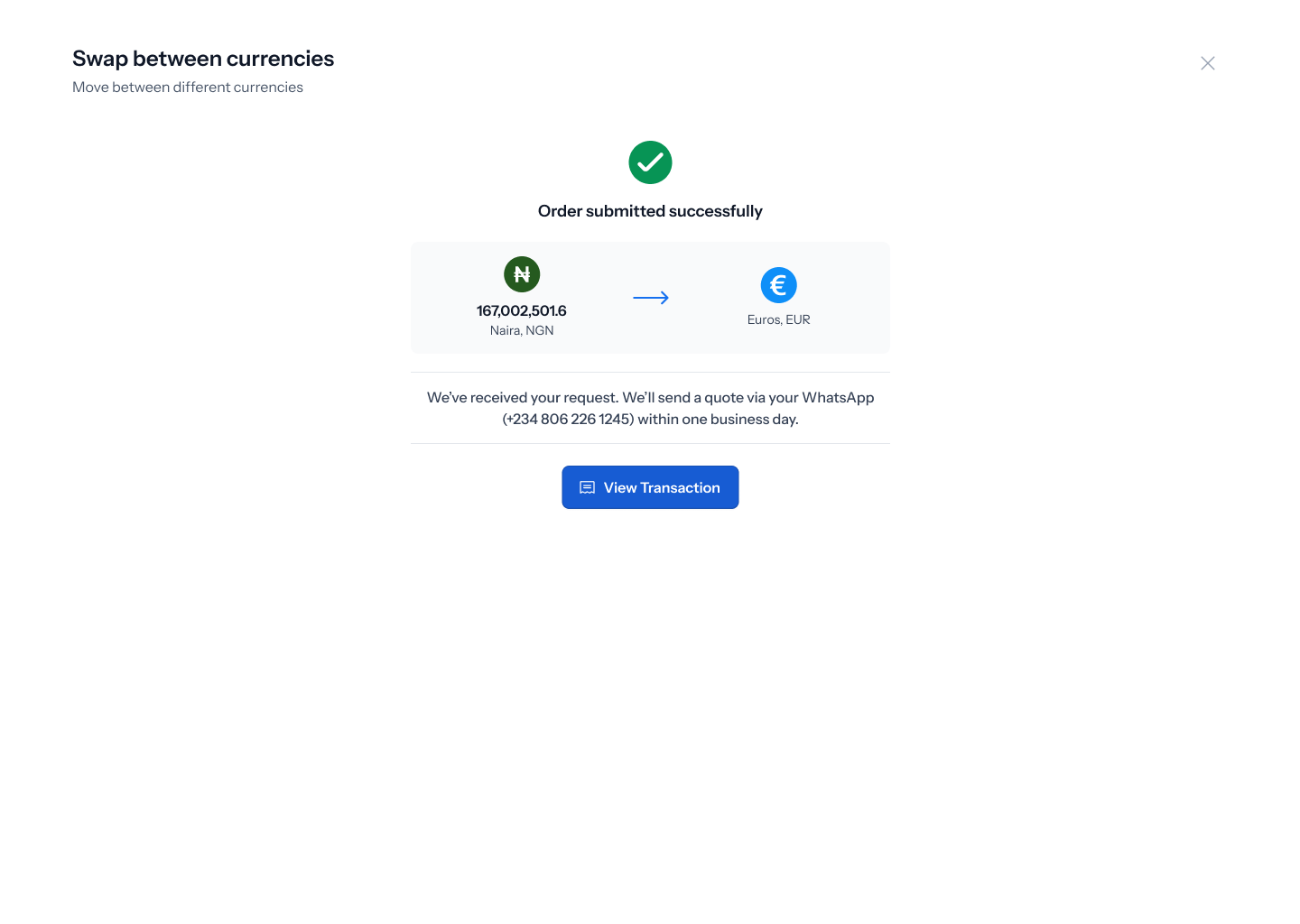
6. Track your order