.png?fit=max&auto=format&n=kg7DOeb3LjeDp7us&q=85&s=97f9180a06d637bed699a5478a30463b)

Enta Wallet to My Enta Wallet (Swap)
This Move Money path lets you swap one asset you hold for another, for example USDT for USDC. You send from your Enta wallet and receive back into your own Enta wallet, so the money never leaves your account. This guide is for anyone with an Enta account who wants to change which asset they hold.This guide covers swaps inside your own Enta wallet only. To send money somewhere else, see Enta Wallet to External Address (Withdrawal) or My Enta Wallet to Bank Account (Offramp).
1. Choose your Enta wallet as the source
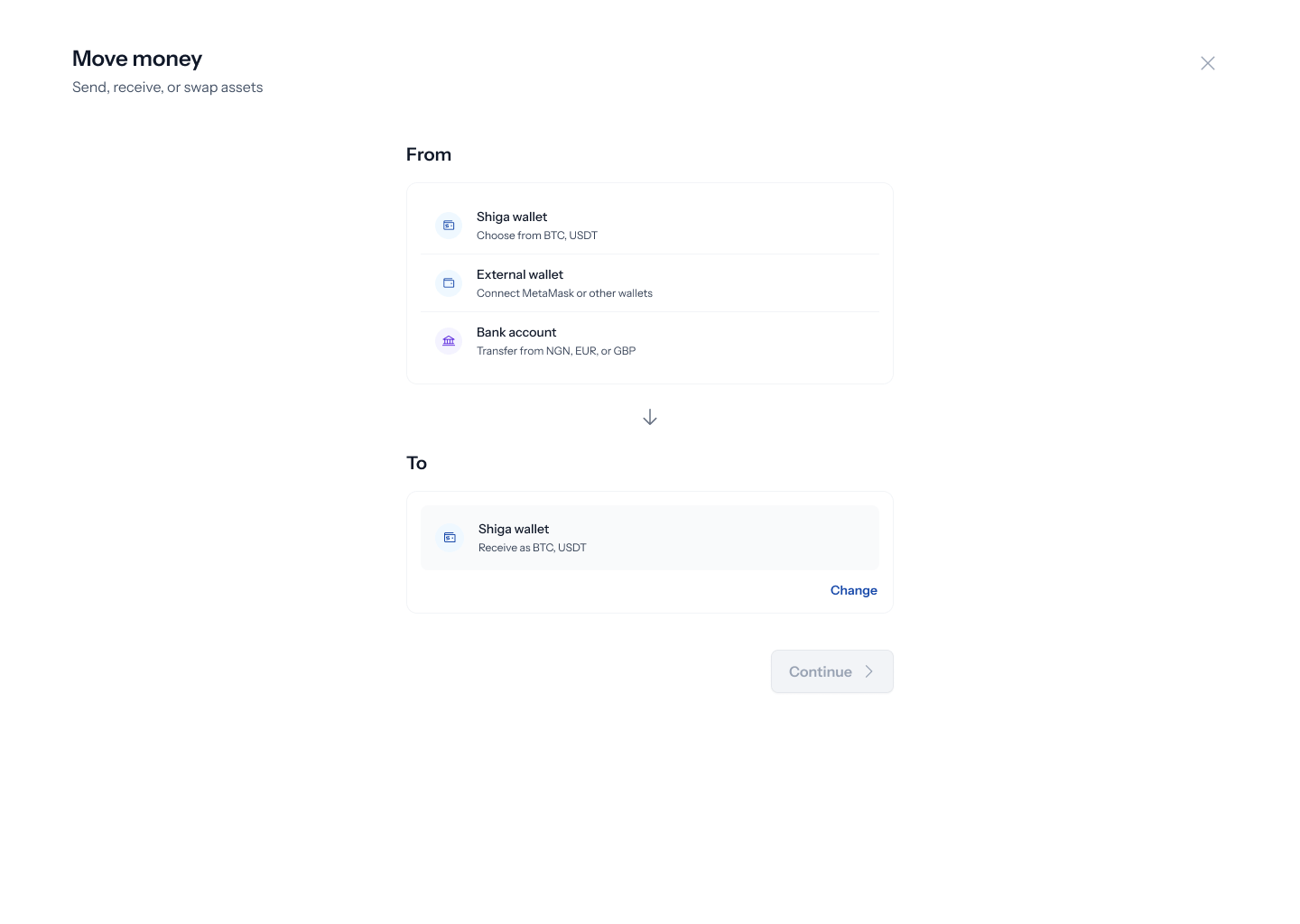
When you open Move money, a panel appears with the line “Send, receive, or swap assets”. Under From, you see three options:- Enta wallet: “Choose from BTC, USDT”
- External wallet: “Connect MetaMask or other wallets”
- Bank account: “Transfer from NGN, EUR, or GBP”
2. Choose your Enta wallet as the destination
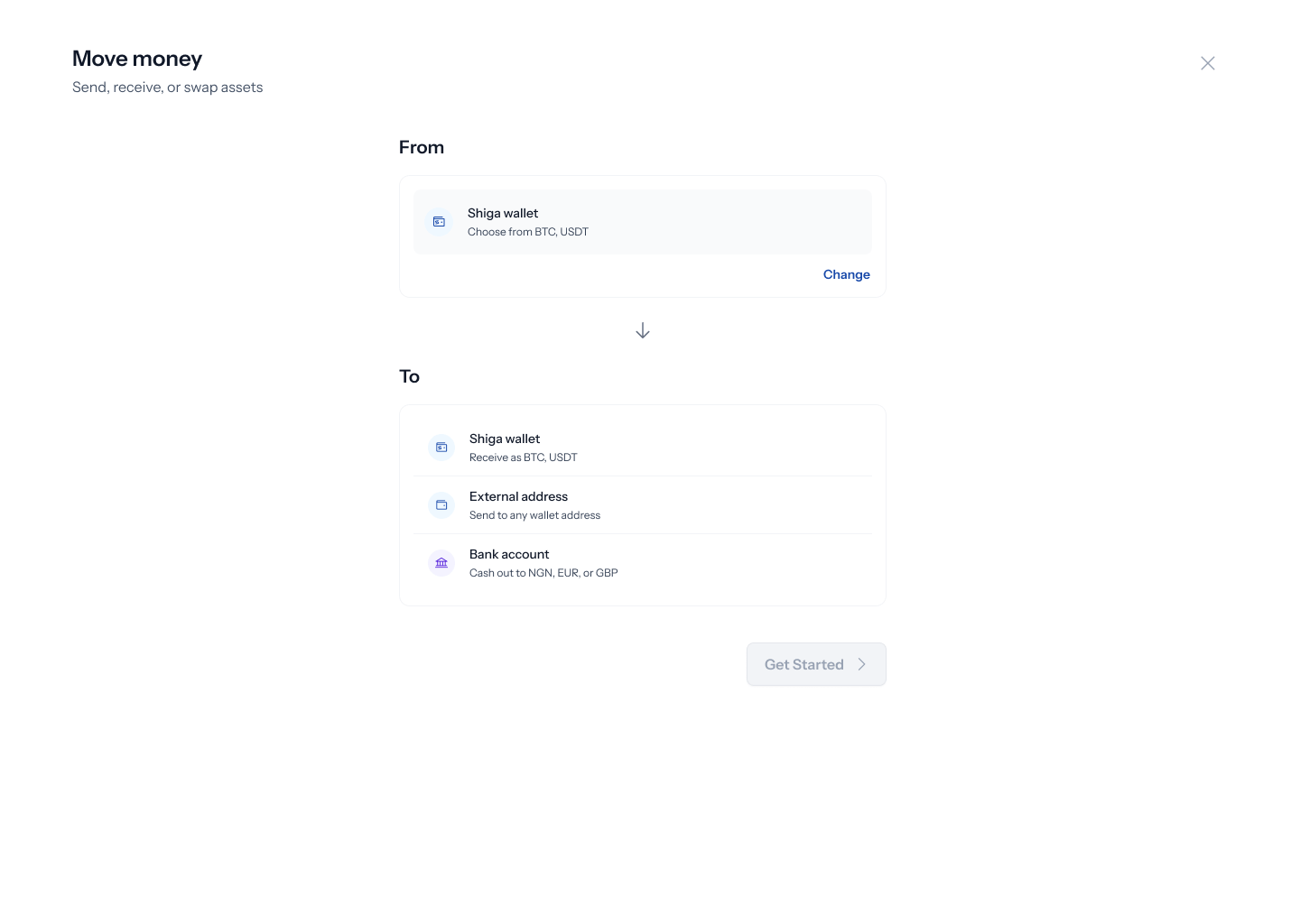
Under To, you see:- Enta wallet: “Receive as BTC, USDT”
- External address: “Send to any wallet address”
- Bank account: “Cash out to NGN, EUR, or GBP”
3. Check your choices and tap Get Started
Both From and To now show your Enta wallet, each with a Change link. The Get Started button turns blue. Tap Get Started.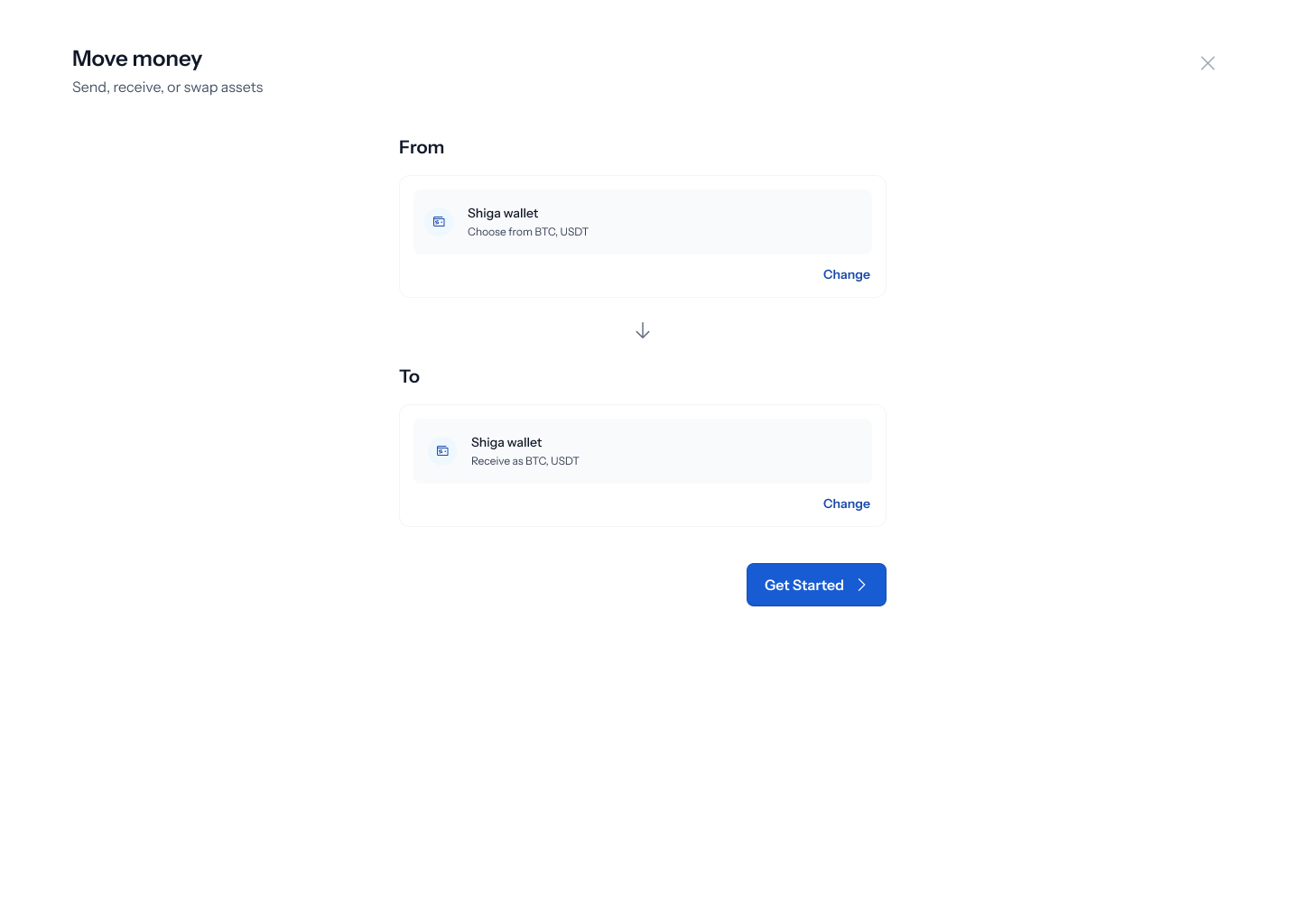
4. Open the Swap screen
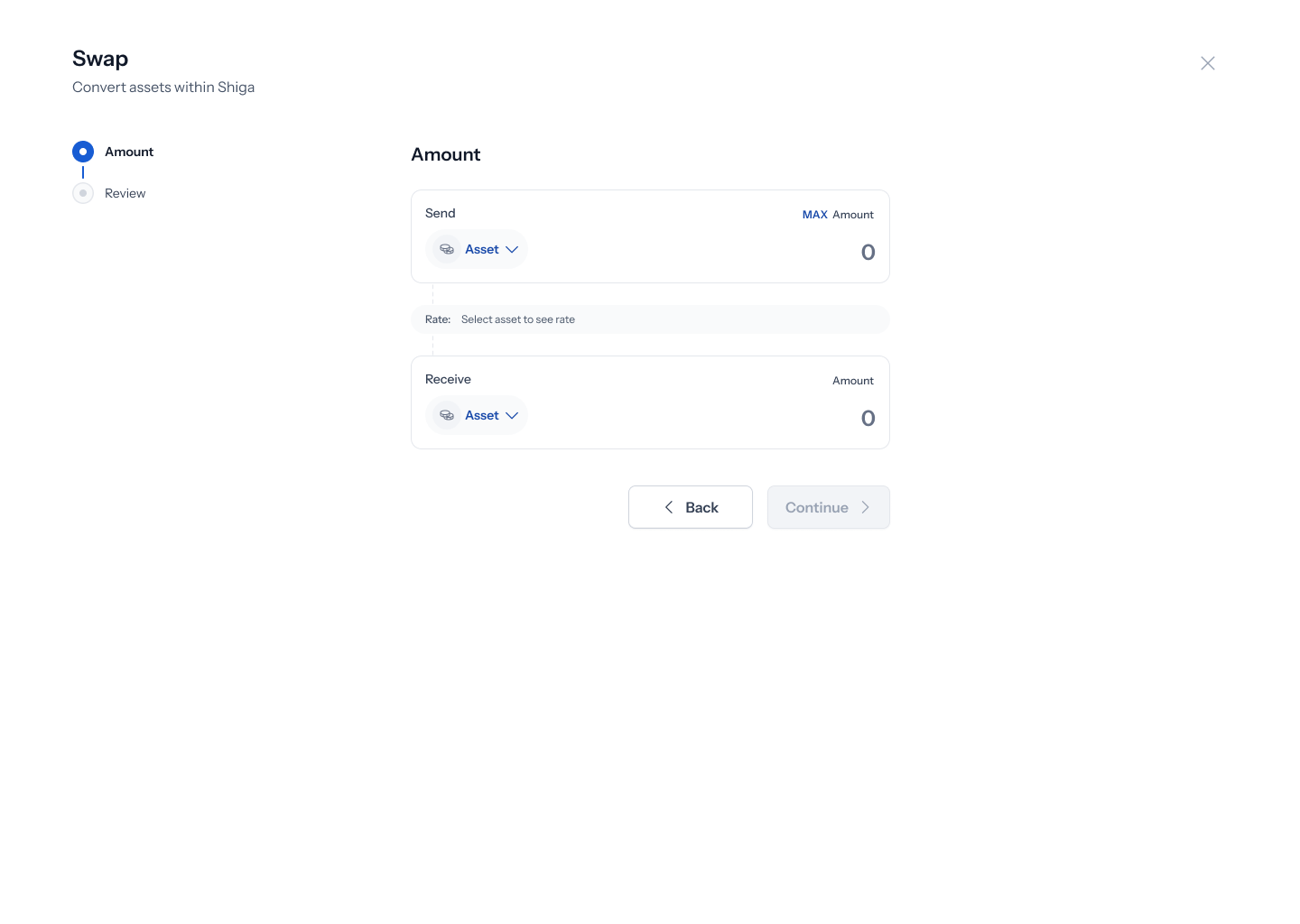
The Swap screen opens. On the left, a tracker shows two steps: Amount and Review. You see two cards, both empty to start:- Send is the asset you give up.
- Receive is the asset you get.
5. Pick the assets and networks
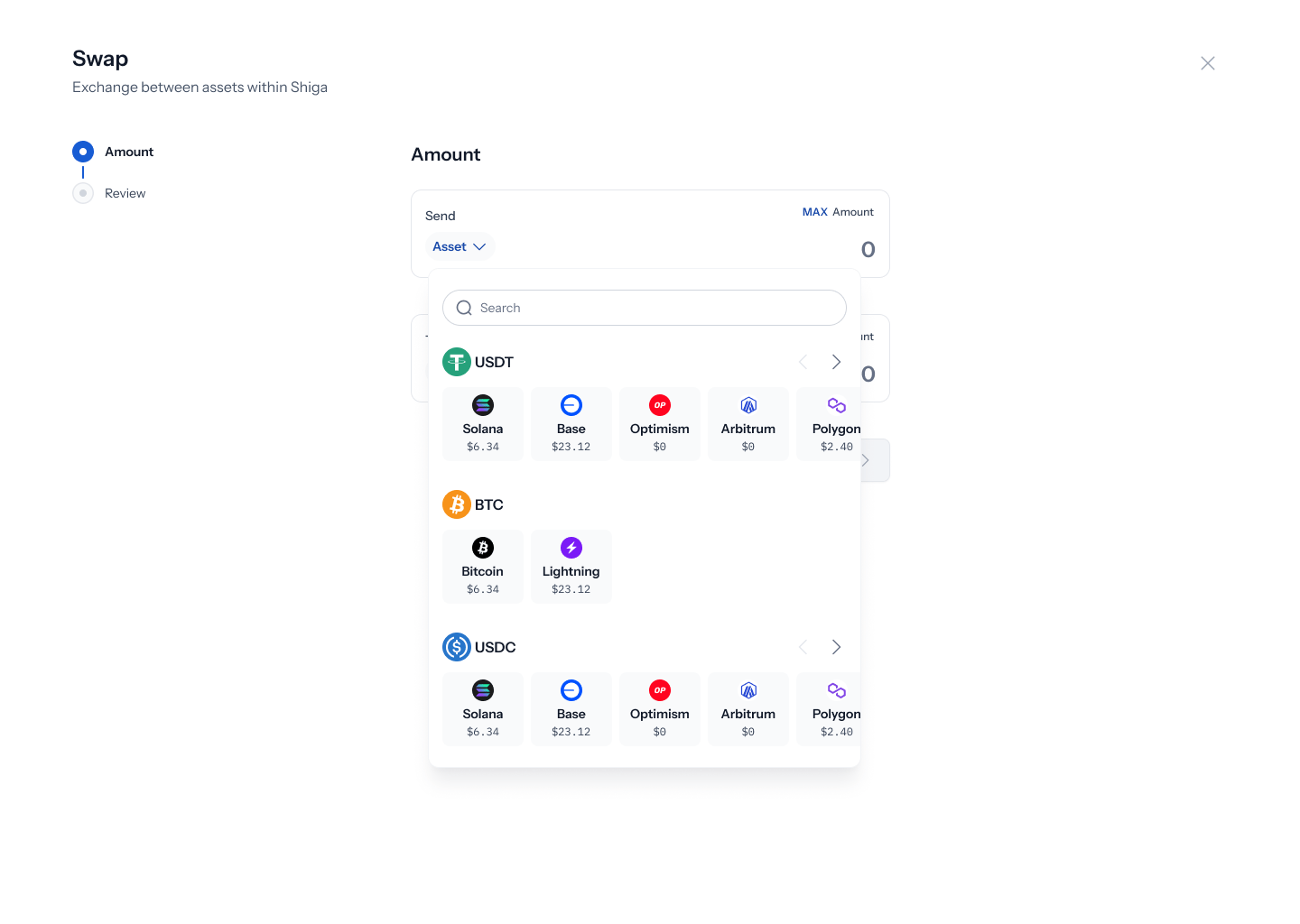
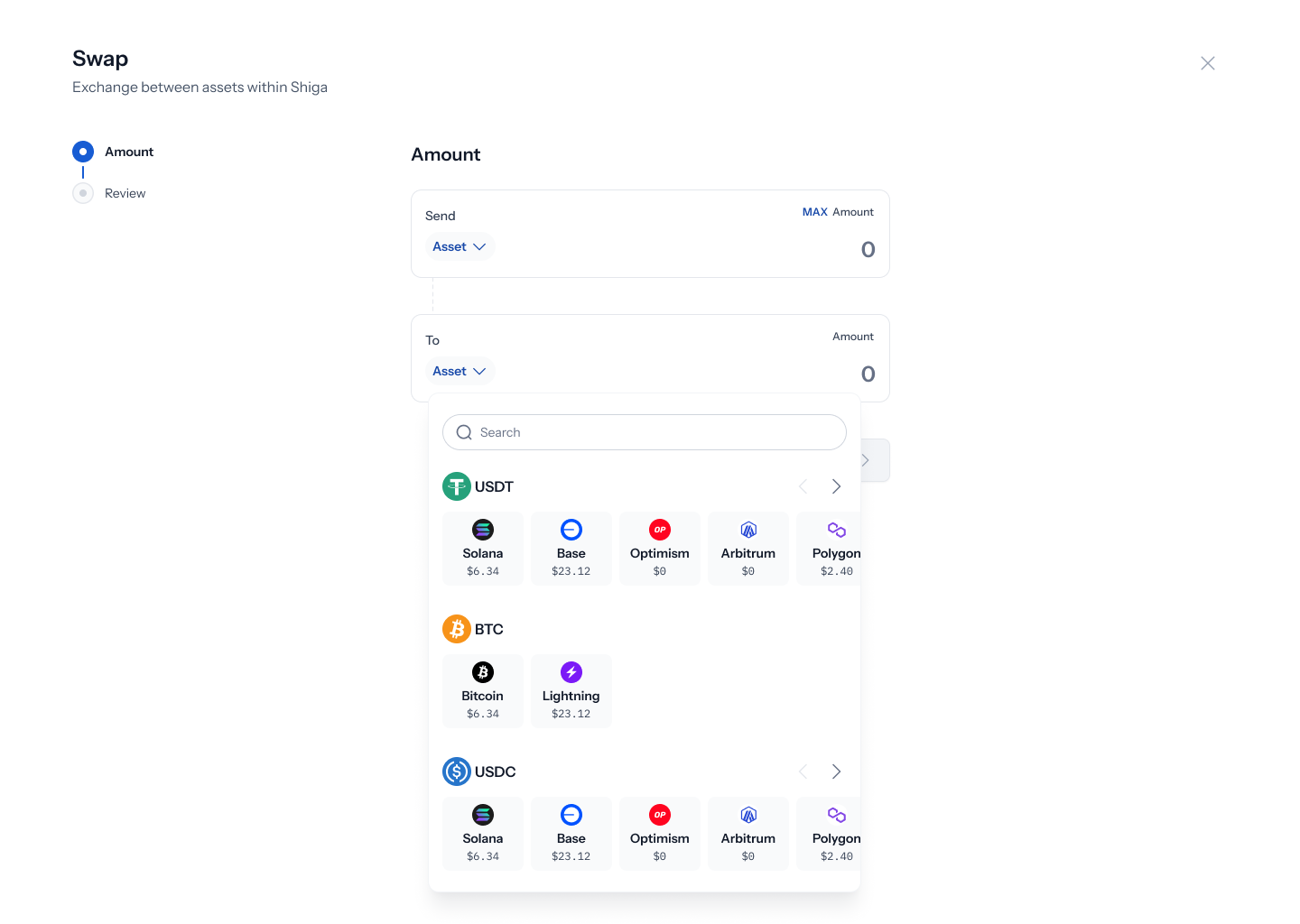
Tap Asset on the Send card to open a list. Use Search to find an asset, or scroll through the list:- USDT on Solana, Base, Optimism, Arbitrum or Polygon
- BTC on Bitcoin or Lightning
- USDC on Solana, Base, Optimism, Arbitrum or Polygon
6. Enter the amount
Once both assets are picked, each card shows the asset and network (for example, USDT on Base) and your Balance. The current rate appears between the cards, for example “Rate: 1 USDT ≈ 1.003 USDC”. Type an amount in the Send card, or tap MAX to use your whole balance.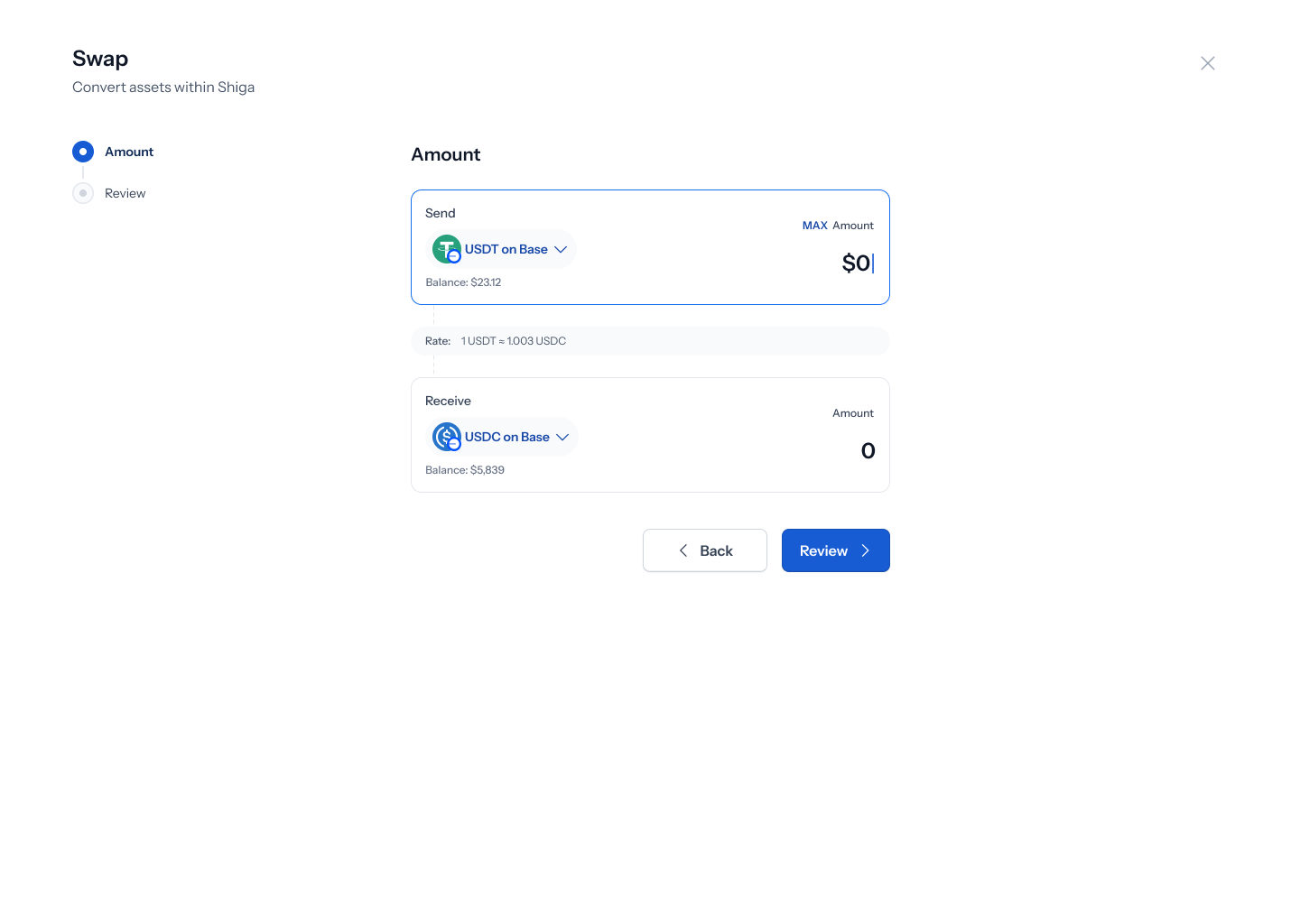
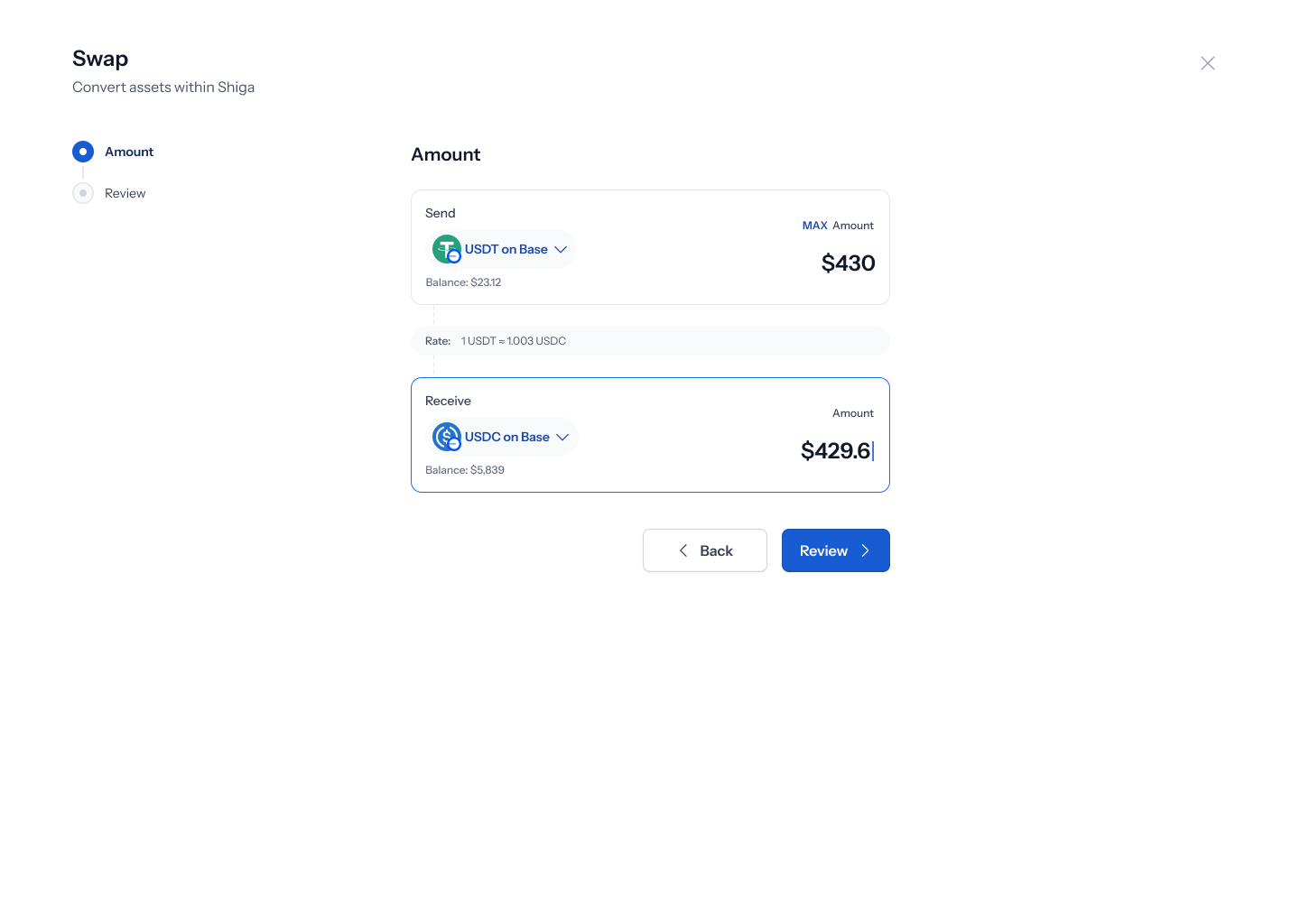
7. Review and approve with your passkey
The Review screen sums up your swap: the amount you send and the amount you receive, with the asset and network for each. Below that you see:- Type: Swap
- Network fee: the fee for this swap
- Estimated time: about 30 seconds
- From and To: both show your own Enta Wallet
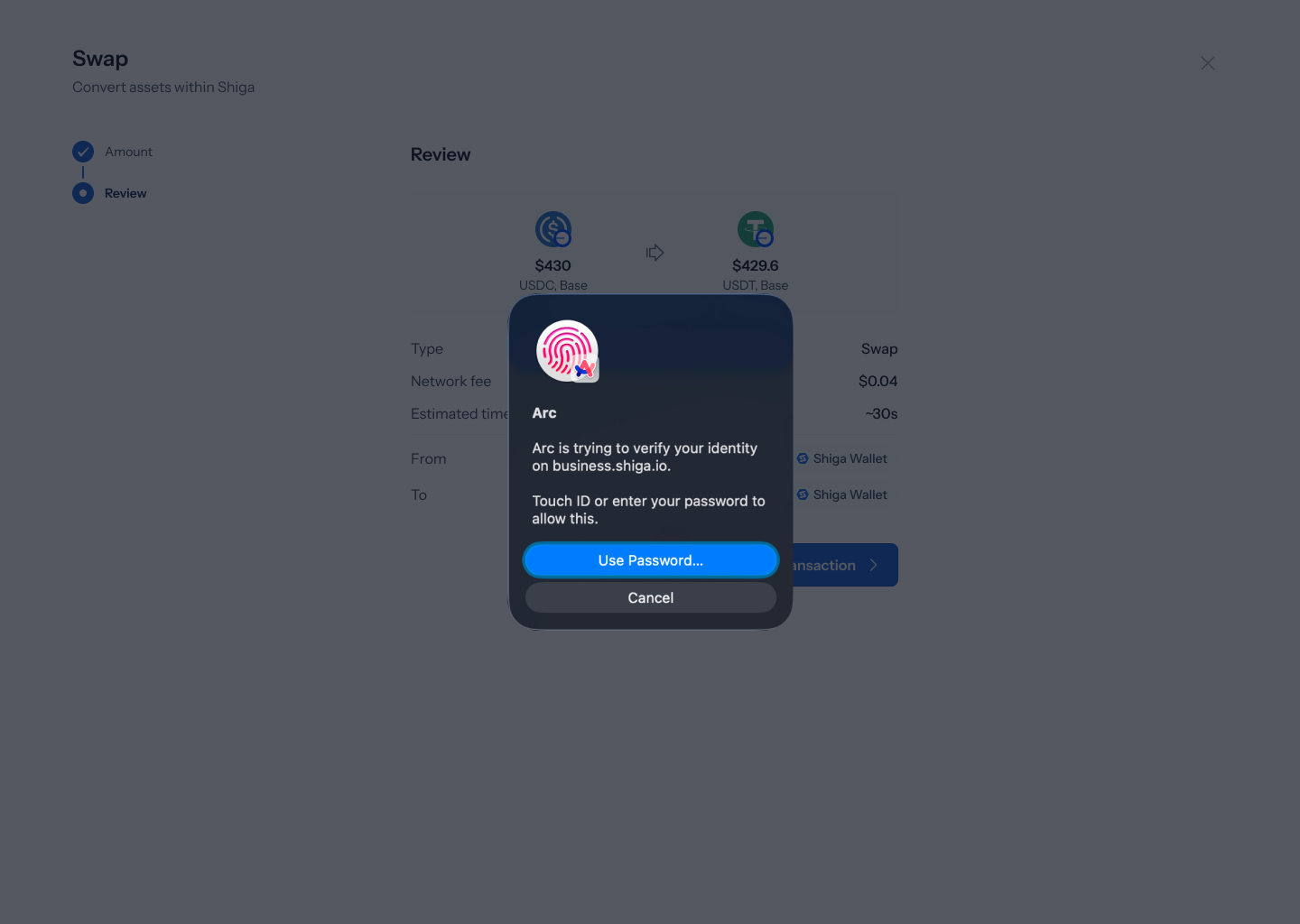
8. Wait while it processes
A screen reads “Processing your transaction…” with a summary of your swap underneath. This usually takes about 30 seconds.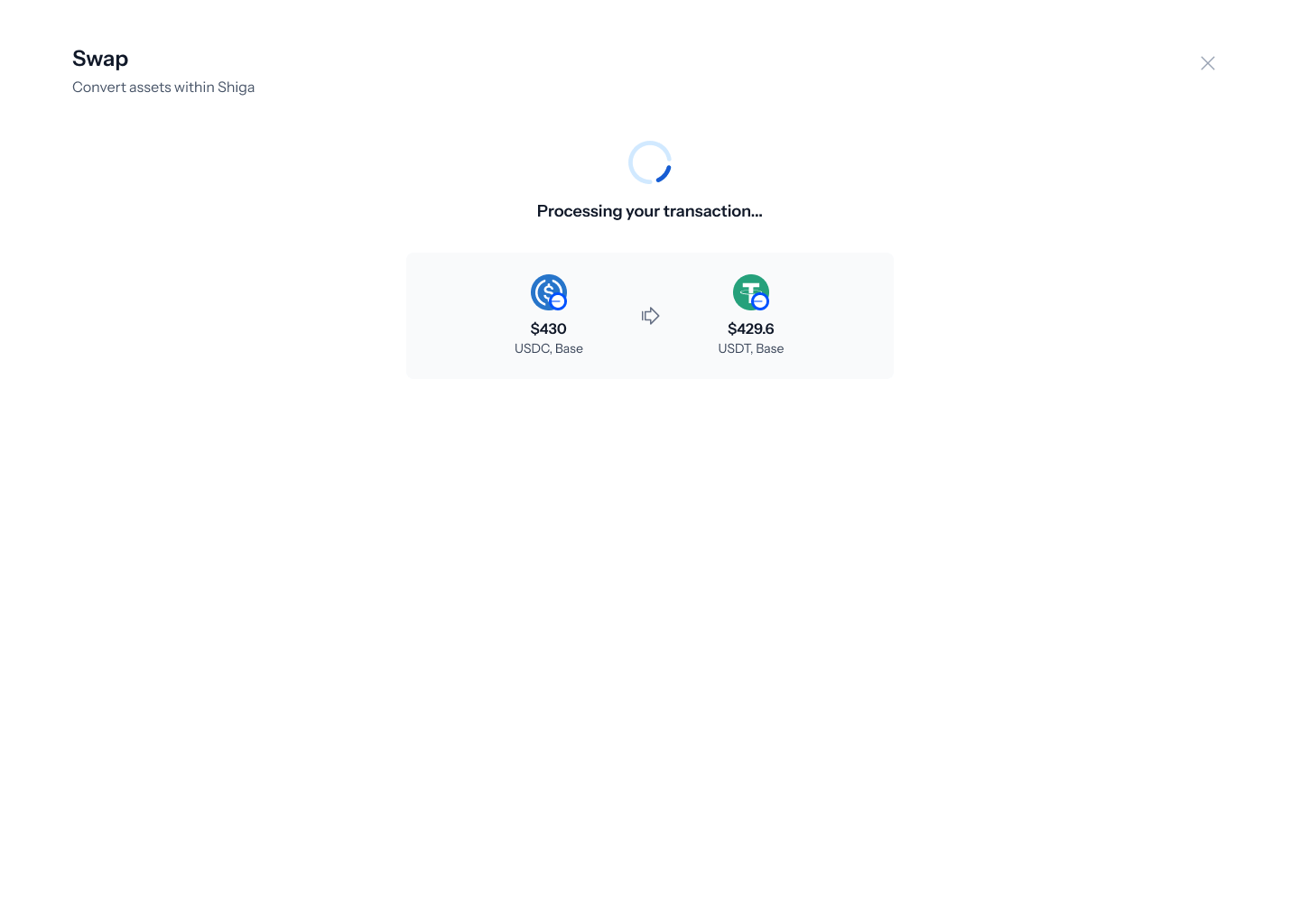
9. See your confirmation
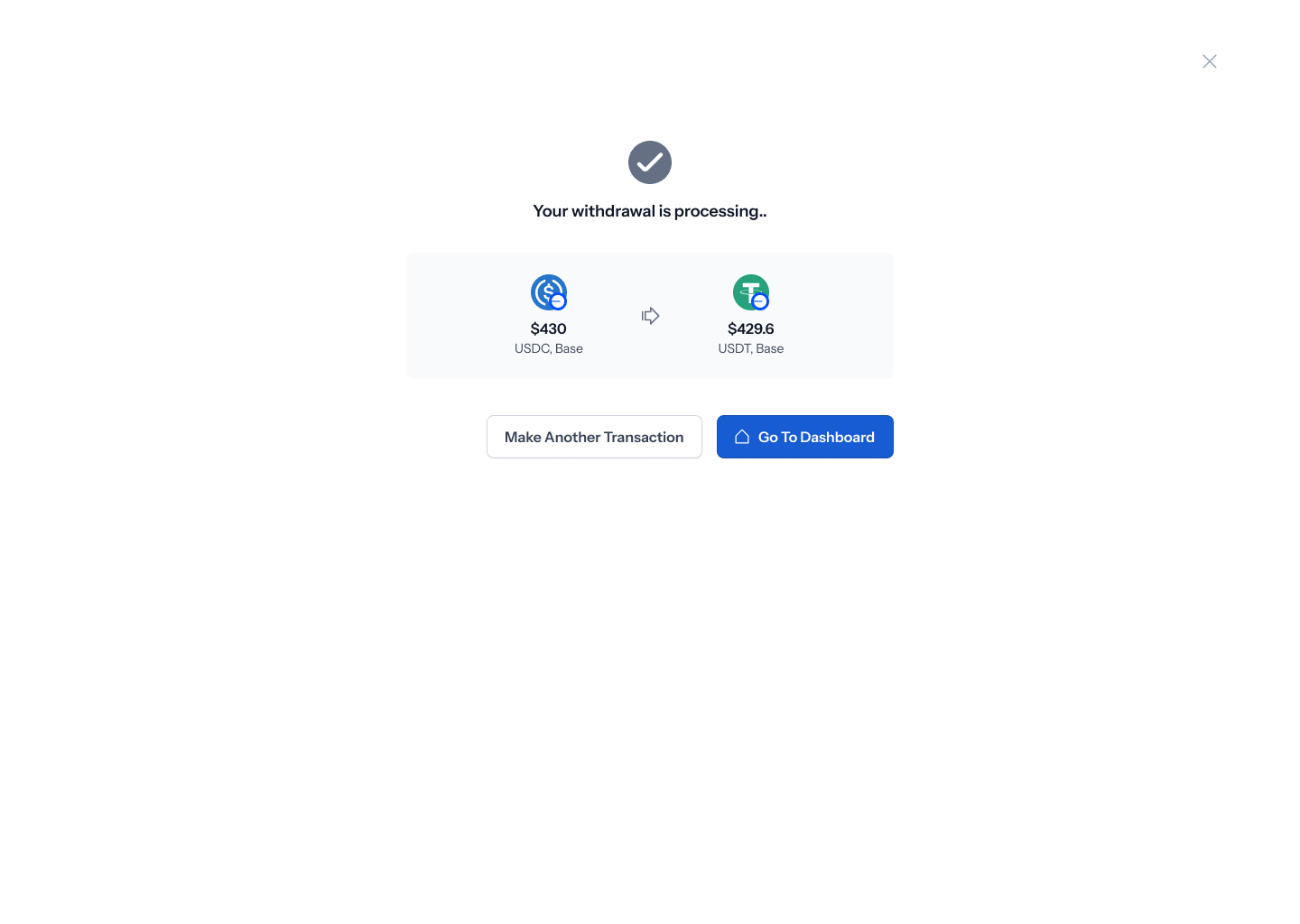
A tick shows your swap has gone through, with the message “Your withdrawal is processing..” and a summary of your swap. From here, tap Make Another Transaction to start a new one, or Go To Dashboard to finish.