> ## Documentation Index
> Fetch the complete documentation index at: https://docs.entashiga.io/llms.txt
> Use this file to discover all available pages before exploring further.
# Wallet Overview
> Your Wallets page — total balance, the assets you hold, and the networks your money sits on.
# Wallet Overview
**Wallets** is where everything you hold lives. One page shows your total balance, then breaks it down by asset, and then by the network each balance actually sits on.
***
## 1. Getting there from your Home screen
You don't have to open **Wallets** to see what you hold. Your Home screen carries a **Total balance** card with an **Assets** row beneath it, showing the coin icons for each asset you hold.
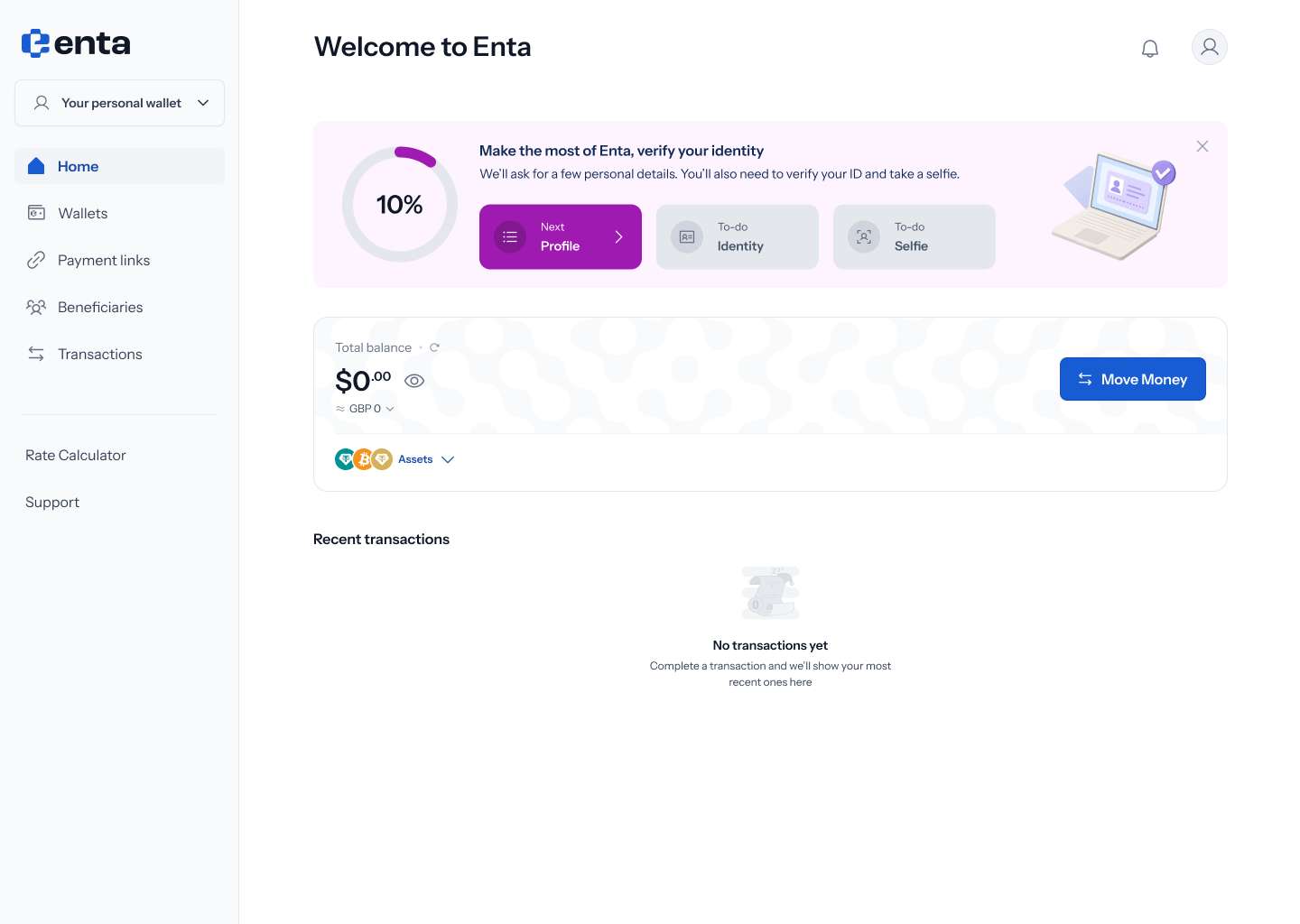 Tapping **Assets** expands it into a summary of all three at once:
| Row | What it shows |
| -------- | ------------------------------------------------------------------- |
| **USD₮** | Your Tether balance, with both its **EVM** and **Solana** addresses |
| **BTC** | Your Bitcoin balance and address |
| **XAU₮** | Your Tether Gold balance and address |
Each row shows the value in your display currency underneath, a copy icon beside each address, and a chevron on the right that opens that asset. **Collapse** closes the list again.
Tapping **Assets** expands it into a summary of all three at once:
| Row | What it shows |
| -------- | ------------------------------------------------------------------- |
| **USD₮** | Your Tether balance, with both its **EVM** and **Solana** addresses |
| **BTC** | Your Bitcoin balance and address |
| **XAU₮** | Your Tether Gold balance and address |
Each row shows the value in your display currency underneath, a copy icon beside each address, and a chevron on the right that opens that asset. **Collapse** closes the list again.
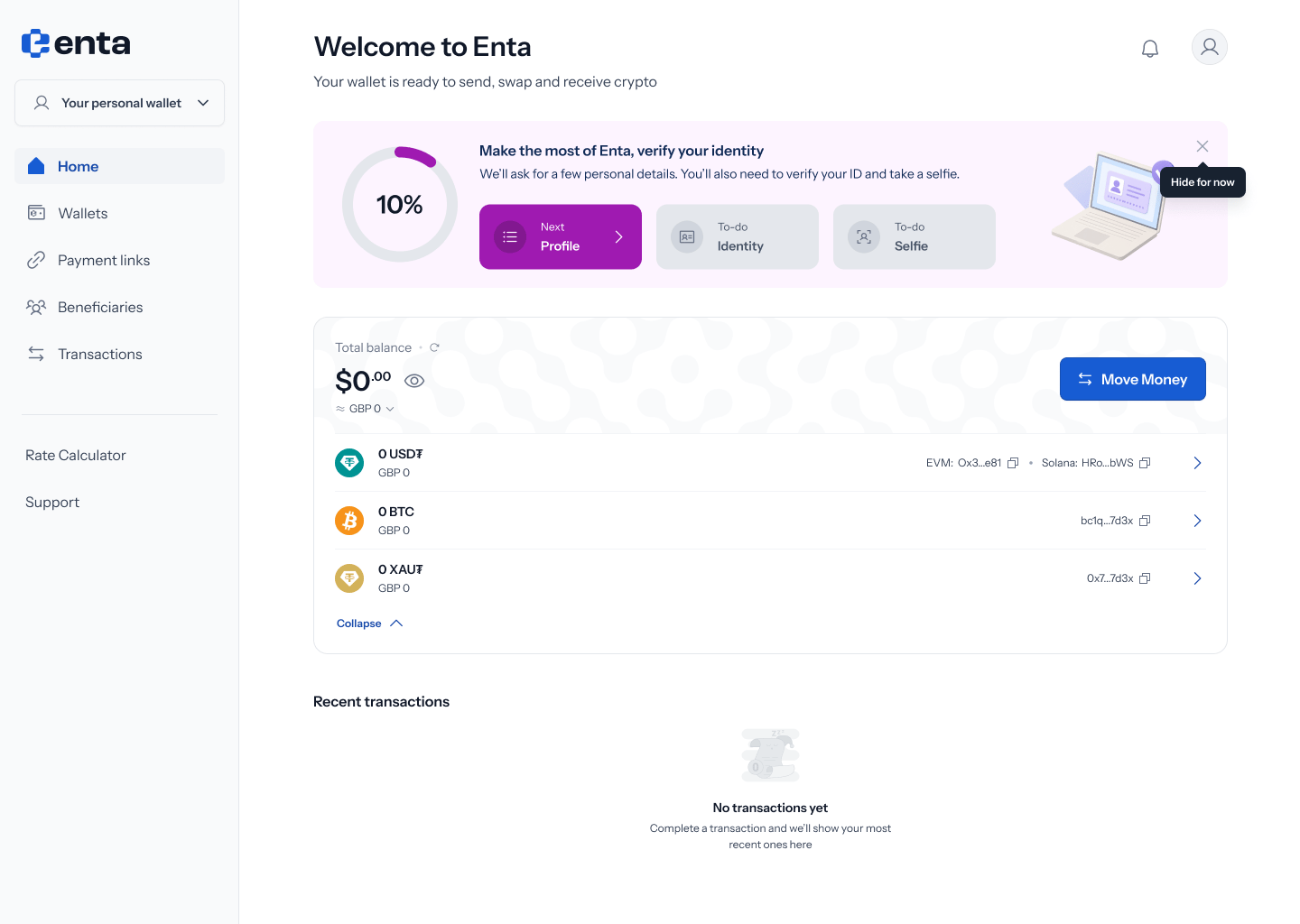 This is a summary, not the full picture. It shows one address per wallet type, so it's the quickest way to copy an address you use often — but it doesn't break USD₮ down across its individual EVM networks, and it doesn't show Tron. For that, open **Wallets**.
On a brand-new account you'll also see a **"Make the most of Enta, verify your identity"** banner above the balance, tracking your progress through Profile, Identity and Selfie. See [Onboarding](/Onboarding/individual/overview) for what each step unlocks. **Hide for now** dismisses it.
## 2. Your total balance
Open **Wallets** from the left-hand menu for the full breakdown. The card at the top shows **Total balance** across every asset and every network, converted into a single figure.
Three controls sit around it:
* The **eye** icon hides the figure, for when you're on a shared or public screen
* The **refresh** icon pulls the latest balances and prices
* **View balances in**, at the top right, switches the display currency — **USD** by default
**Move Money** is the main action on this card, and it opens the flow described in [Move Money](/MoveMoney/walletswap).
Your total is an approximation. Crypto prices move constantly, and the gold price behind XAU₮ moves independently of both, so the figure updates each time you refresh.
## 3. The three assets
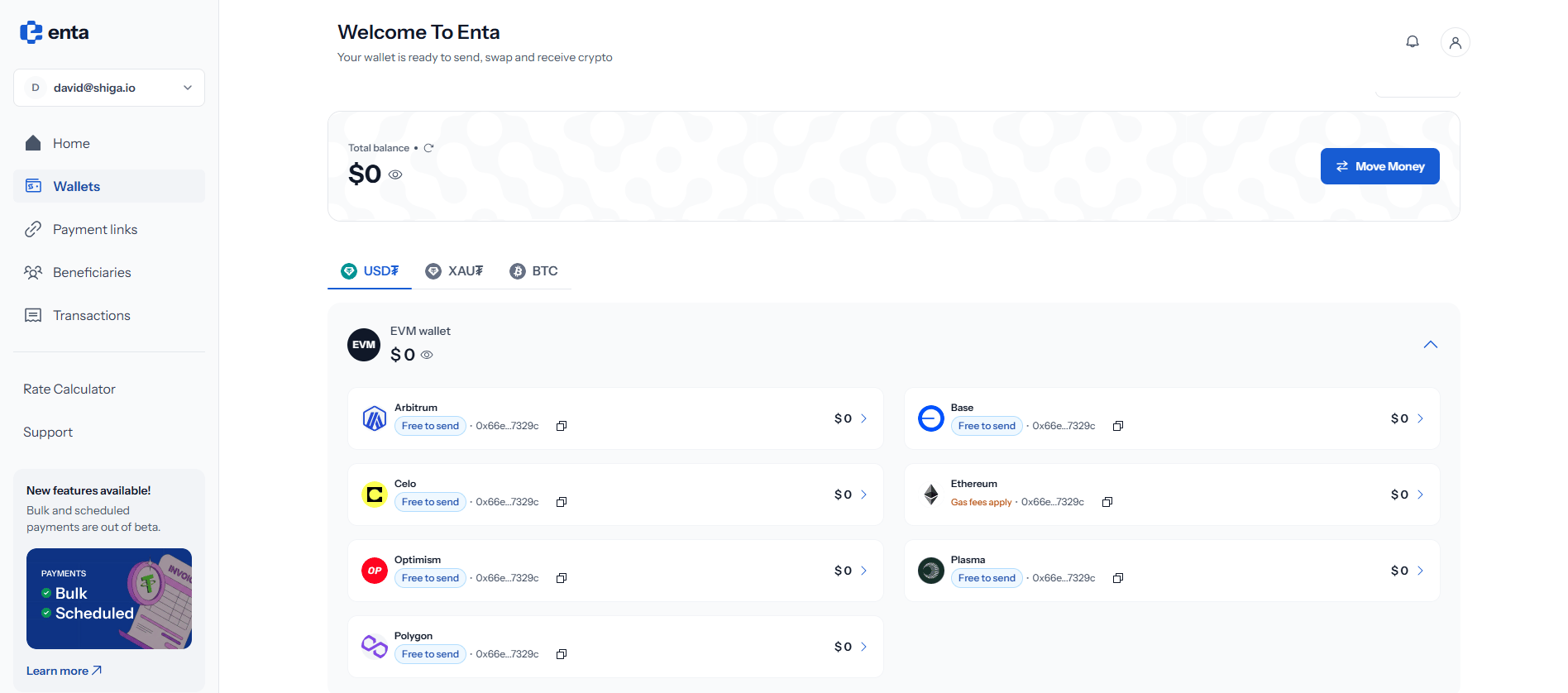
Below the balance card, tabs separate your holdings by asset. Each tab shows only the networks that asset lives on, which keeps the list short and stops unrelated chains cluttering the view.
| Tab | Asset | Where it lives |
| -------- | ------------------------------------ | ------------------------------------------------------ |
| **USD₮** | Tether's dollar stablecoin | [EVM networks, Solana and Tron](/Wallet/usdt/overview) |
| **XAU₮** | Tether Gold, backed by physical gold | [EVM networks only](/Wallet/xaut/overview) |
| **BTC** | Bitcoin | [The Bitcoin network and Spark](/Wallet/btc/overview) |
Each asset has its own guide covering the networks it supports and how to choose between them.
## 4. How each tab is laid out
Every tab follows the same shape. Balances are grouped by wallet type rather than listed flat, so a single row can stand for several networks at once.
Tapping the chevron on the right of a row expands it into the individual networks underneath. Each network row then shows:
* That network's balance, with its approximate value beneath
* The wallet address it uses, truncated, with a **copy** icon
* A chevron on the far right that opens the wallet on its own page
This is a summary, not the full picture. It shows one address per wallet type, so it's the quickest way to copy an address you use often — but it doesn't break USD₮ down across its individual EVM networks, and it doesn't show Tron. For that, open **Wallets**.
On a brand-new account you'll also see a **"Make the most of Enta, verify your identity"** banner above the balance, tracking your progress through Profile, Identity and Selfie. See [Onboarding](/Onboarding/individual/overview) for what each step unlocks. **Hide for now** dismisses it.
## 2. Your total balance
Open **Wallets** from the left-hand menu for the full breakdown. The card at the top shows **Total balance** across every asset and every network, converted into a single figure.
Three controls sit around it:
* The **eye** icon hides the figure, for when you're on a shared or public screen
* The **refresh** icon pulls the latest balances and prices
* **View balances in**, at the top right, switches the display currency — **USD** by default
**Move Money** is the main action on this card, and it opens the flow described in [Move Money](/MoveMoney/walletswap).
Your total is an approximation. Crypto prices move constantly, and the gold price behind XAU₮ moves independently of both, so the figure updates each time you refresh.
## 3. The three assets
Below the balance card, tabs separate your holdings by asset. Each tab shows only the networks that asset lives on, which keeps the list short and stops unrelated chains cluttering the view.
| Tab | Asset | Where it lives |
| -------- | ------------------------------------ | ------------------------------------------------------ |
| **USD₮** | Tether's dollar stablecoin | [EVM networks, Solana and Tron](/Wallet/usdt/overview) |
| **XAU₮** | Tether Gold, backed by physical gold | [EVM networks only](/Wallet/xaut/overview) |
| **BTC** | Bitcoin | [The Bitcoin network and Spark](/Wallet/btc/overview) |
Each asset has its own guide covering the networks it supports and how to choose between them.
## 4. How each tab is laid out
Every tab follows the same shape. Balances are grouped by wallet type rather than listed flat, so a single row can stand for several networks at once.
Tapping the chevron on the right of a row expands it into the individual networks underneath. Each network row then shows:
* That network's balance, with its approximate value beneath
* The wallet address it uses, truncated, with a **copy** icon
* A chevron on the far right that opens the wallet on its own page
 ## 5. Opening a single wallet
The chevron at the end of any network row opens that wallet's own page, where you can **Deposit**, **Withdraw** and **Swap**, see the full wallet address and QR code, and review the transactions for that network alone.
Wallet addresses are specific to both the asset **and** the network. The same address may be reused across EVM chains, but a Solana, Tron, Bitcoin or Spark address is entirely different in format and cannot be substituted.
Always copy the address from the network page you actually intend to receive on. Sending the right token over the wrong network is the most common way funds go missing, and it usually can't be reversed.
If someone is sending you money and asks "which network?", open the asset tab, pick the network you want, and copy the address from that page. Sending them a screenshot of the QR code works just as well.
## 5. Opening a single wallet
The chevron at the end of any network row opens that wallet's own page, where you can **Deposit**, **Withdraw** and **Swap**, see the full wallet address and QR code, and review the transactions for that network alone.
Wallet addresses are specific to both the asset **and** the network. The same address may be reused across EVM chains, but a Solana, Tron, Bitcoin or Spark address is entirely different in format and cannot be substituted.
Always copy the address from the network page you actually intend to receive on. Sending the right token over the wrong network is the most common way funds go missing, and it usually can't be reversed.
If someone is sending you money and asks "which network?", open the asset tab, pick the network you want, and copy the address from that page. Sending them a screenshot of the QR code works just as well.