> ## Documentation Index
> Fetch the complete documentation index at: https://docs.entashiga.io/llms.txt
> Use this file to discover all available pages before exploring further.
# Send
> Sending money to a saved beneficiary — to a crypto wallet or a bank account, every screen explained.
# Send
**Send** pays someone you've already saved as a beneficiary. It's one of the four quick actions on your home screen, alongside **Receive**, **Swap** and **Buy** — and you can switch between them using the tabs at the top of the panel without closing it.
The flow is the same whether you're paying a crypto wallet or a bank account. What changes is what the recipient ends up holding.
Send only pays **saved beneficiaries**. If the person you want to pay isn't in your list yet, add them first — see [Add a Beneficiary](/Product/Beneficiary/addbeneficiary).
***
## 1. Open Send and pick who's being paid
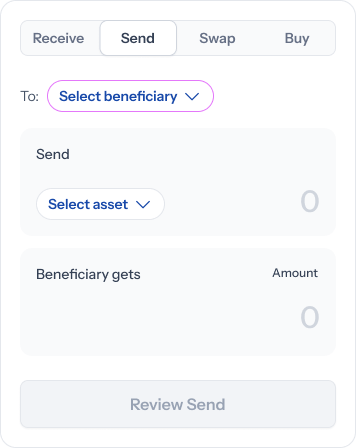
The panel opens with two cards: what you're sending at the top, and what the recipient gets underneath.
At the top, **To:** starts as **Select beneficiary**. Everything else is greyed out until you choose — both amounts show **0**, and **Review send** stays disabled.
 Tapping **Select beneficiary** opens your saved list, with a **Search** box and three filters — **All**, **Wallets**, **Banks** — above a **SAVED BENEFICIARIES** heading.
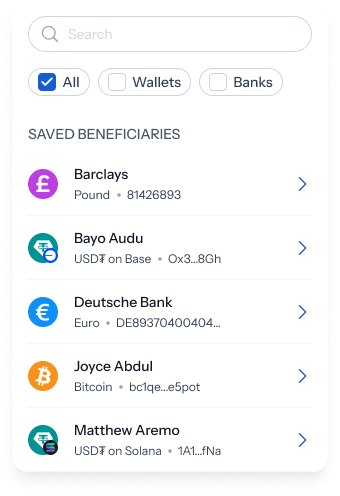 Each row tells you where the money would land:
| Beneficiary | What the row shows |
| ------------------ | ---------------------------------------------------------------------------------------------------------- |
| A **wallet** | The asset and network, plus a truncated address — e.g. **USD₮ on Base**, **Bitcoin**, **USDC on Optimism** |
| A **bank account** | The currency and account number — e.g. **Pound**, **Euro** |
The **Wallets** and **Banks** filters are the fastest way through a long list, since a person can appear more than once if you've saved several ways of paying them.
## 2. Choose what you're sending
Once a beneficiary is picked, the bottom card locks to what they receive — **"Joyce Abdul gets"** with a fixed **Bitcoin** chip for a wallet, or **"Barclays (…6893) gets"** with a fixed **Pound** chip for a bank account.
You can't change that side. It's set by the beneficiary you saved.
Each row tells you where the money would land:
| Beneficiary | What the row shows |
| ------------------ | ---------------------------------------------------------------------------------------------------------- |
| A **wallet** | The asset and network, plus a truncated address — e.g. **USD₮ on Base**, **Bitcoin**, **USDC on Optimism** |
| A **bank account** | The currency and account number — e.g. **Pound**, **Euro** |
The **Wallets** and **Banks** filters are the fastest way through a long list, since a person can appear more than once if you've saved several ways of paying them.
## 2. Choose what you're sending
Once a beneficiary is picked, the bottom card locks to what they receive — **"Joyce Abdul gets"** with a fixed **Bitcoin** chip for a wallet, or **"Barclays (…6893) gets"** with a fixed **Pound** chip for a bank account.
You can't change that side. It's set by the beneficiary you saved.
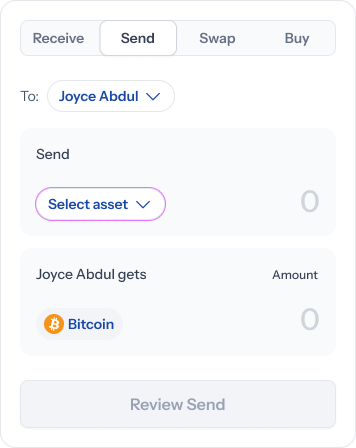
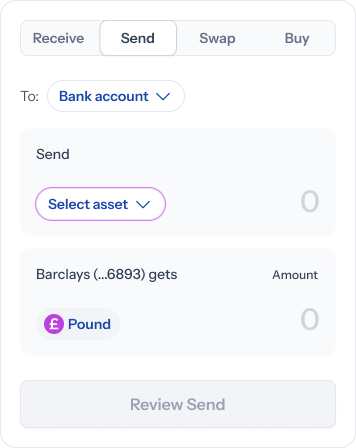 What you choose is the **top** card — which of your balances the money comes out of. Tap **Select asset**.
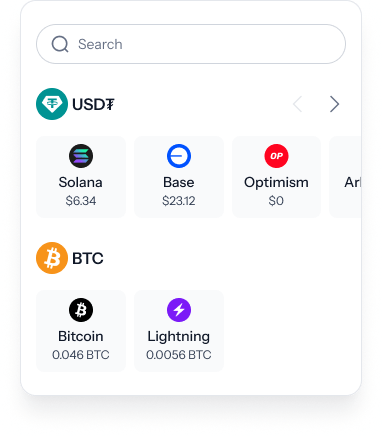 The list groups by asset and shows every network you hold it on, with the balance on each — **USD₮** across Solana, Base, Optimism, Arbitrum and Polygon, then **BTC** across Bitcoin and Lightning. There's a **Search** box at the top.
You're choosing a **network**, not just an asset. USD₮ on Solana and USD₮ on Base are separate balances, and the one you pick is the one that gets debited.
## 3. Enter the amount
With both sides set, the top card shows your **Balance** for the network you picked, and four quick-fill chips — **25%**, **50%**, **75%**, **MAX**.
A conversion rate sits to the right of the cards: **"1 USD₮ ≈ 0.000012 BTC"** for a crypto payout, or **"1 USD₮ ≈ 0.73 GBP"** for a bank one.
The list groups by asset and shows every network you hold it on, with the balance on each — **USD₮** across Solana, Base, Optimism, Arbitrum and Polygon, then **BTC** across Bitcoin and Lightning. There's a **Search** box at the top.
You're choosing a **network**, not just an asset. USD₮ on Solana and USD₮ on Base are separate balances, and the one you pick is the one that gets debited.
## 3. Enter the amount
With both sides set, the top card shows your **Balance** for the network you picked, and four quick-fill chips — **25%**, **50%**, **75%**, **MAX**.
A conversion rate sits to the right of the cards: **"1 USD₮ ≈ 0.000012 BTC"** for a crypto payout, or **"1 USD₮ ≈ 0.73 GBP"** for a bank one.
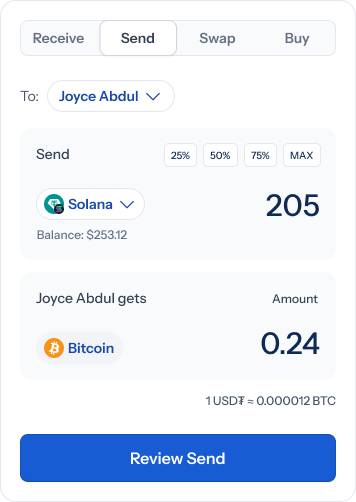
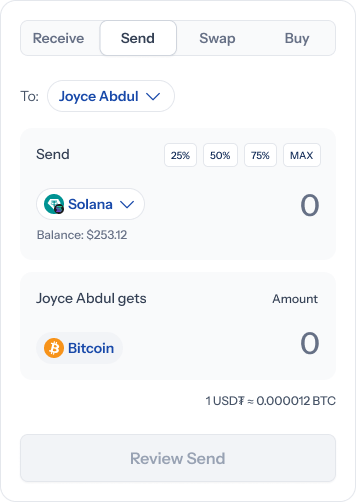 Type into either box and the other fills in automatically. Once there's an amount, **Review send** turns blue.
 ### Paying a bank account? There's one extra field
Sending to a bank adds **Narration (optional)** — a free-text box with the placeholder *"Enter a description..."*. It's the reference the recipient sees on their statement.
### Paying a bank account? There's one extra field
Sending to a bank adds **Narration (optional)** — a free-text box with the placeholder *"Enter a description..."*. It's the reference the recipient sees on their statement.
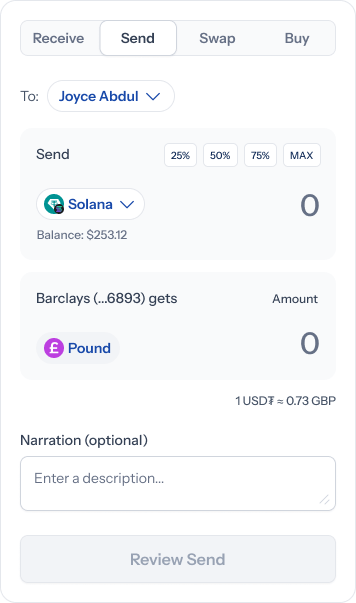 It says optional, and it is — but a short note like an invoice number is worth adding. It's the only thing that tells the recipient's bank what the payment was for.
## 4. Review before you send
**Review send** opens a summary headed with what's leaving and where it's going — for example **"Send 0.24 BTC to Joyce Abdul"**, or **"Send 150.34 GBP to Barclays (81426893)"**.
Three rows underneath:
| Row | What it shows |
| -------- | ------------------------------------------------------------------------------------------------------------------------- |
| **From** | The amount and asset leaving, with the network beneath — e.g. **205 USD₮** / **Solana** |
| **To** | What lands, with the destination beneath — **Bitcoin** / `bc1q…x9k` for a wallet, or **Pounds** / **81426893** for a bank |
| **Rate** | The conversion used, with the fee beneath — e.g. **1 USD₮ ≈ 0.73 GBP** / **0 fee** |
It says optional, and it is — but a short note like an invoice number is worth adding. It's the only thing that tells the recipient's bank what the payment was for.
## 4. Review before you send
**Review send** opens a summary headed with what's leaving and where it's going — for example **"Send 0.24 BTC to Joyce Abdul"**, or **"Send 150.34 GBP to Barclays (81426893)"**.
Three rows underneath:
| Row | What it shows |
| -------- | ------------------------------------------------------------------------------------------------------------------------- |
| **From** | The amount and asset leaving, with the network beneath — e.g. **205 USD₮** / **Solana** |
| **To** | What lands, with the destination beneath — **Bitcoin** / `bc1q…x9k` for a wallet, or **Pounds** / **81426893** for a bank |
| **Rate** | The conversion used, with the fee beneath — e.g. **1 USD₮ ≈ 0.73 GBP** / **0 fee** |
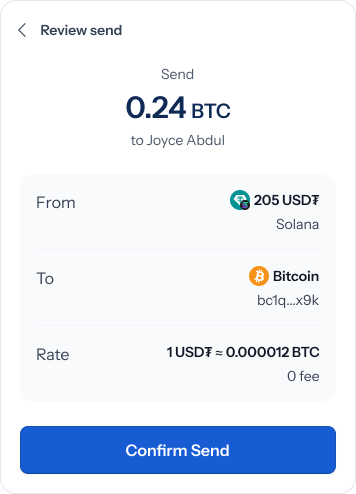 Check the **To** row against who you meant to pay. This screen shows the full account number or wallet address, where the earlier screens only showed it truncated — so it's the last and clearest chance to catch a payment aimed at the wrong saved beneficiary. Crypto transfers can't be reversed.
The back arrow returns you to the amount screen with everything still filled in. **Confirm Send** sends it.
## 5. Done
A confirmation reports what's on its way — **"0.24 BTC on its way to Joyce Abdul"**, or **"150.34 GBP on its way to Barclays (81426893)"**.
Check the **To** row against who you meant to pay. This screen shows the full account number or wallet address, where the earlier screens only showed it truncated — so it's the last and clearest chance to catch a payment aimed at the wrong saved beneficiary. Crypto transfers can't be reversed.
The back arrow returns you to the amount screen with everything still filled in. **Confirm Send** sends it.
## 5. Done
A confirmation reports what's on its way — **"0.24 BTC on its way to Joyce Abdul"**, or **"150.34 GBP on its way to Barclays (81426893)"**.
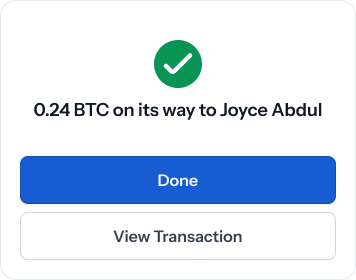 **Done** closes the panel. **View transaction** opens the payment in your history — see [Transactions](/Product/transactions).
The confirmation says the money is on its way, not that it's arrived. A crypto transfer settles when the network confirms it, and a bank payout depends on the receiving bank. Track either from [Transactions](/Product/transactions).
## Related
* [Add a Beneficiary](/Product/Beneficiary/addbeneficiary) — save someone before you can pay them
* [Swap Assets](/Product/swap) — move between your own balances instead
* [Deposit](/Product/deposit) — receive money rather than send it
* [Transactions](/Product/transactions) — the full record of what you've sent
**Done** closes the panel. **View transaction** opens the payment in your history — see [Transactions](/Product/transactions).
The confirmation says the money is on its way, not that it's arrived. A crypto transfer settles when the network confirms it, and a bank payout depends on the receiving bank. Track either from [Transactions](/Product/transactions).
## Related
* [Add a Beneficiary](/Product/Beneficiary/addbeneficiary) — save someone before you can pay them
* [Swap Assets](/Product/swap) — move between your own balances instead
* [Deposit](/Product/deposit) — receive money rather than send it
* [Transactions](/Product/transactions) — the full record of what you've sent