> ## Documentation Index
> Fetch the complete documentation index at: https://docs.entashiga.io/llms.txt
> Use this file to discover all available pages before exploring further.
# Archive a Payment Link
> Stop a payment link from accepting payments without deleting it, start to finish.
# Archive a Payment Link
Archiving a payment link stops it from accepting any further payments, without deleting it — you can find it later under the **Archived** tab, and restore it if you change your mind.
This is a different guide from [Create a One-Time Payment Link](/Product/Paymentlinks/onetime), [Create a Reusable Payment Link](/Product/Paymentlinks/reusable), [Payment Link Details](/Product/Paymentlinks/details), and [Restore a Payment Link](/Product/Paymentlinks/restore).
***
## 1. Open the link's options menu
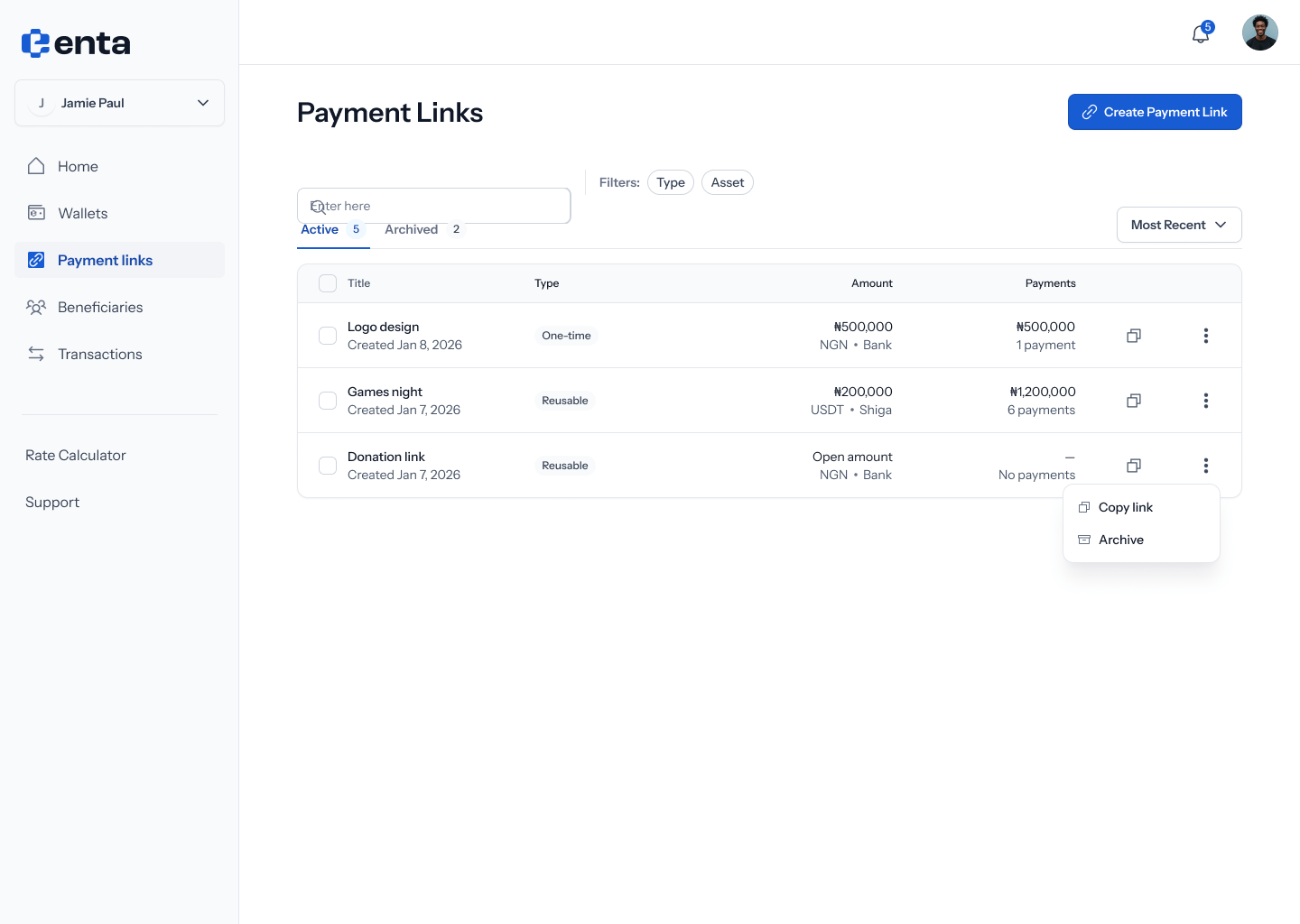
From your **Payment Links** list (on the **Active** tab), find the link you want to archive and tap its **•••** options menu. You'll see two items: **Copy link** and **Archive**. Tap **Archive**.
 You can also archive a link from its own details view — see [Payment Link Details](/Product/Paymentlinks/details#4-archive-or-restore-the-link) — using an **Archive Link** button instead of this list menu. Both paths lead to the same result.
## 2. Confirm
A confirmation dialog asks **"Archive this payment link?"**. Tap **Cancel** to back out, or **Archive link** to confirm.
You can also archive a link from its own details view — see [Payment Link Details](/Product/Paymentlinks/details#4-archive-or-restore-the-link) — using an **Archive Link** button instead of this list menu. Both paths lead to the same result.
## 2. Confirm
A confirmation dialog asks **"Archive this payment link?"**. Tap **Cancel** to back out, or **Archive link** to confirm.
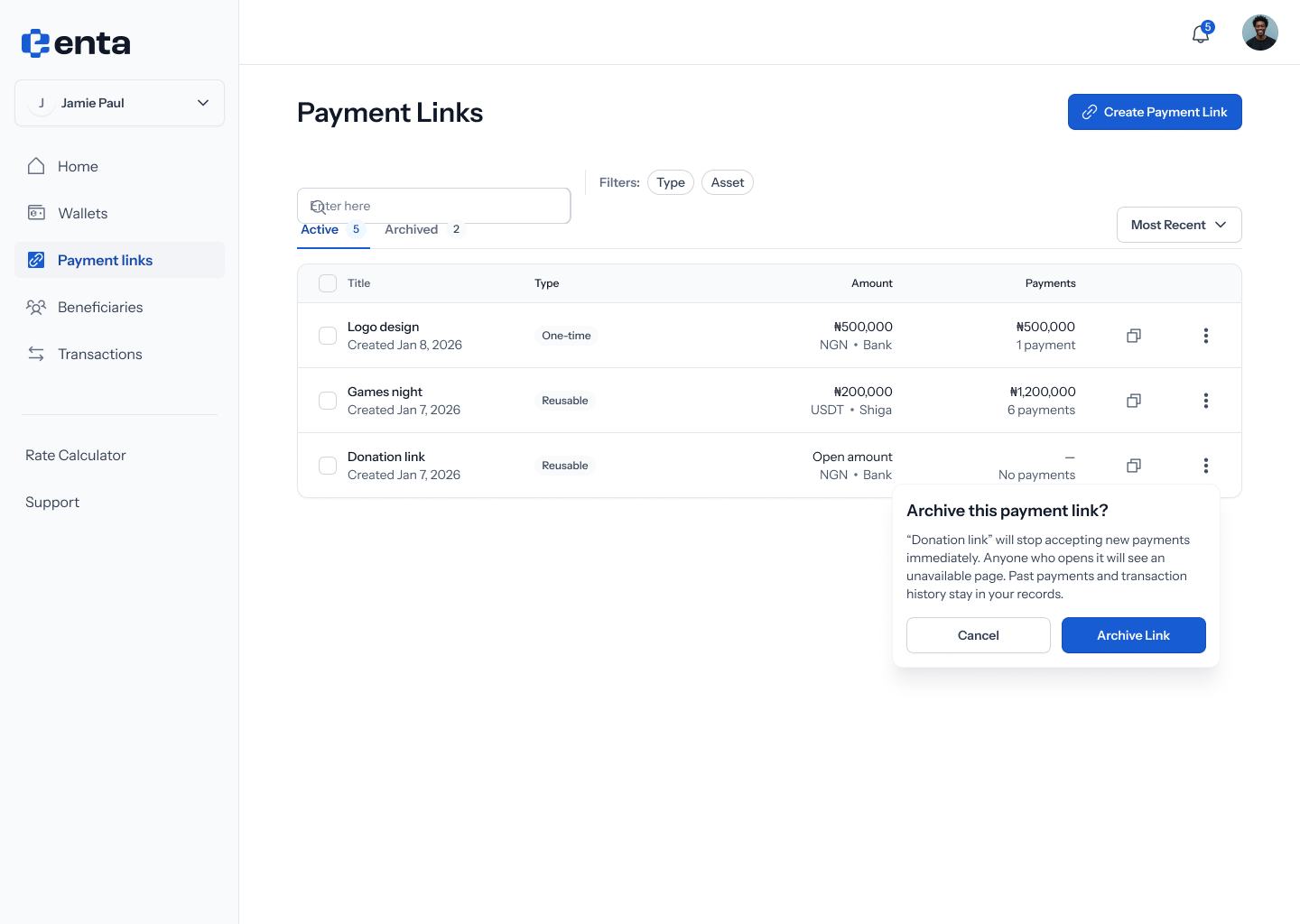 The exact button wording varies slightly depending on where you start: from the list menu it's **Cancel** / **Archive link**; from a link's own details view the same confirmation reads **No, cancel** / **Yes, Archive**. Both do the same thing — worth a copy pass to make them consistent.
## 3. The link moves to Archived
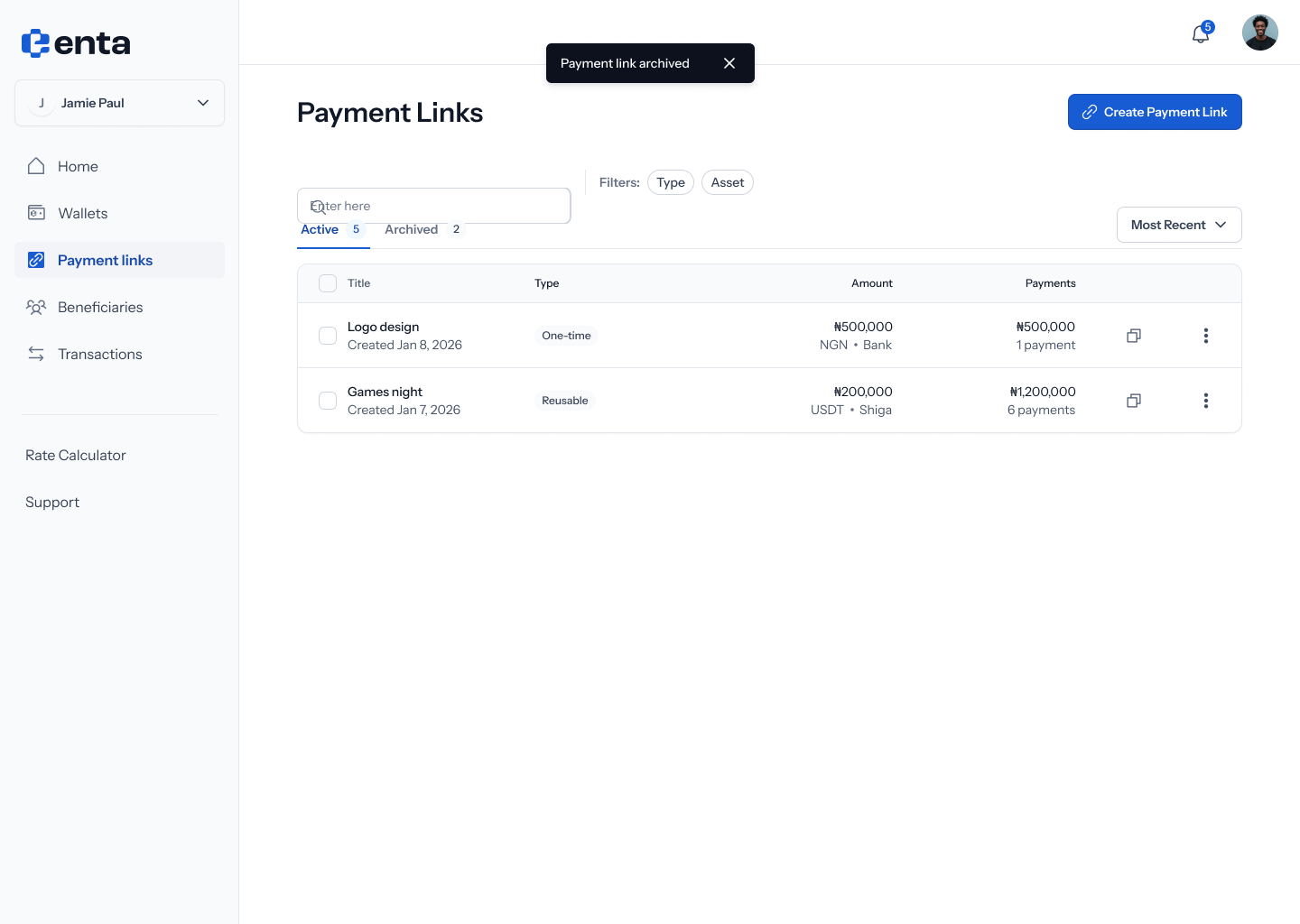
A toast confirms: **"Payment link archived"**. The link disappears from your **Active** tab and now appears under **Archived**, where it can no longer accept payments.
The exact button wording varies slightly depending on where you start: from the list menu it's **Cancel** / **Archive link**; from a link's own details view the same confirmation reads **No, cancel** / **Yes, Archive**. Both do the same thing — worth a copy pass to make them consistent.
## 3. The link moves to Archived
A toast confirms: **"Payment link archived"**. The link disappears from your **Active** tab and now appears under **Archived**, where it can no longer accept payments.