> ## Documentation Index
> Fetch the complete documentation index at: https://docs.entashiga.io/llms.txt
> Use this file to discover all available pages before exploring further.
# Delete a Beneficiary
> Remove one saved beneficiary, or several at once, start to finish.
# Delete a Beneficiary
Deleting a beneficiary removes their saved details permanently — you'd need to add them again from scratch to pay them the same way in future.
This is a different guide from [Beneficiaries List](/Product/Beneficiary/liststates), [Add a Beneficiary](/Product/Beneficiary/addbeneficiary), [View Beneficiary Details](/Product/Beneficiary/viewdetails), [Edit Beneficiary Details](/Product/Beneficiary/editdetails), [View Beneficiary Transactions](/Product/Beneficiary/viewtransactions), and [Filter Beneficiaries](/Product/Beneficiary/filters).
***
## 1. Delete a single beneficiary
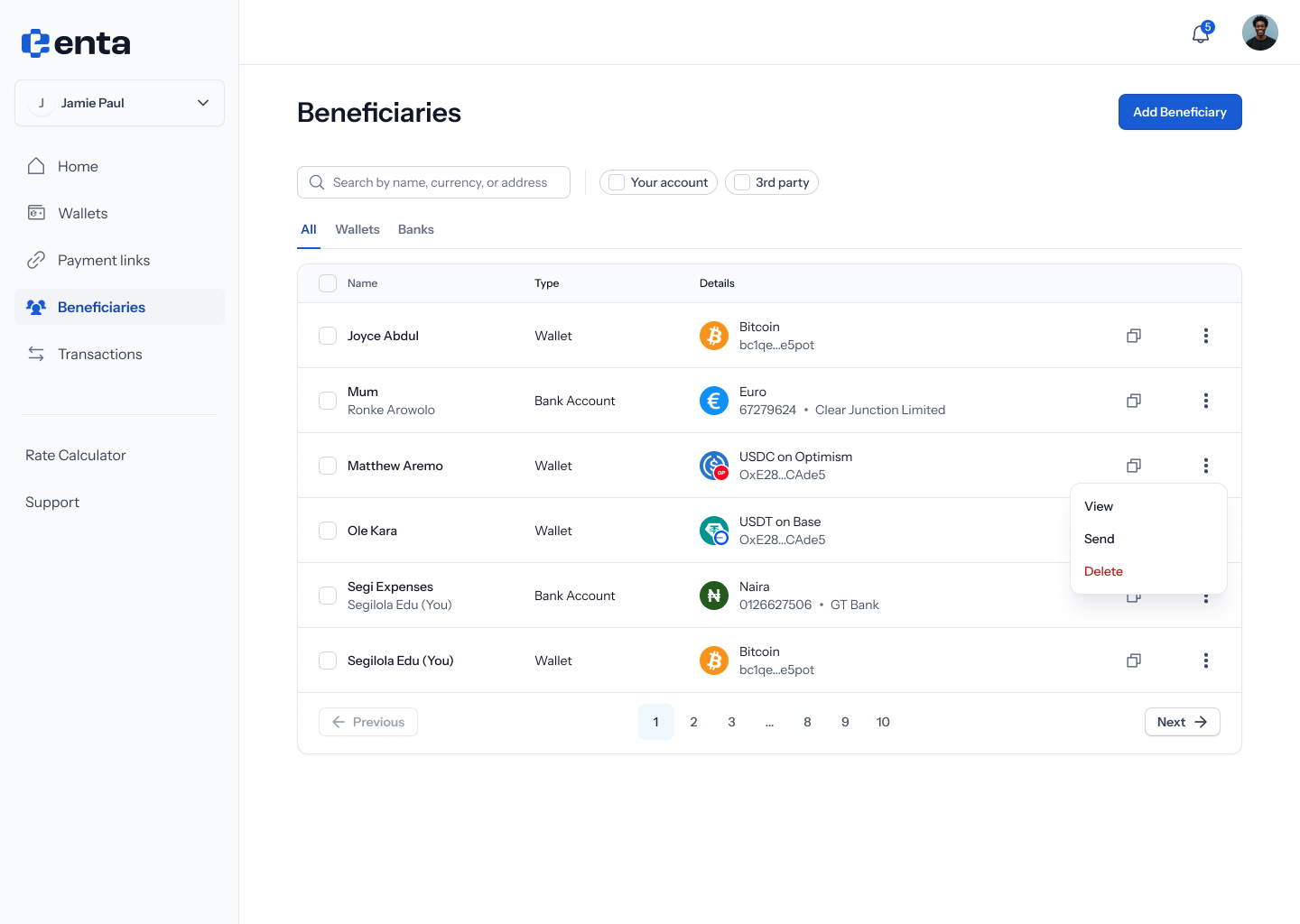
From your **Beneficiaries** list, tap a row's **•••** menu — you'll see **View**, **Send**, and **Delete**. Tap **Delete**.
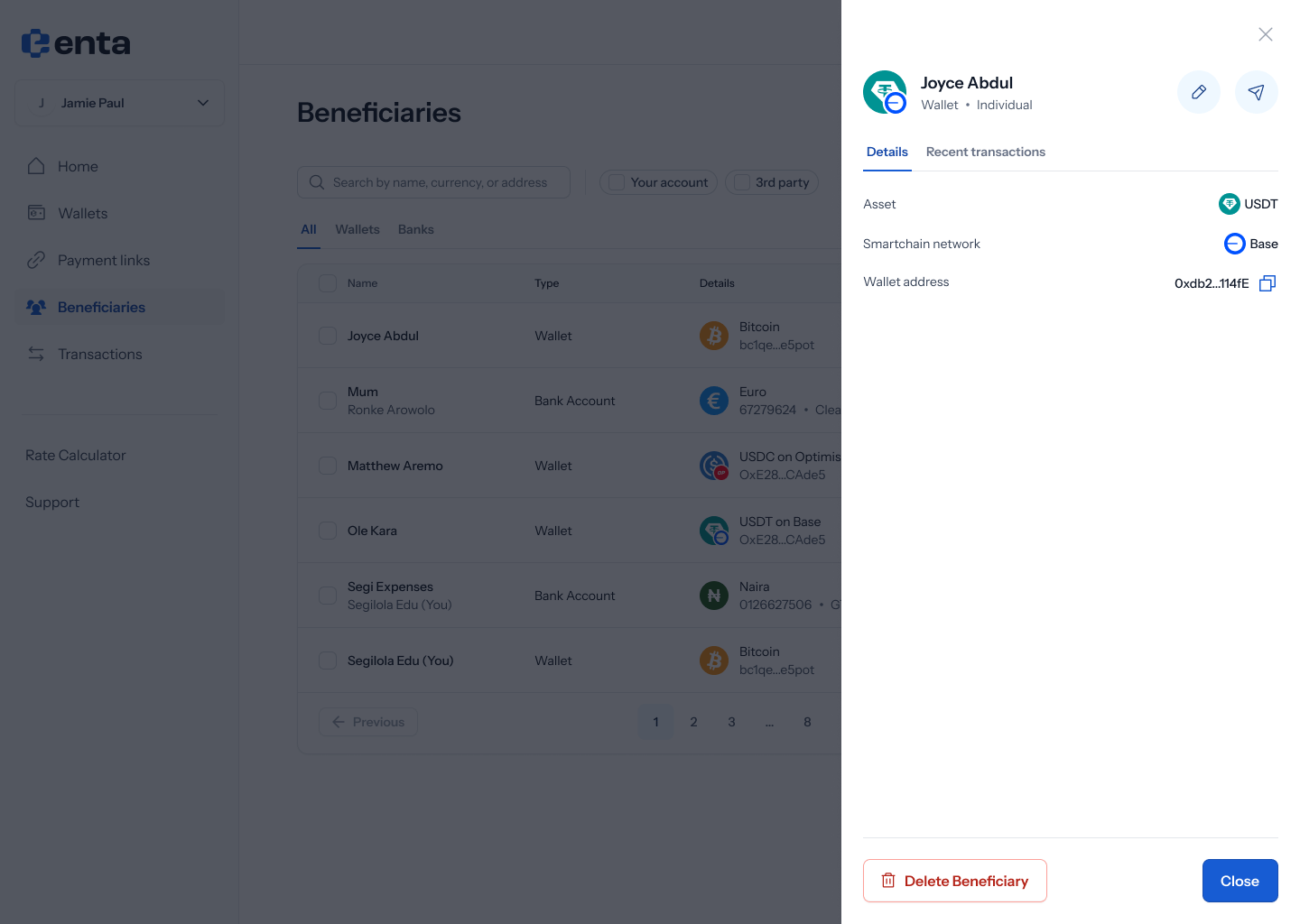
 You can also delete a beneficiary from inside their own details view — see [View Beneficiary Details](/Product/Beneficiary/viewdetails) — using the **Delete beneficiary** button there.
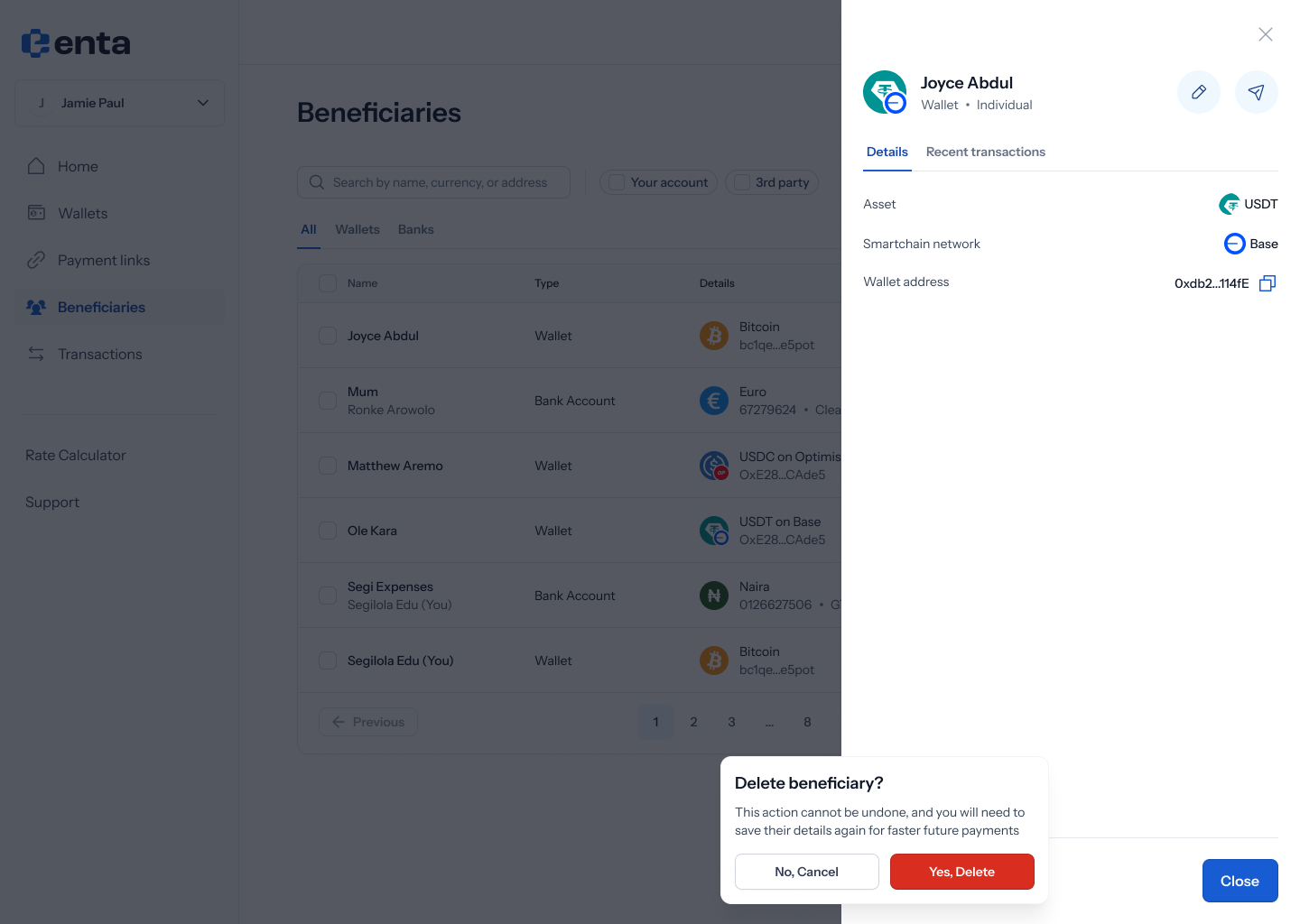
 Either way, you're asked to confirm: **"Delete beneficiary?"** — *"This action cannot be undone, and you will need to save their details again for faster future payments"* — with **No, cancel** and **Yes, Delete**.
 ## 2. Delete several at once
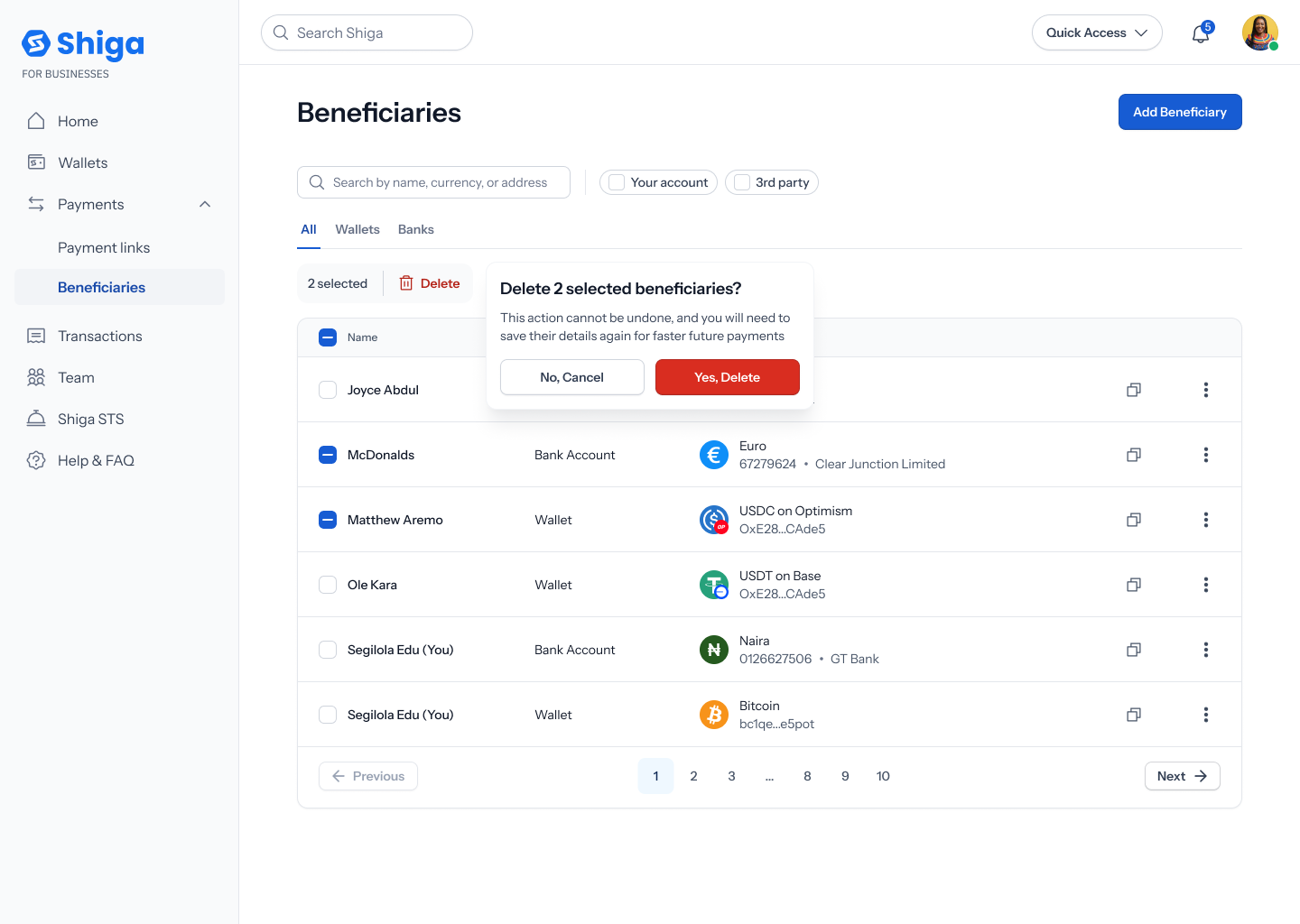
Select multiple beneficiaries from the list to reveal a selection bar (e.g. **"2 selected"**) with a **Delete** action.
## 2. Delete several at once
Select multiple beneficiaries from the list to reveal a selection bar (e.g. **"2 selected"**) with a **Delete** action.
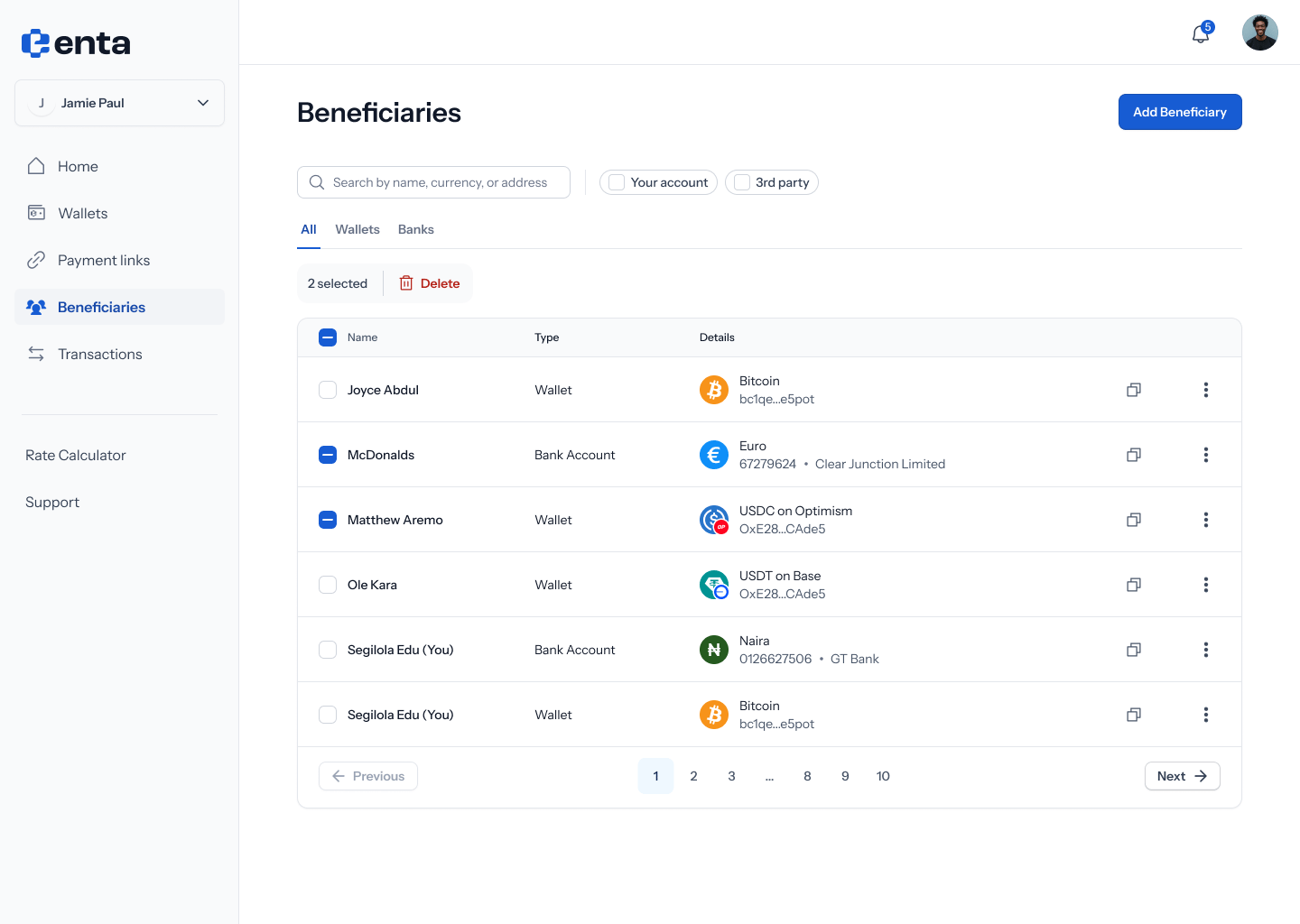 Tapping it asks you to confirm, with the count reflected in the headline: **"Delete 2 selected beneficiaries?"** — same warning as above — **No, cancel** / **Yes, Delete**.