> ## Documentation Index
> Fetch the complete documentation index at: https://docs.entashiga.io/llms.txt
> Use this file to discover all available pages before exploring further.
# UBO Invitation
> What happens when you're invited to a business as an owner - accepting, declining, and what you see next.
# UBO Invitation
When a business declares its owners, each one gets an email. This is what happens from the moment you open it.
UBO stands for **ultimate beneficial owner** — anyone holding 25% or more of a company, or with significant control over it. Regulators require each one to be identified by name.
***
## 1. The invitation
Opening the link greets you by name and states who invited you and in what capacity — for example **"Tunde Adewale invited you to Edu Travels as a controlling owner"** — with *"Confirm the details below"*.
A card summarises it:
| Field | Example |
| -------------- | ---------------------- |
| **Company** | Edu Travels |
| **Invited by** | Tunde Adewale |
| **Your role** | Controlling Owner, 50% |
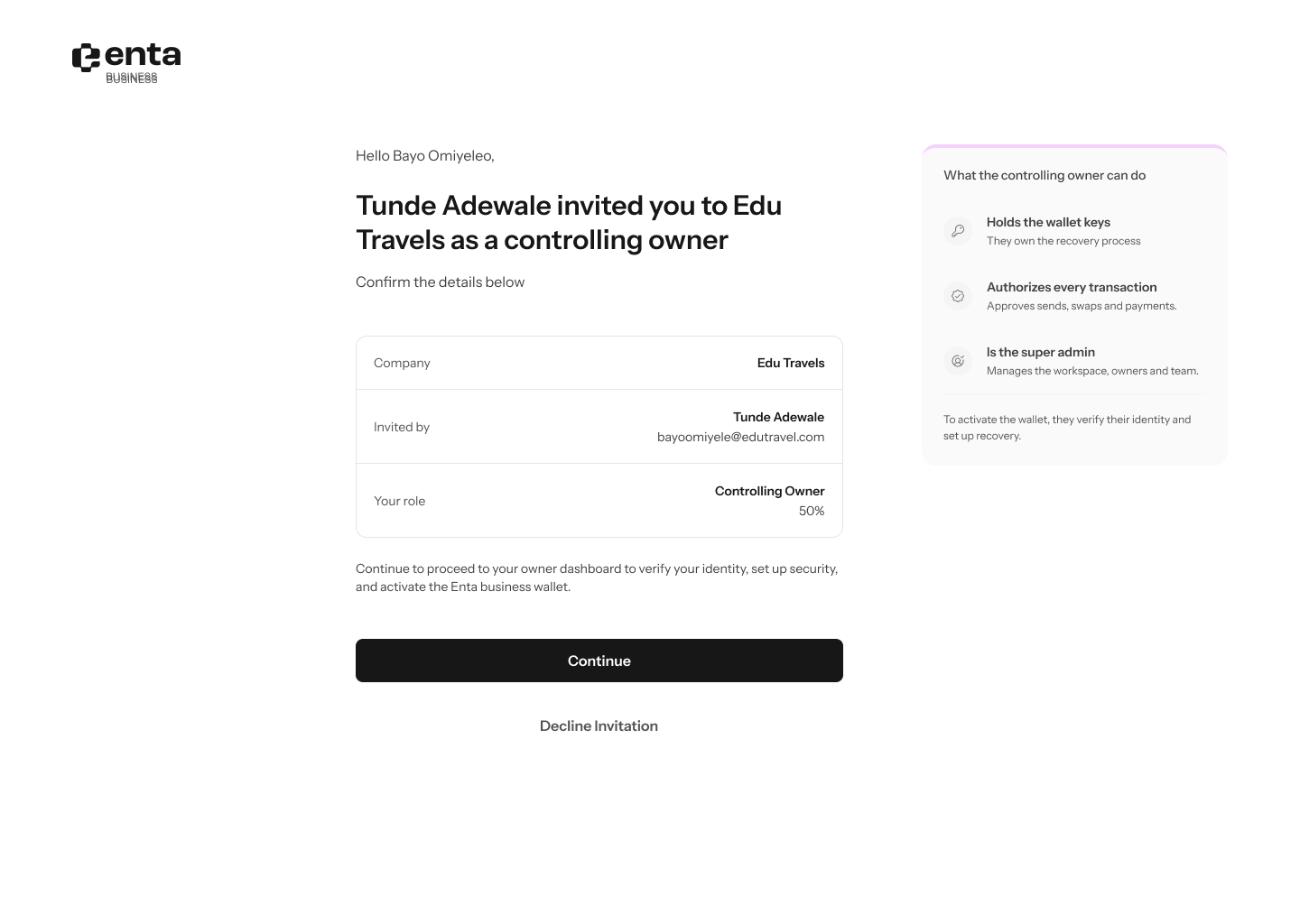 Beneath it: *"Continue to proceed to your owner dashboard to verify your identity, set up security, and activate the Enta business wallet."*
If you've been named controlling owner, a panel alongside explains what that means — **Holds the wallet keys**, **Authorizes every transaction**, **Is the super admin**.
Check the ownership percentage before continuing. It's what the business has declared about you to a regulator, and it should match reality. If it's wrong, decline and ask them to re-send rather than accepting and sorting it out later.
Two actions: **Continue**, or **Decline invitation**.
## 2. Declining
**Decline invitation** asks you to confirm: **"Decline this invitation?"** — *"We'll let Tunde know. They can re-invite you if it was a mistake."*
Beneath it: *"Continue to proceed to your owner dashboard to verify your identity, set up security, and activate the Enta business wallet."*
If you've been named controlling owner, a panel alongside explains what that means — **Holds the wallet keys**, **Authorizes every transaction**, **Is the super admin**.
Check the ownership percentage before continuing. It's what the business has declared about you to a regulator, and it should match reality. If it's wrong, decline and ask them to re-send rather than accepting and sorting it out later.
Two actions: **Continue**, or **Decline invitation**.
## 2. Declining
**Decline invitation** asks you to confirm: **"Decline this invitation?"** — *"We'll let Tunde know. They can re-invite you if it was a mistake."*
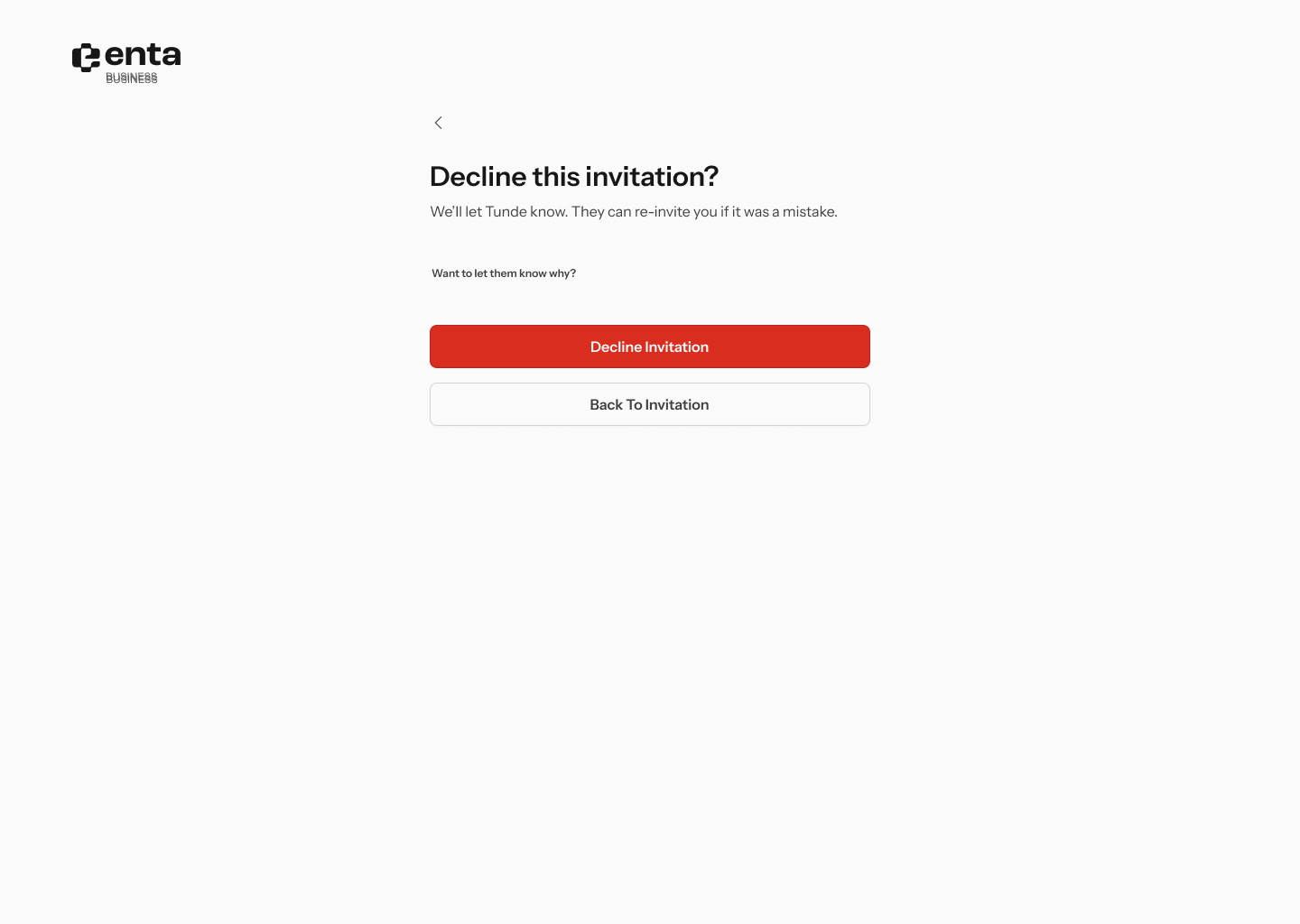 A link — **"Want to let them know why?"** — opens an optional note field: **"Anything you'd like Tunde to know?"** *(optional)*, with the placeholder **"Add a note..."**.
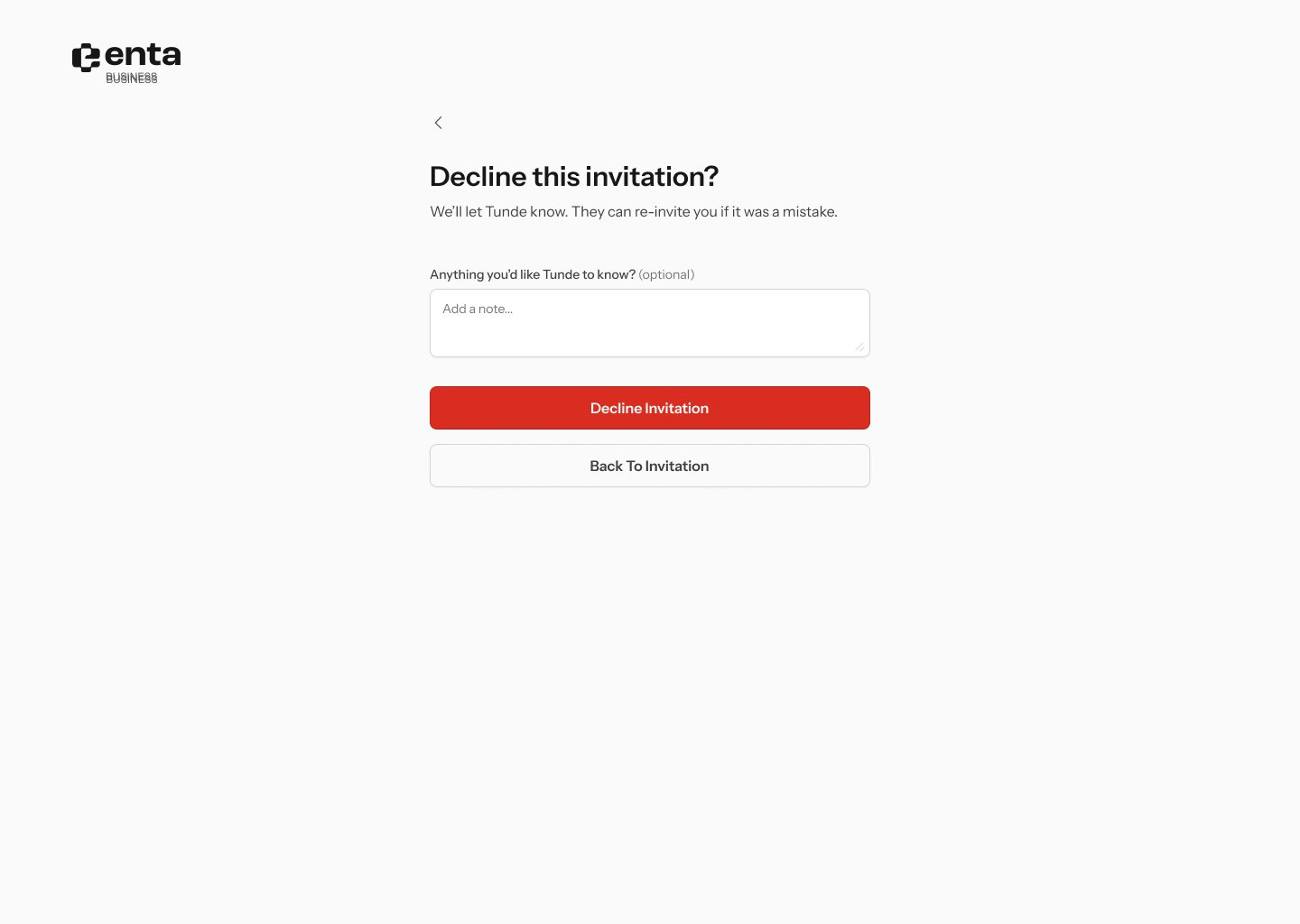 **Back to invitation** takes you back if you change your mind.
Declining isn't permanent — the copy says they can re-invite you if it was a mistake. If something looks wrong, declining with a short note is the cleanest way to get it corrected.
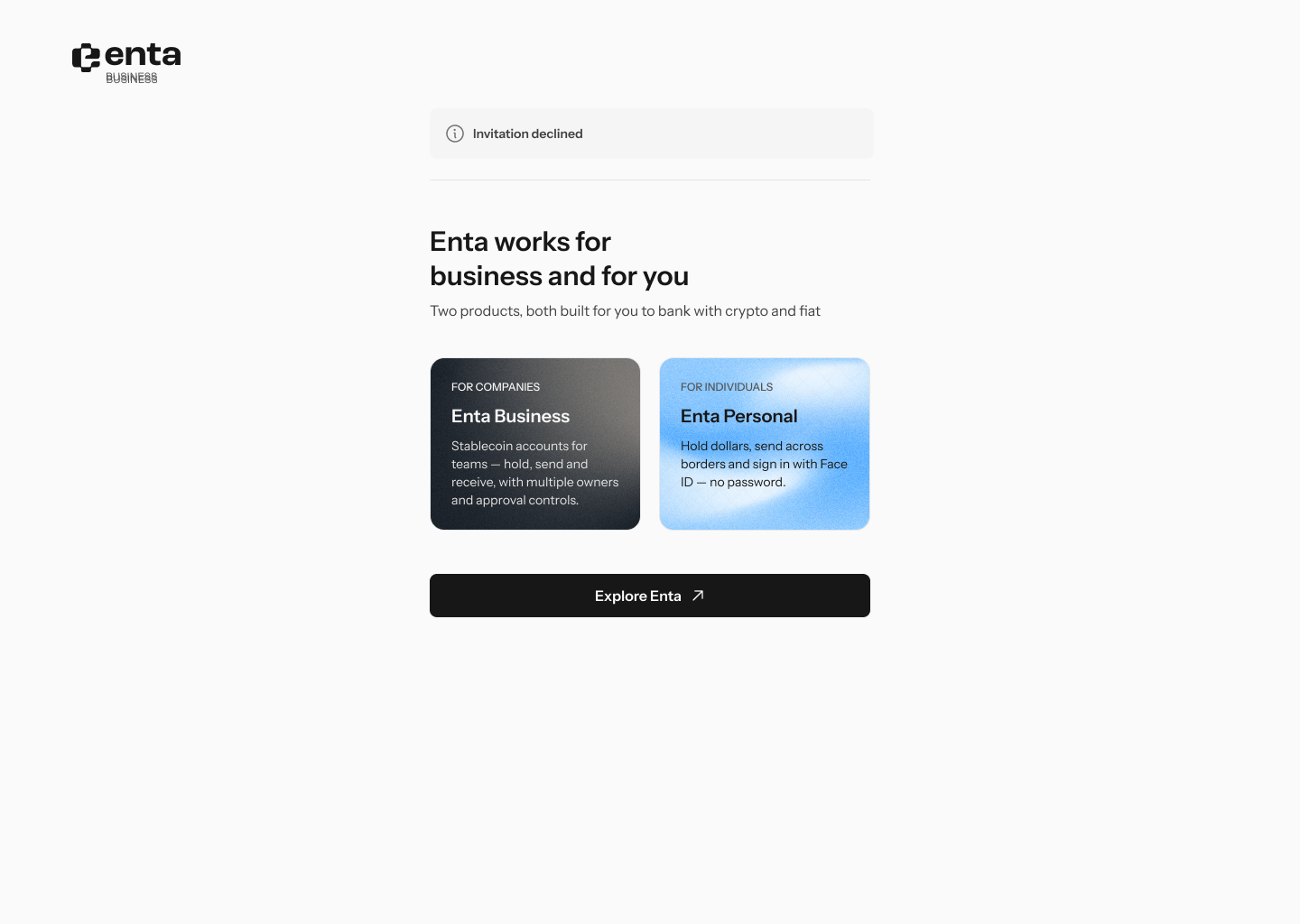
Once declined, you'll see **Invitation declined**, followed by a short introduction to Enta's two products — **Enta Business** *"for teams — hold, send and receive, with multiple owners and approval controls"* and **Enta Personal** *"Hold dollars, send across borders and sign in with Face ID — no password."*
**Back to invitation** takes you back if you change your mind.
Declining isn't permanent — the copy says they can re-invite you if it was a mistake. If something looks wrong, declining with a short note is the cleanest way to get it corrected.
Once declined, you'll see **Invitation declined**, followed by a short introduction to Enta's two products — **Enta Business** *"for teams — hold, send and receive, with multiple owners and approval controls"* and **Enta Personal** *"Hold dollars, send across borders and sign in with Face ID — no password."*
 ## 3. Continuing — your dashboard
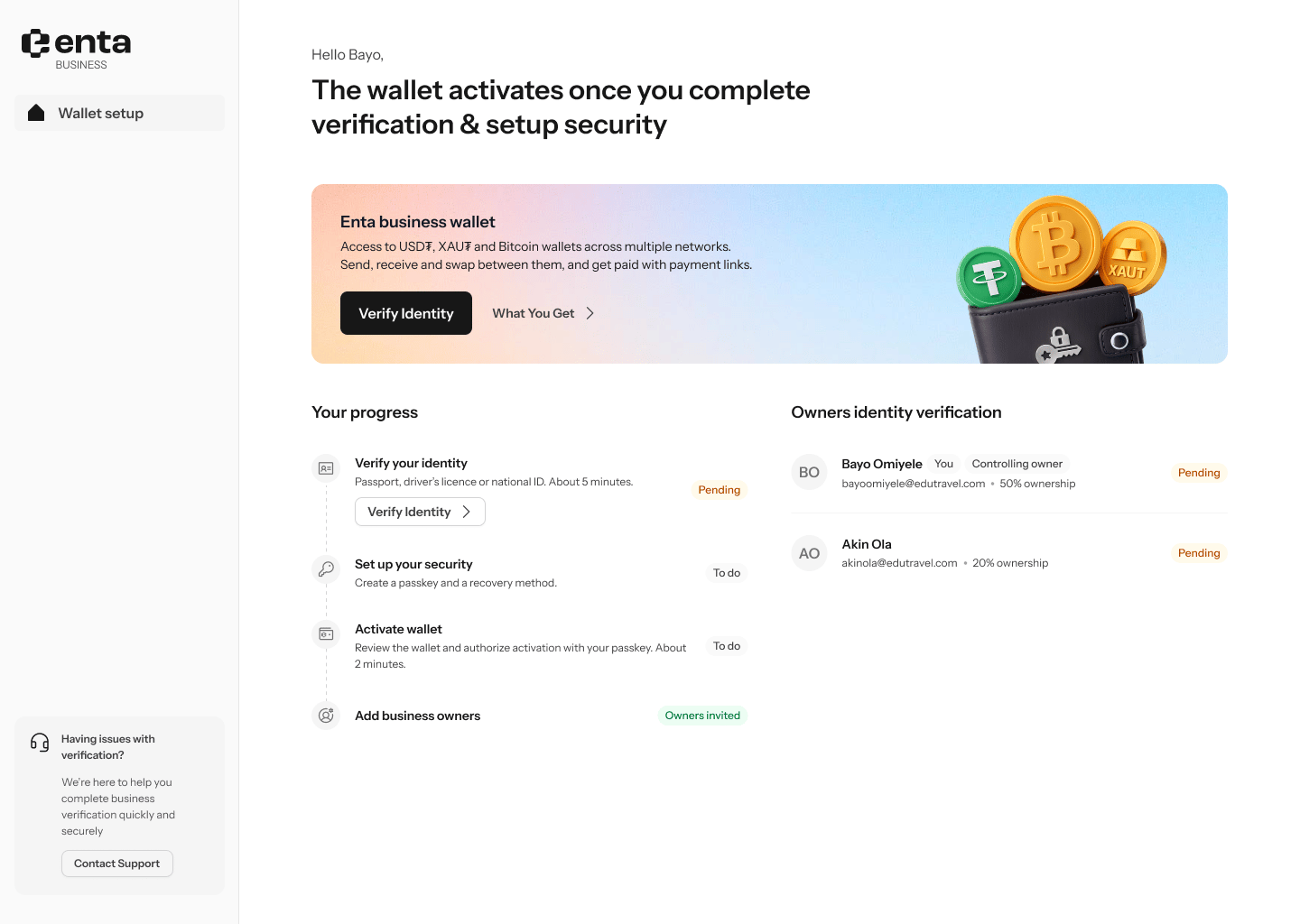
**Continue** takes you to your owner dashboard, greeted by first name, with a **Your progress** checklist and an **Owners identity verification** list showing every owner and whether they're **Pending** or done.
What's on your checklist depends on your role.
### If you're the controlling owner
Sub-headline: *"The wallet activates once you complete verification & setup security"*. Four items:
| Task | Detail | Status |
| ------------------------ | ---------------------------------------------------------------------------------- | ----------- |
| **Verify your identity** | *"Passport, driver's licence or national ID. About 5 minutes."* | **Pending** |
| **Set up your security** | *"Create a passkey and a recovery method."* | **To do** |
| **Activate wallet** | *"Review the wallet and authorize activation with your passkey. About 2 minutes."* | **To do** |
| **Add business owners** | — | **Done** |
## 3. Continuing — your dashboard
**Continue** takes you to your owner dashboard, greeted by first name, with a **Your progress** checklist and an **Owners identity verification** list showing every owner and whether they're **Pending** or done.
What's on your checklist depends on your role.
### If you're the controlling owner
Sub-headline: *"The wallet activates once you complete verification & setup security"*. Four items:
| Task | Detail | Status |
| ------------------------ | ---------------------------------------------------------------------------------- | ----------- |
| **Verify your identity** | *"Passport, driver's licence or national ID. About 5 minutes."* | **Pending** |
| **Set up your security** | *"Create a passkey and a recovery method."* | **To do** |
| **Activate wallet** | *"Review the wallet and authorize activation with your passkey. About 2 minutes."* | **To do** |
| **Add business owners** | — | **Done** |
 ### If you're an owner but not the controlling owner
Sub-headline: *"You've set up Edu Travels. The wallet activates once the controlling owner verifies."* Only two items — **Verify your identity**, and **Add business owners** marked **Done**. No security setup, no wallet activation.
### If you're a delegate
The same sub-headline, but the dashboard greets the company rather than you, the task reads **Verify controlling owner's identity**, and there are no action buttons at all. It's a waiting room.
## 4. Next: verify your identity
**Verify Identity** starts your own KYC — profile, address, then a selfie and photo ID. See [UBO KYC](/Onboarding/corporate/ubo-kyc).
Once everything is done, the wallet goes live and you land on your business home screen with **"Your crypto wallet is live"** — *"Send, receive and swap across major networks."*
### If you're an owner but not the controlling owner
Sub-headline: *"You've set up Edu Travels. The wallet activates once the controlling owner verifies."* Only two items — **Verify your identity**, and **Add business owners** marked **Done**. No security setup, no wallet activation.
### If you're a delegate
The same sub-headline, but the dashboard greets the company rather than you, the task reads **Verify controlling owner's identity**, and there are no action buttons at all. It's a waiting room.
## 4. Next: verify your identity
**Verify Identity** starts your own KYC — profile, address, then a selfie and photo ID. See [UBO KYC](/Onboarding/corporate/ubo-kyc).
Once everything is done, the wallet goes live and you land on your business home screen with **"Your crypto wallet is live"** — *"Send, receive and swap across major networks."*