> ## Documentation Index
> Fetch the complete documentation index at: https://docs.entashiga.io/llms.txt
> Use this file to discover all available pages before exploring further.
# Teams
> Adding people to your business, what each role can do, and how to manage access.
# Teams
Once your business wallet is live, **Teams** appears in the sidebar. It's where you bring in people who need access to the account without being owners of the company.
Team members are not the same as owners. Owners are declared for regulatory reasons and must verify their identity — see [KYB Landing](/Onboarding/corporate/kyb-landing). Team members are people you give access to.
***
## Owners versus team members
| | Owners | Team members |
| --------------- | --------------------------------------- | ------------------------------------------------ |
| Why they exist | Regulatory — anyone holding 25% or more | Operational — people who need to use the account |
| Identity check | Required | Not required |
| Declared during | Onboarding | Any time after the wallet is live |
| Can be removed | No, without re-verifying the business | Yes |
The **controlling owner** sits above both. Per the in-app guide, they're the **super admin** — *"Manages the workspace, owners and team."*
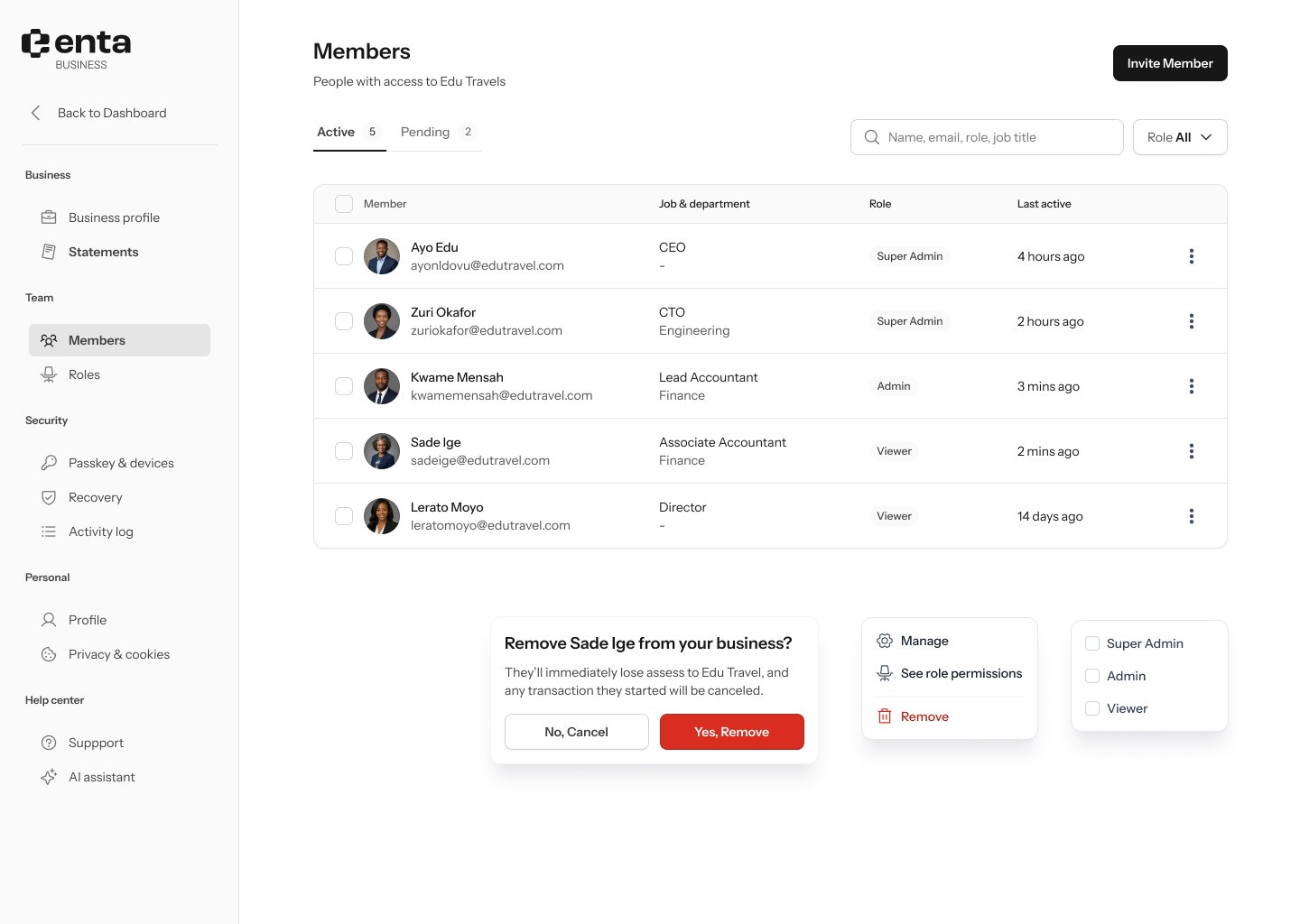
## Your members list
**Teams** shows everyone with access, their role, and their status.
 ## Inviting someone
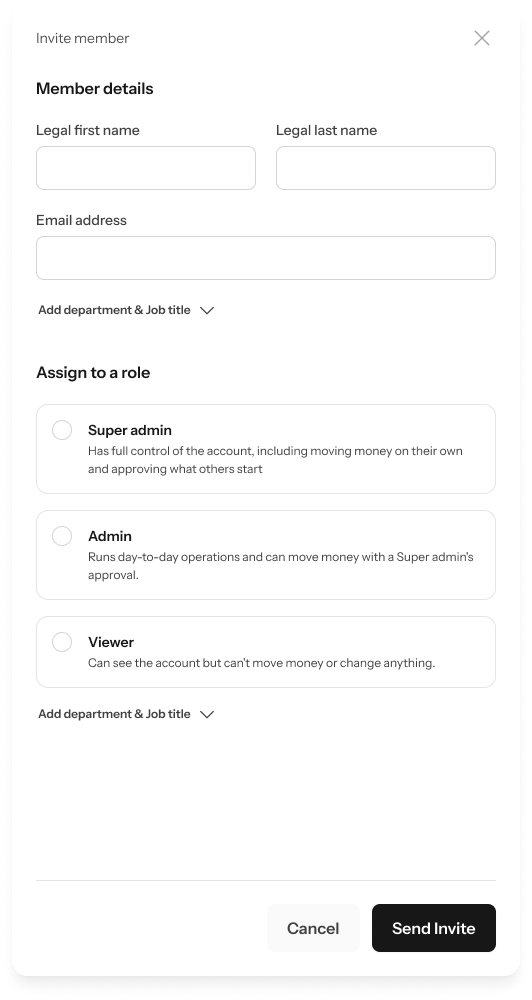
Invite a new person by email and assign them a role. They'll get an email to set up their own sign-in, with their own passkey — access is never shared.
## Inviting someone
Invite a new person by email and assign them a role. They'll get an email to set up their own sign-in, with their own passkey — access is never shared.
 Never share a passkey or sign-in between people. Every person who needs access should be invited separately, so actions are attributable and access can be removed cleanly when someone leaves.
## Roles and permissions
Each role defines what someone can do — viewing balances, creating payment links, initiating transfers, or approving them. Approval rights are the ones to be careful with, since the controlling owner authorizes transactions with their passkey.
Never share a passkey or sign-in between people. Every person who needs access should be invited separately, so actions are attributable and access can be removed cleanly when someone leaves.
## Roles and permissions
Each role defines what someone can do — viewing balances, creating payment links, initiating transfers, or approving them. Approval rights are the ones to be careful with, since the controlling owner authorizes transactions with their passkey.
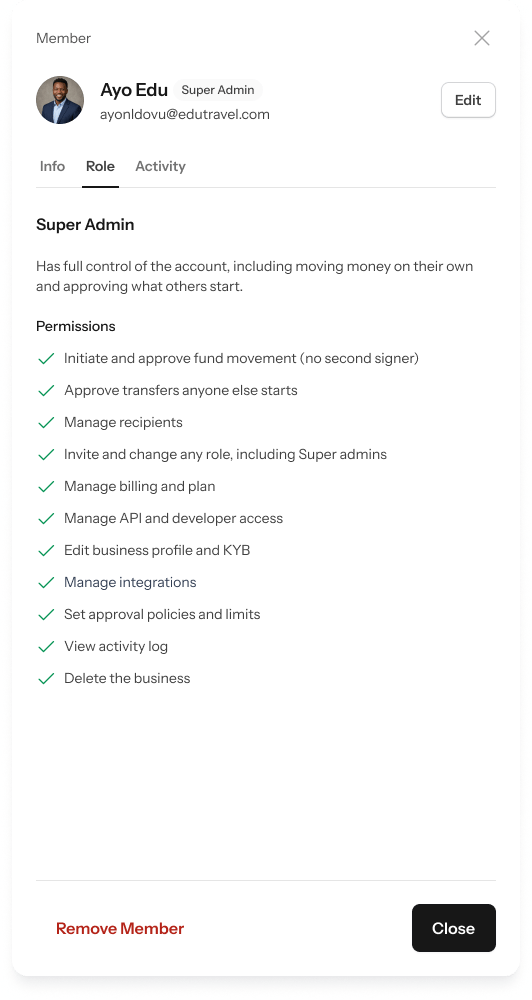 Give the narrowest role that lets someone do their job, and review the list when people change roles or leave. It's the single easiest control to get right on a shared money account.
## Managing an existing member
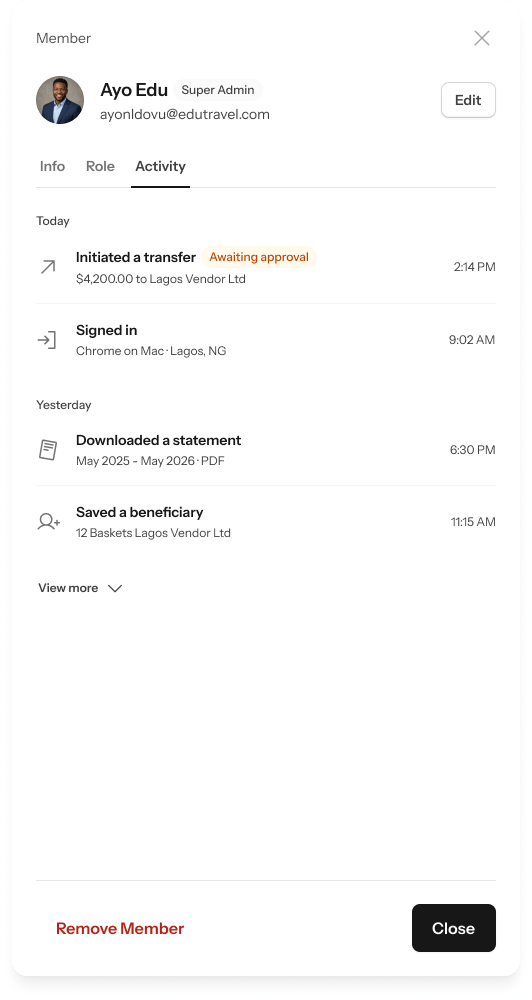
Opening a team member shows their details, and lets you change their role or revoke their access.
Give the narrowest role that lets someone do their job, and review the list when people change roles or leave. It's the single easiest control to get right on a shared money account.
## Managing an existing member
Opening a team member shows their details, and lets you change their role or revoke their access.
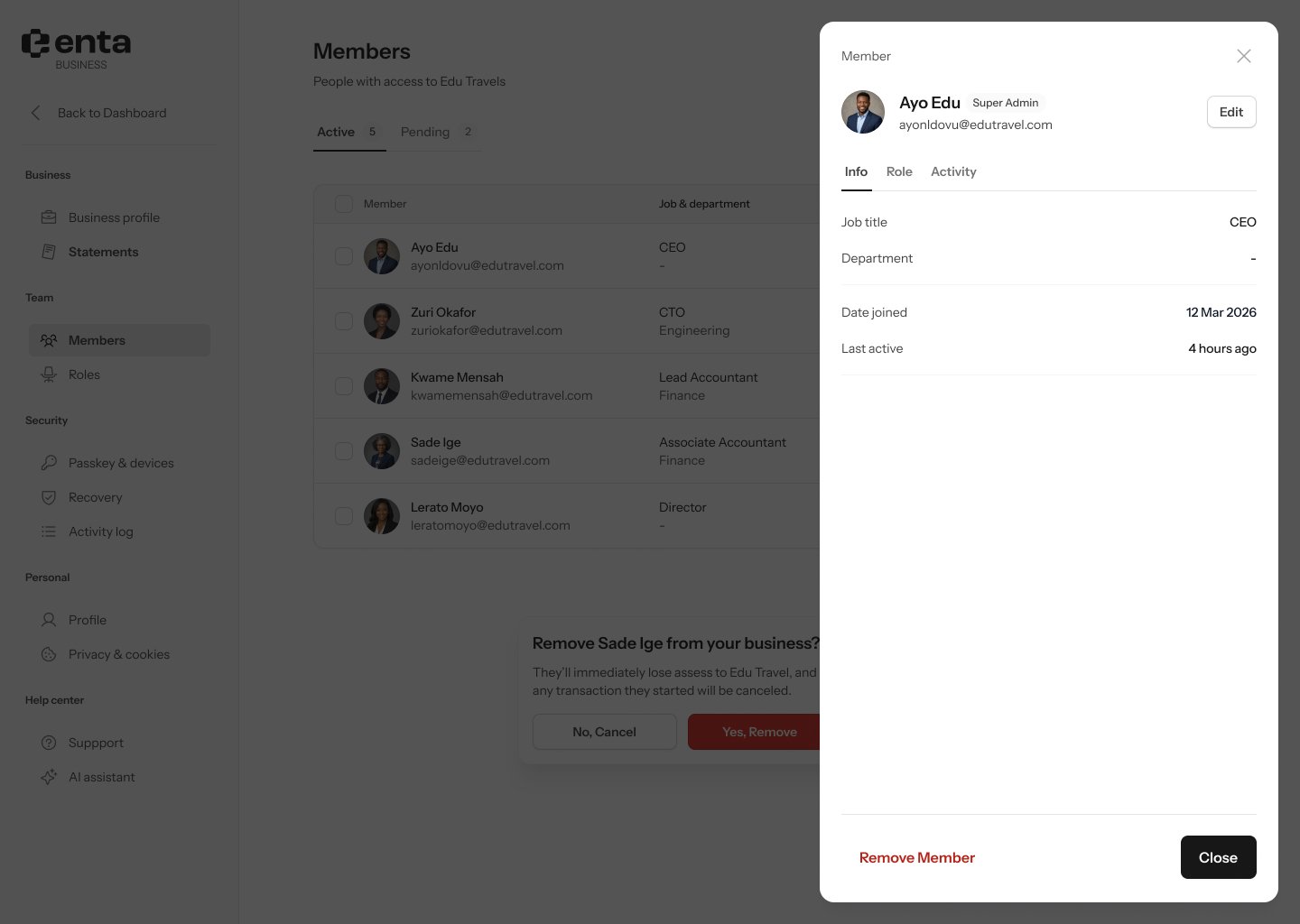 An **Activity** tab records what they've done on the account.
 ## Where to find it
**Teams** sits in the left sidebar of your business dashboard, below **Transactions**. It only appears once the wallet is active — before that, the sidebar shows **Wallet setup** instead.
The detailed settings screens for members, roles and permissions live under Settings — see [Members](/settings/business/members), [Roles & Permissions](/settings/business/roles), [Invite a Member](/settings/business/invitemember) and [Manage a Member](/settings/business/managemember).
## Where to find it
**Teams** sits in the left sidebar of your business dashboard, below **Transactions**. It only appears once the wallet is active — before that, the sidebar shows **Wallet setup** instead.
The detailed settings screens for members, roles and permissions live under Settings — see [Members](/settings/business/members), [Roles & Permissions](/settings/business/roles), [Invite a Member](/settings/business/invitemember) and [Manage a Member](/settings/business/managemember).