> ## Documentation Index
> Fetch the complete documentation index at: https://docs.entashiga.io/llms.txt
> Use this file to discover all available pages before exploring further.
# Business Signup
> Creating your Enta business account — every screen, explained.
# Business Signup
Creating a business account starts the same way as a personal one, then asks for your company name instead of just an email. There's no password at any point.
Opening a personal account? See [Sign up](/Onboarding/individual/signup) instead.
***
## 1. Choose a business account
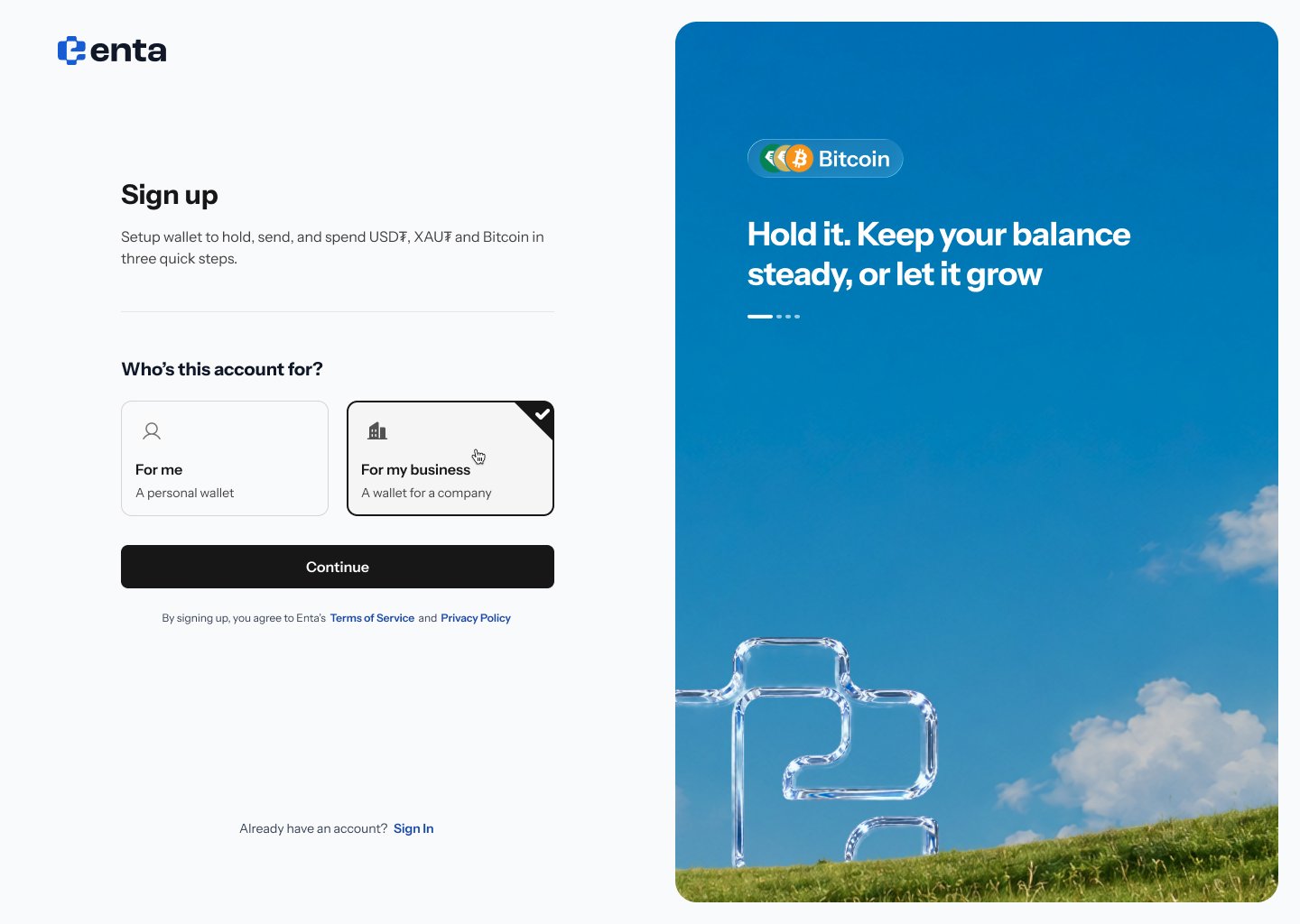
The sign-up screen is headed **"Sign up"** — *"Setup wallet to hold, send, and spend USD₮, XAU₮ and Bitcoin in three quick steps."*
Under **"Who's this account for?"** pick the second card:
* **For me** — *"A personal wallet"*
* **For my business** — *"A wallet for a company"*
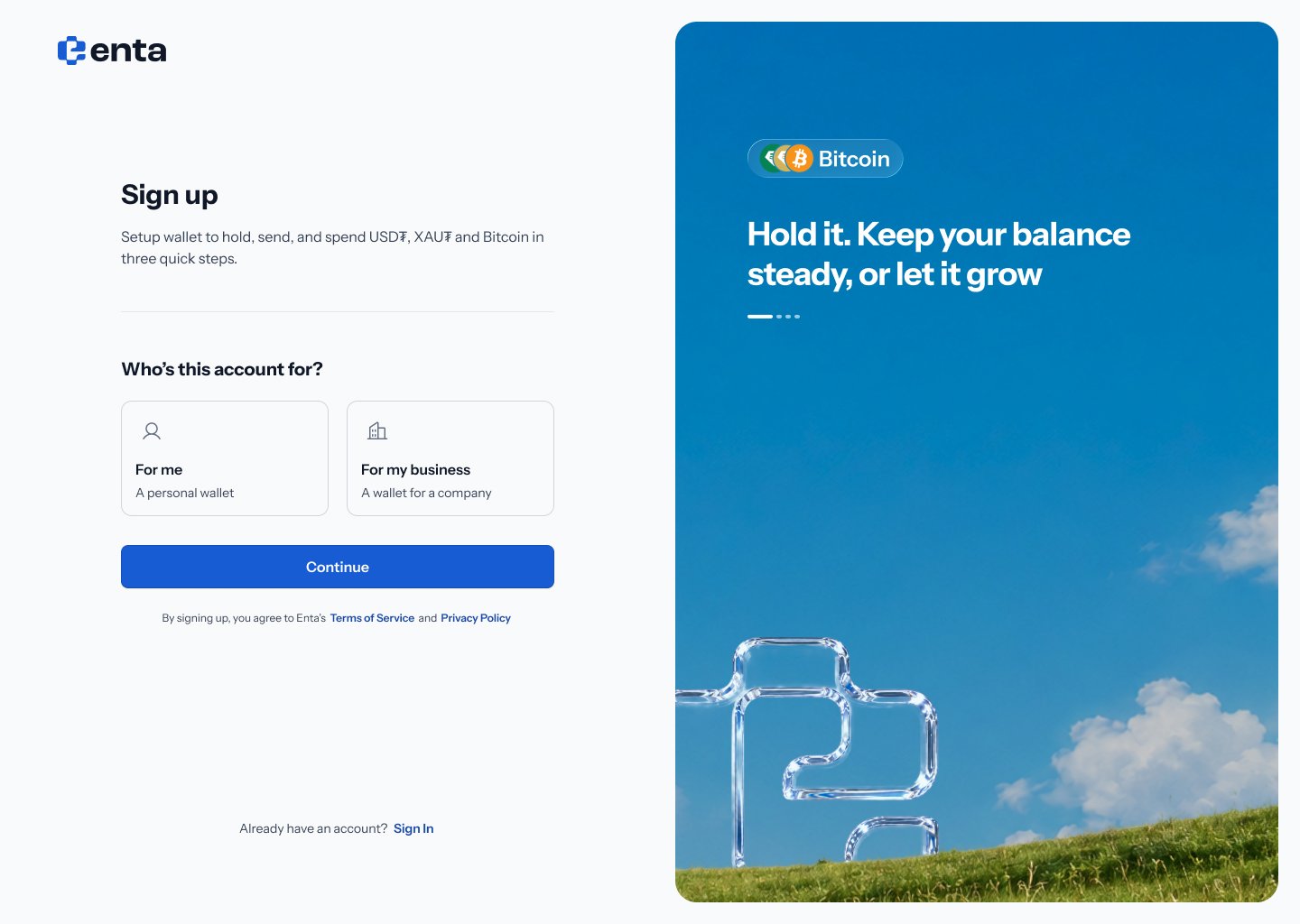 Hovering the card highlights it, and selecting it adds a tick in the corner. Tap **Continue**.
 ## 2. Enter your business name and work email
Step 2 asks **"What's your work email?"** — *"We'll verify this to set up your sign-in first. Company details and teammates come next."*
Two fields:
* **Business name**
* **Work email**
## 2. Enter your business name and work email
Step 2 asks **"What's your work email?"** — *"We'll verify this to set up your sign-in first. Company details and teammates come next."*
Two fields:
* **Business name**
* **Work email**
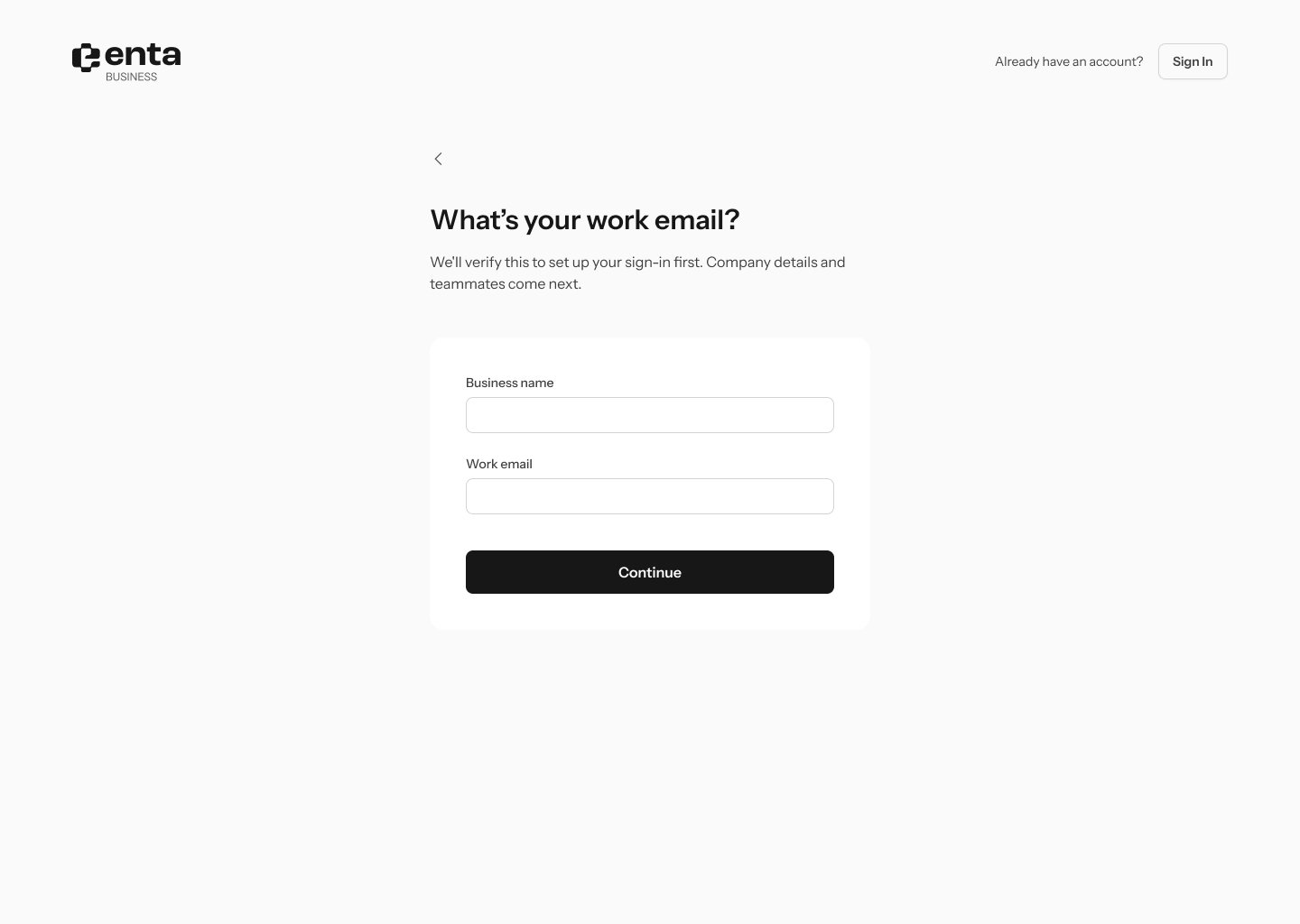 This is the first real difference from the personal route. The personal path only asks for an email; here Enta needs the company name too, and the sub-headline tells you company details and teammates come later rather than now.
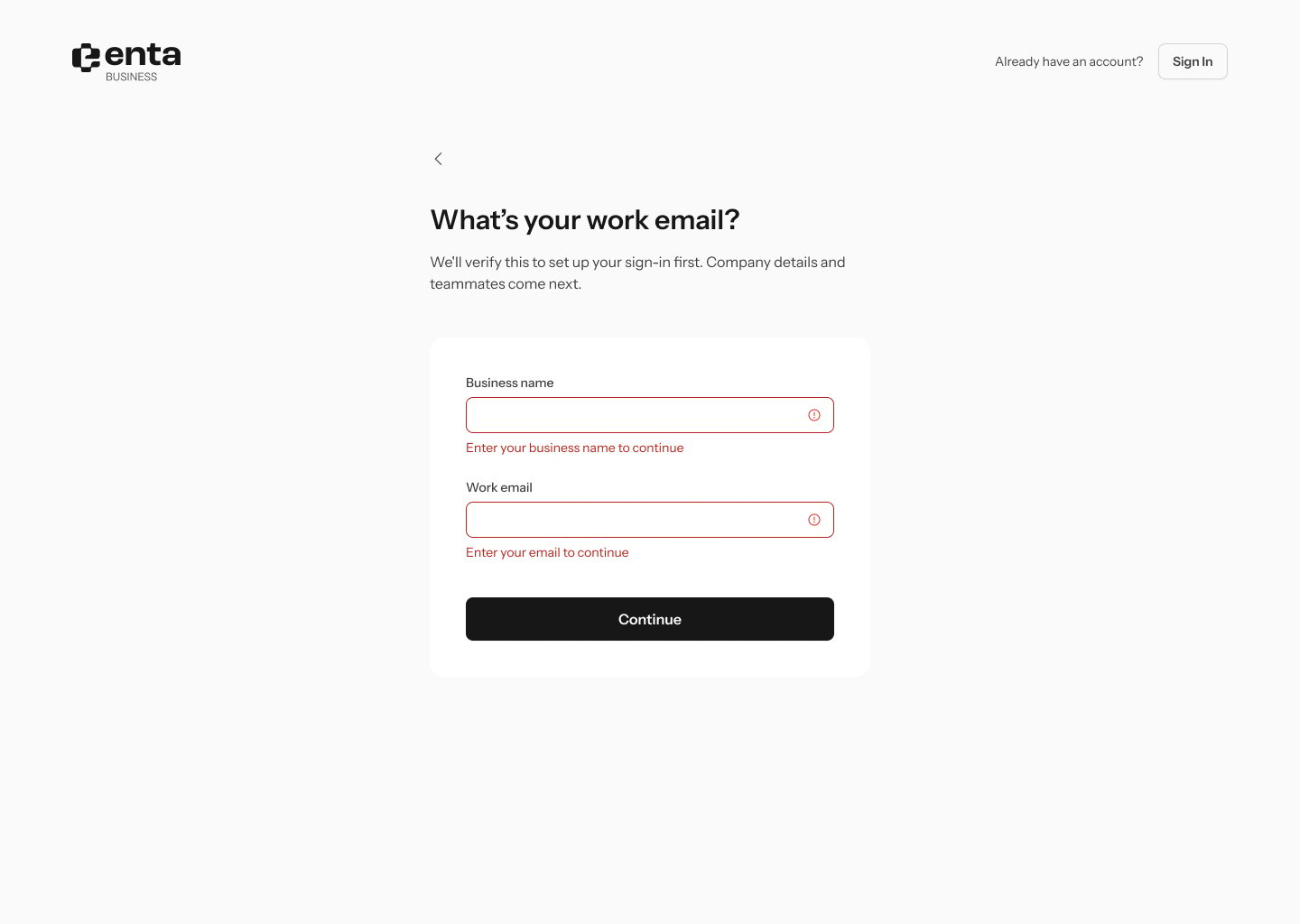
Submitting with either field empty flags both: **"Enter your business name to continue"** and **"Enter your email to continue"**. An email missing an `@` gets a different message — **"Enter a valid email address"**.
This is the first real difference from the personal route. The personal path only asks for an email; here Enta needs the company name too, and the sub-headline tells you company details and teammates come later rather than now.
Submitting with either field empty flags both: **"Enter your business name to continue"** and **"Enter your email to continue"**. An email missing an `@` gets a different message — **"Enter a valid email address"**.
 ## 3. Open the link in your inbox
The next screen confirms **"Check your inbox"** — *"We sent a login link to"* followed by your address. There's nothing to type; go and open the email.
## 3. Open the link in your inbox
The next screen confirms **"Check your inbox"** — *"We sent a login link to"* followed by your address. There's nothing to type; go and open the email.
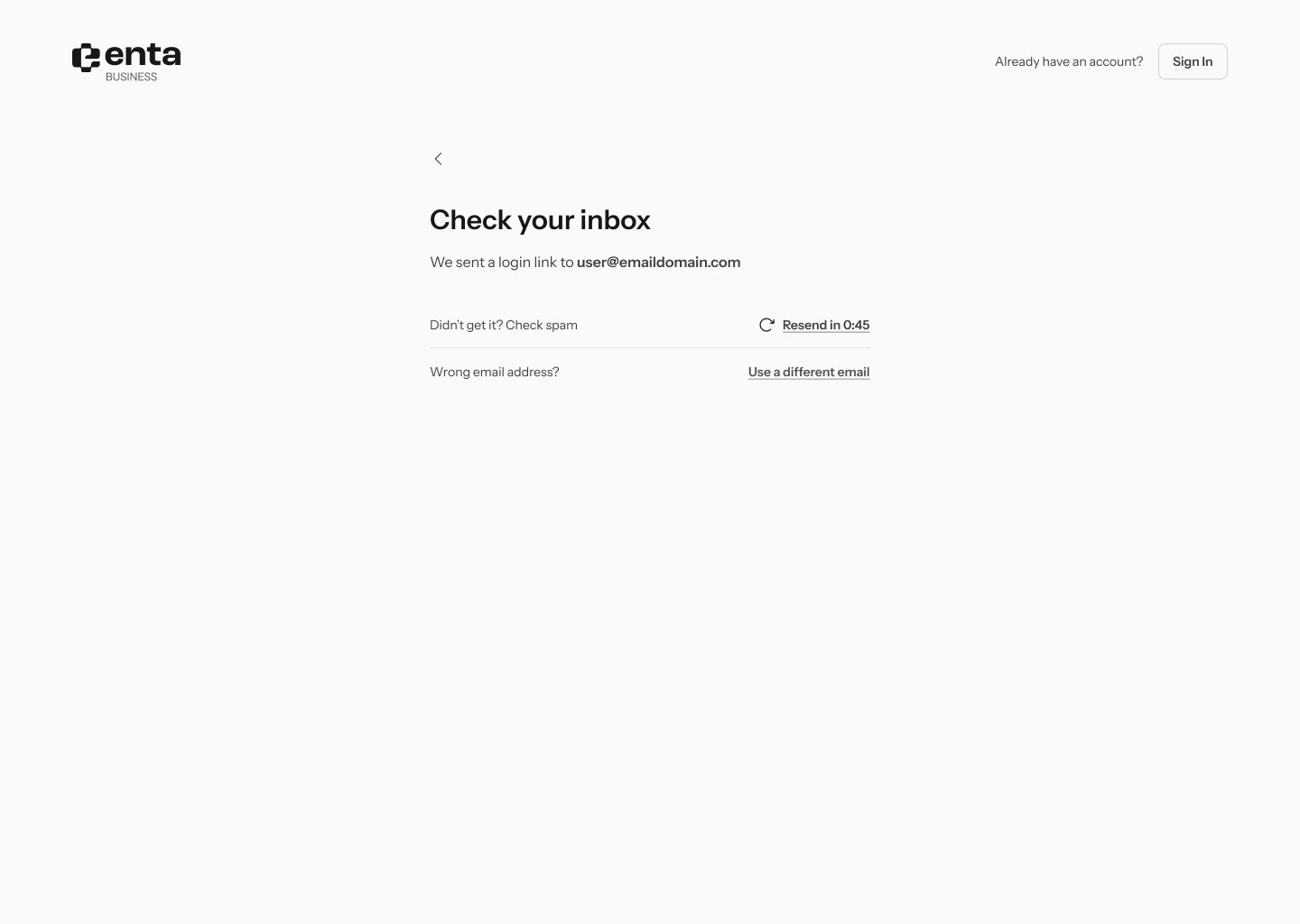 If it hasn't arrived: **"Didn't get it? Check spam"**, a **Resend in 0:45** countdown, and **"Wrong email address?"** with **Use a different email**.
## 4. Create your passkey
Enta then asks you to create a passkey, and your browser and operating system take over — Face ID, Touch ID, or Windows Hello. There's no password to choose.
Business accounts carry a **Business account** badge on the sign-in screen, with **"Not your business account?"** and **Use Personal account** beneath it. If you hold both a personal and a business account on the same email, that's how you switch between them.
## 5. You land on wallet setup
Once your passkey is created you arrive at your business dashboard, greeted by company name — for example **"Hello Edu Travels,"** — with *"Activate your wallet for crypto transactions"*.
If it hasn't arrived: **"Didn't get it? Check spam"**, a **Resend in 0:45** countdown, and **"Wrong email address?"** with **Use a different email**.
## 4. Create your passkey
Enta then asks you to create a passkey, and your browser and operating system take over — Face ID, Touch ID, or Windows Hello. There's no password to choose.
Business accounts carry a **Business account** badge on the sign-in screen, with **"Not your business account?"** and **Use Personal account** beneath it. If you hold both a personal and a business account on the same email, that's how you switch between them.
## 5. You land on wallet setup
Once your passkey is created you arrive at your business dashboard, greeted by company name — for example **"Hello Edu Travels,"** — with *"Activate your wallet for crypto transactions"*.
 **Your progress** lists the two things standing between you and a live wallet:
| Task | Description | Status |
| --------------------------------------- | ---------------------------------------------------------------------------- | --------------- |
| **Add business owners** | *"List everyone who owns the business, then mark the controlling owner."* | **Not started** |
| **Verify controlling owner's identity** | *"The controlling owner confirms who they are. A photo ID is all it takes."* | **Not started** |
**get started** begins the first one. **What you get** opens an explainer covering holding crypto, sending and receiving across Base, Ethereum, Tron and Bitcoin, swapping, and getting paid by payment link.
Carry on at [KYB Landing](/Onboarding/corporate/kyb-landing).
**Your progress** lists the two things standing between you and a live wallet:
| Task | Description | Status |
| --------------------------------------- | ---------------------------------------------------------------------------- | --------------- |
| **Add business owners** | *"List everyone who owns the business, then mark the controlling owner."* | **Not started** |
| **Verify controlling owner's identity** | *"The controlling owner confirms who they are. A photo ID is all it takes."* | **Not started** |
**get started** begins the first one. **What you get** opens an explainer covering holding crypto, sending and receiving across Base, Ethereum, Tron and Bitcoin, swapping, and getting paid by payment link.
Carry on at [KYB Landing](/Onboarding/corporate/kyb-landing).