> ## Documentation Index
> Fetch the complete documentation index at: https://docs.entashiga.io/llms.txt
> Use this file to discover all available pages before exploring further.
# Enta Wallet to External Address (Withdrawal)
> Move Money: withdrawing crypto from your Enta wallet to an external wallet address, start to finish.
# Enta Wallet to External Address (Withdrawal)
This Move Money path covers withdrawing crypto out of your Enta wallet to an external wallet address — either one you type or paste in, one you've used recently, or one you've saved as a beneficiary.
This is a different guide from [Enta Wallet to Enta Wallet (Swap)](/MoveMoney/walletswap), which stays inside your own wallet. Here, funds actually leave Enta.
***
## 1. Open your home screen and tap Move Money
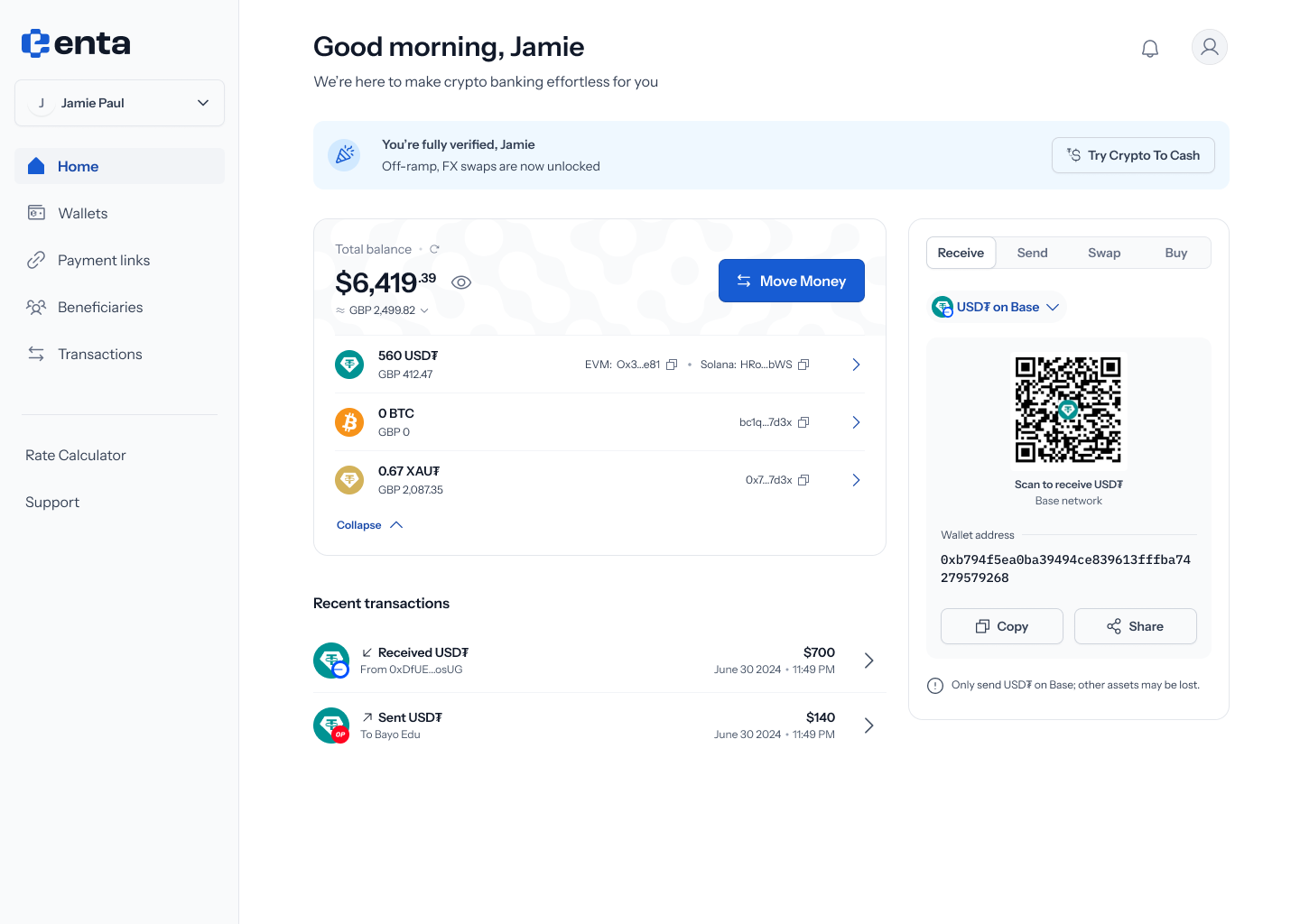 Every Move Money flow starts here, on your Enta home screen — tap **Move Money** to begin.
## 2. Choose Enta wallet as the source
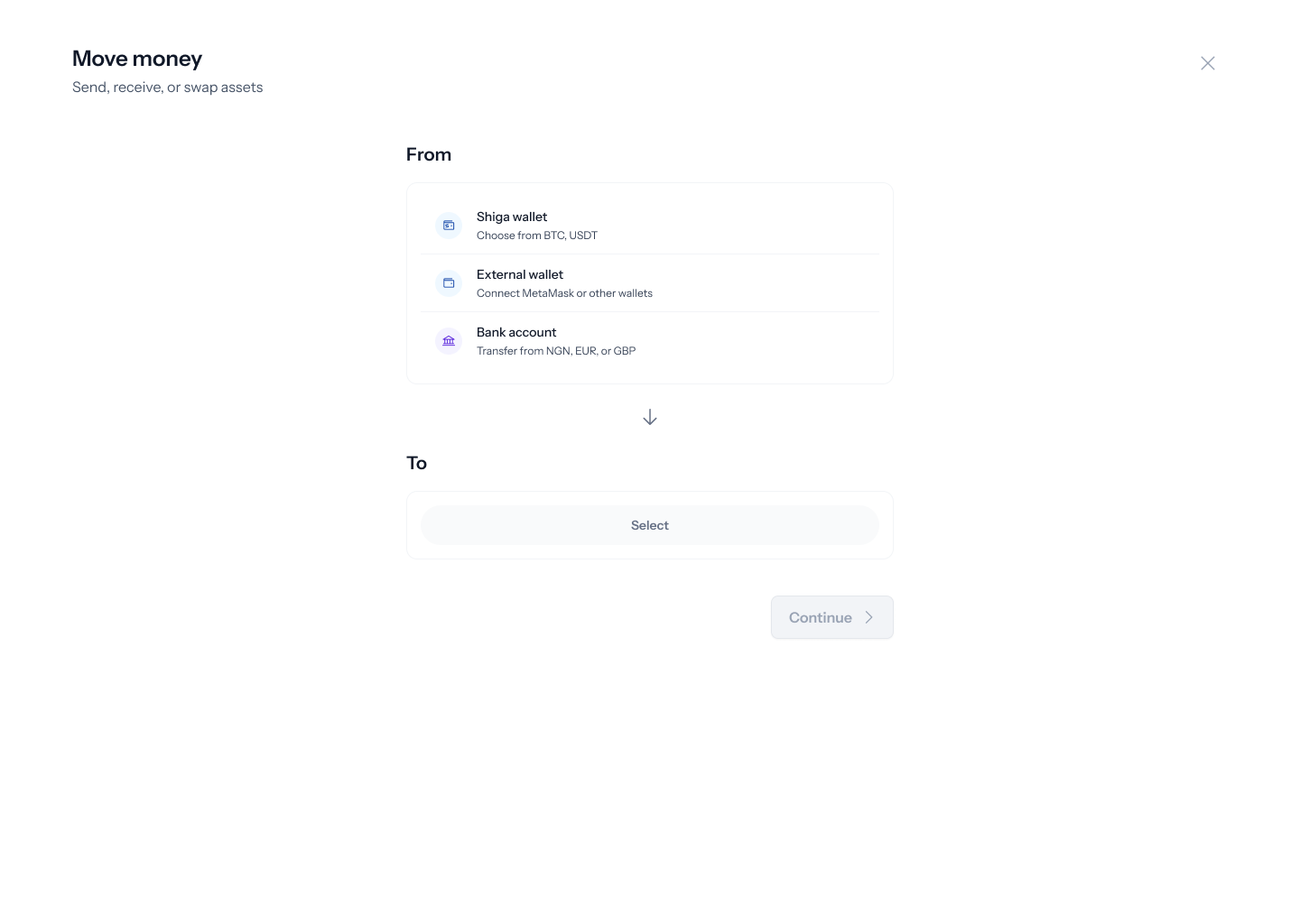
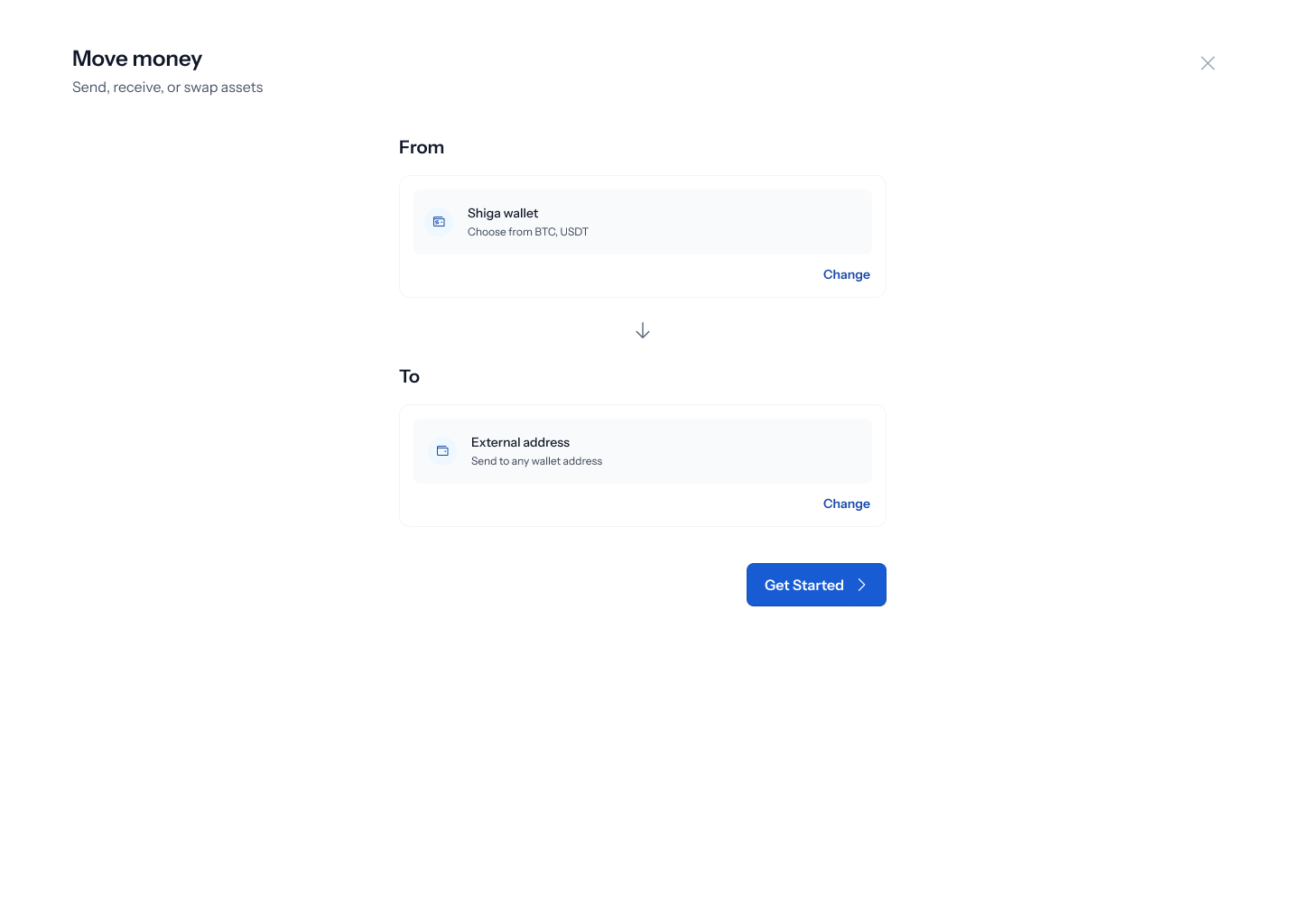
Tapping **Move Money** opens a panel titled **"Move money"** — *"Send, receive, or swap assets"*. The **From** field asks where the money's coming from: **Enta wallet** (*"Choose from BTC, USDT"*), **External wallet** (*"Connect MetaMask or other wallets"*), or **Bank account** (*"Transfer from NGN, EUR, or GBP"*). Pick **Enta wallet**.
Every Move Money flow starts here, on your Enta home screen — tap **Move Money** to begin.
## 2. Choose Enta wallet as the source
Tapping **Move Money** opens a panel titled **"Move money"** — *"Send, receive, or swap assets"*. The **From** field asks where the money's coming from: **Enta wallet** (*"Choose from BTC, USDT"*), **External wallet** (*"Connect MetaMask or other wallets"*), or **Bank account** (*"Transfer from NGN, EUR, or GBP"*). Pick **Enta wallet**.
 ## 3. Choose External address as the destination
With **Enta wallet** set as From, the **To** field shows three options: **Enta wallet** (*"Receive as BTC, USDT"*), **External address** (*"Send to any wallet address"*), or **Bank account** (*"Cash out to NGN, EUR, or GBP"*). Picking **External address** is what puts you on the withdrawal path this guide covers.
## 3. Choose External address as the destination
With **Enta wallet** set as From, the **To** field shows three options: **Enta wallet** (*"Receive as BTC, USDT"*), **External address** (*"Send to any wallet address"*), or **Bank account** (*"Cash out to NGN, EUR, or GBP"*). Picking **External address** is what puts you on the withdrawal path this guide covers.
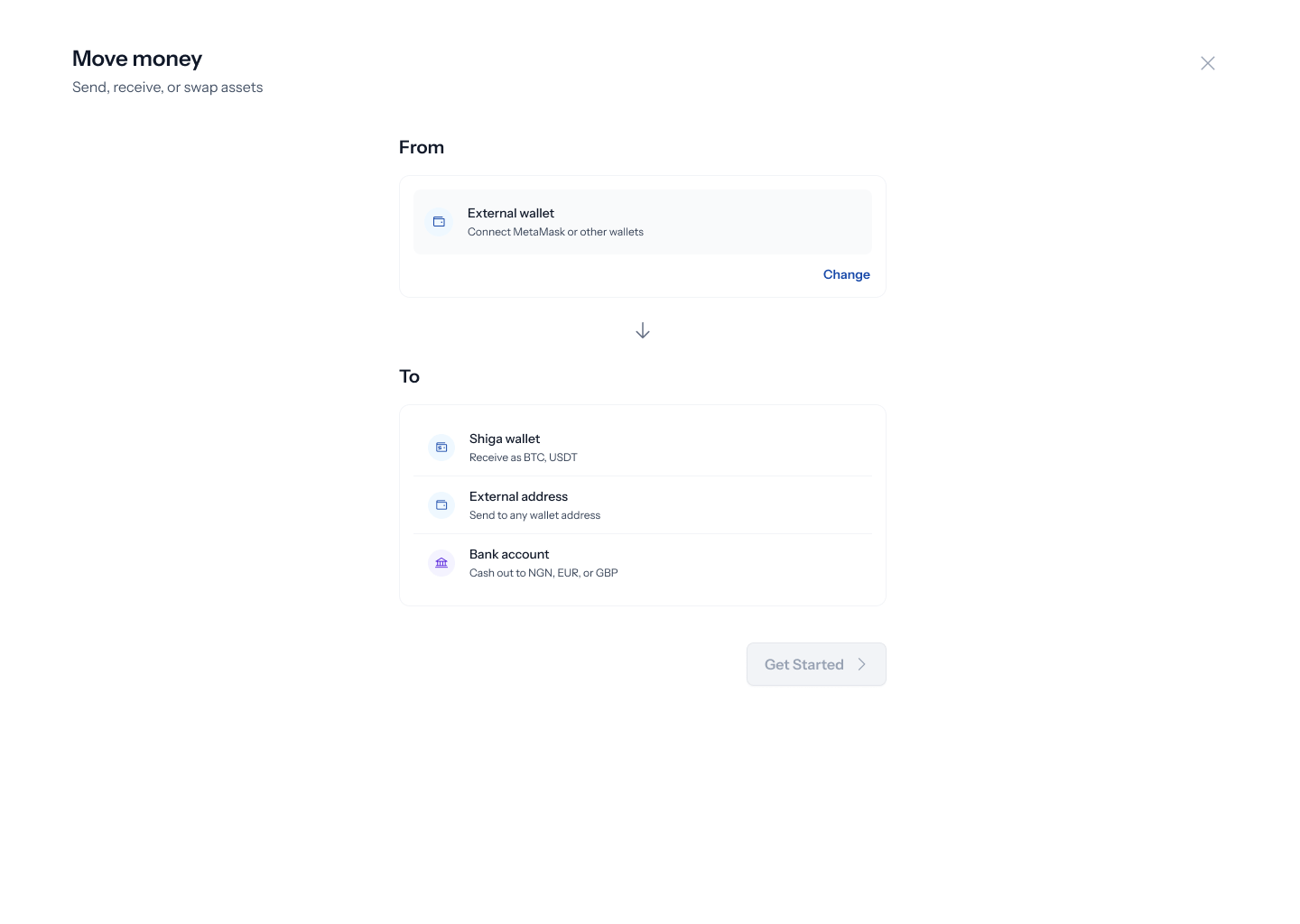 Once both fields are set, the panel updates to show your full selection with a **Change** link on each side, and the **Get started** button becomes active.
 ## 4. Tell Enta who you're sending to
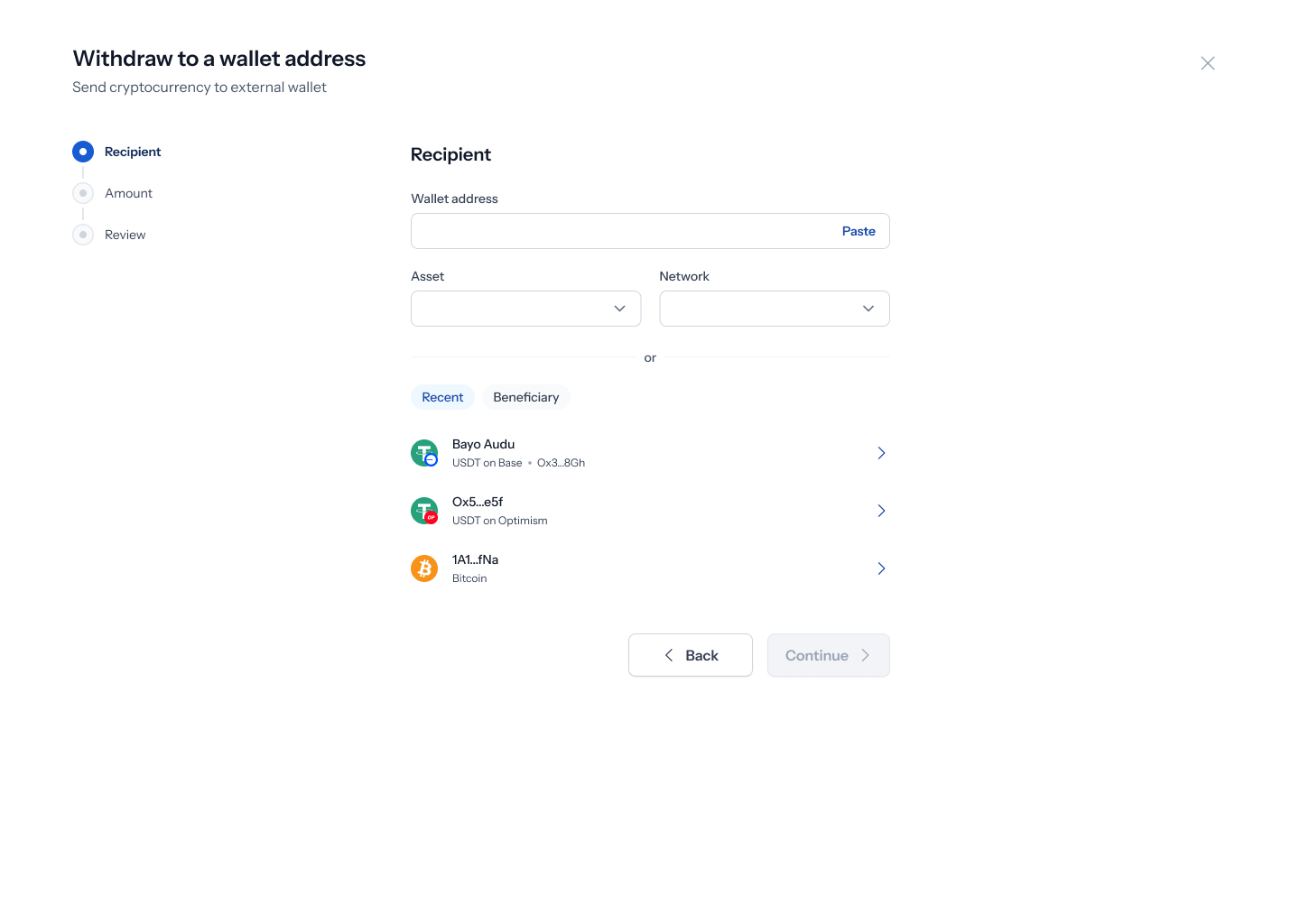
This opens a **Recipient** screen — *"Send cryptocurrency to external wallet"* — the first of three steps (**Recipient → Amount → Review**, shown in the left rail). There are three ways to specify a recipient:
* **Type or paste a wallet address** directly into the **Wallet address** field (there's a one-tap **Paste** button). As you type or right after pasting, Enta tries to auto-fill the **Asset** and **Network** dropdowns from wallets you've sent to before, or from a saved beneficiary matching that address.
* **Recent** — pick from a list of addresses you've recently sent to, each showing a name/address, the asset and network (e.g. *"Bayo Audu — USDT on Base — 0x3...8Gh"*). If you haven't sent anywhere yet, this reads *"No transactions yet"* — *"Complete a transaction and we'll show your most recent ones here."*
## 4. Tell Enta who you're sending to
This opens a **Recipient** screen — *"Send cryptocurrency to external wallet"* — the first of three steps (**Recipient → Amount → Review**, shown in the left rail). There are three ways to specify a recipient:
* **Type or paste a wallet address** directly into the **Wallet address** field (there's a one-tap **Paste** button). As you type or right after pasting, Enta tries to auto-fill the **Asset** and **Network** dropdowns from wallets you've sent to before, or from a saved beneficiary matching that address.
* **Recent** — pick from a list of addresses you've recently sent to, each showing a name/address, the asset and network (e.g. *"Bayo Audu — USDT on Base — 0x3...8Gh"*). If you haven't sent anywhere yet, this reads *"No transactions yet"* — *"Complete a transaction and we'll show your most recent ones here."*
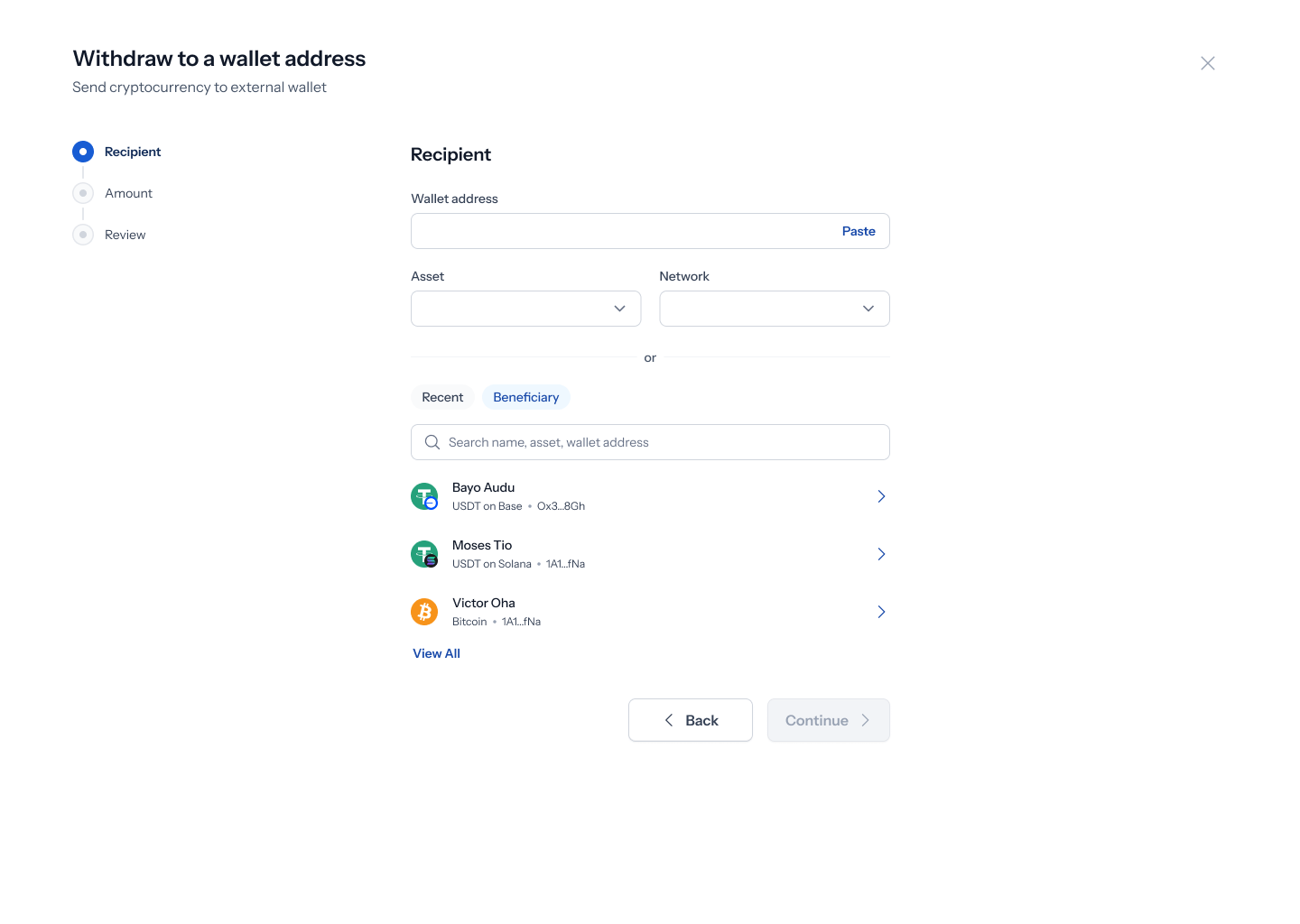
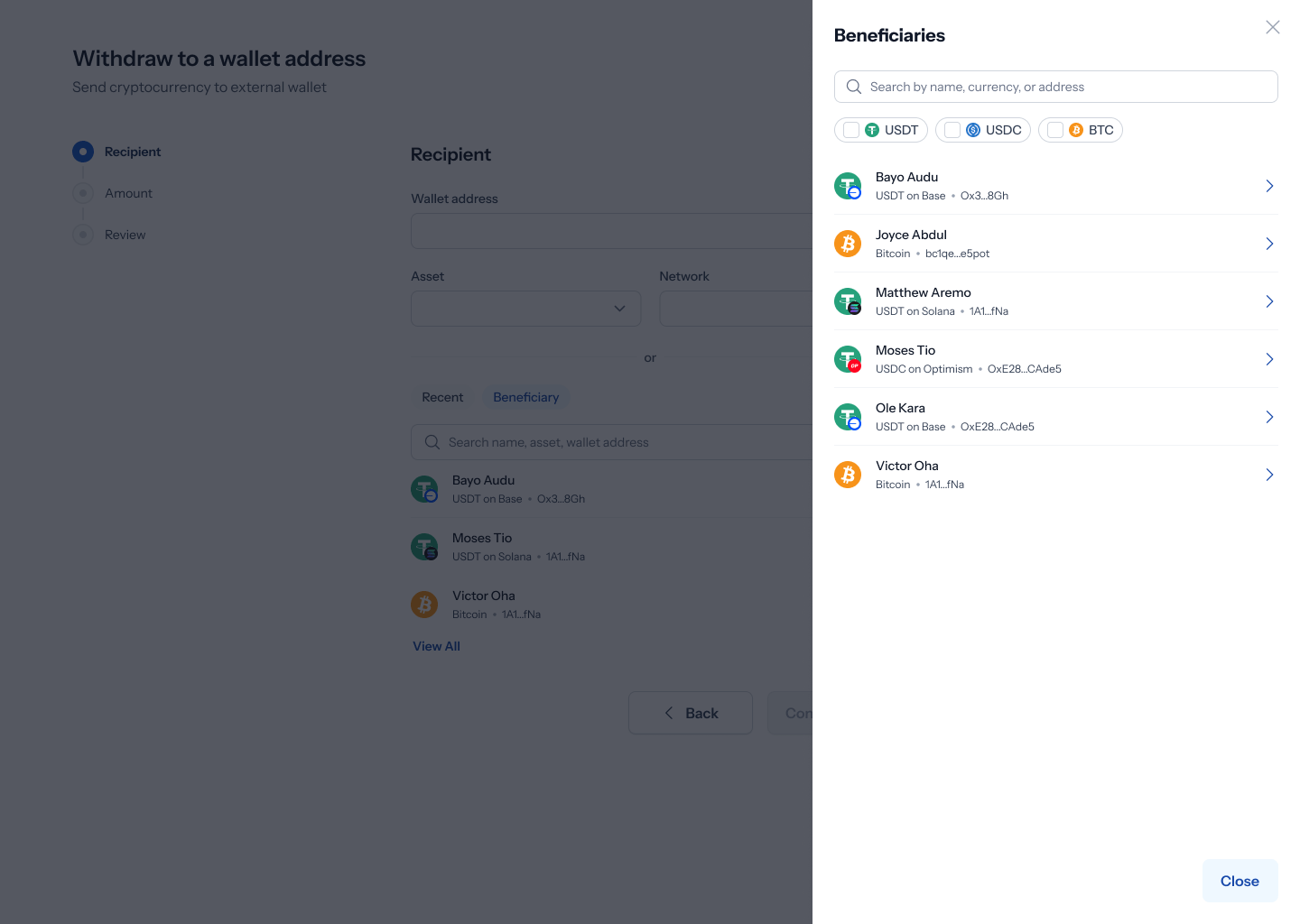
 * **Beneficiary** — pick from your saved beneficiaries, with a **View all** link opening the full searchable list (*"Search by name, currency, or address"*). If you haven't saved any yet, this reads *"You haven't saved any wallet or fiat accounts yet"* — *"Complete a transaction and save to beneficiary to add to this list."*
 You can also set (or change) the **Asset** and **Network** manually via their own dropdowns — tap either to search a list of supported assets (USDT, BTC, USDC) and networks (Solana, Base, Optimism, Arbitrum, Polygon for USDT/USDC; Bitcoin or Lightning for BTC).
Sending to a brand-new address (not a beneficiary or recent recipient) shows a caution banner: *"This is a new recipient. Double-check the details to ensure it's the right address."*
Once the address, asset, and network are all set, tap **Continue**.
## 5. Enter an amount
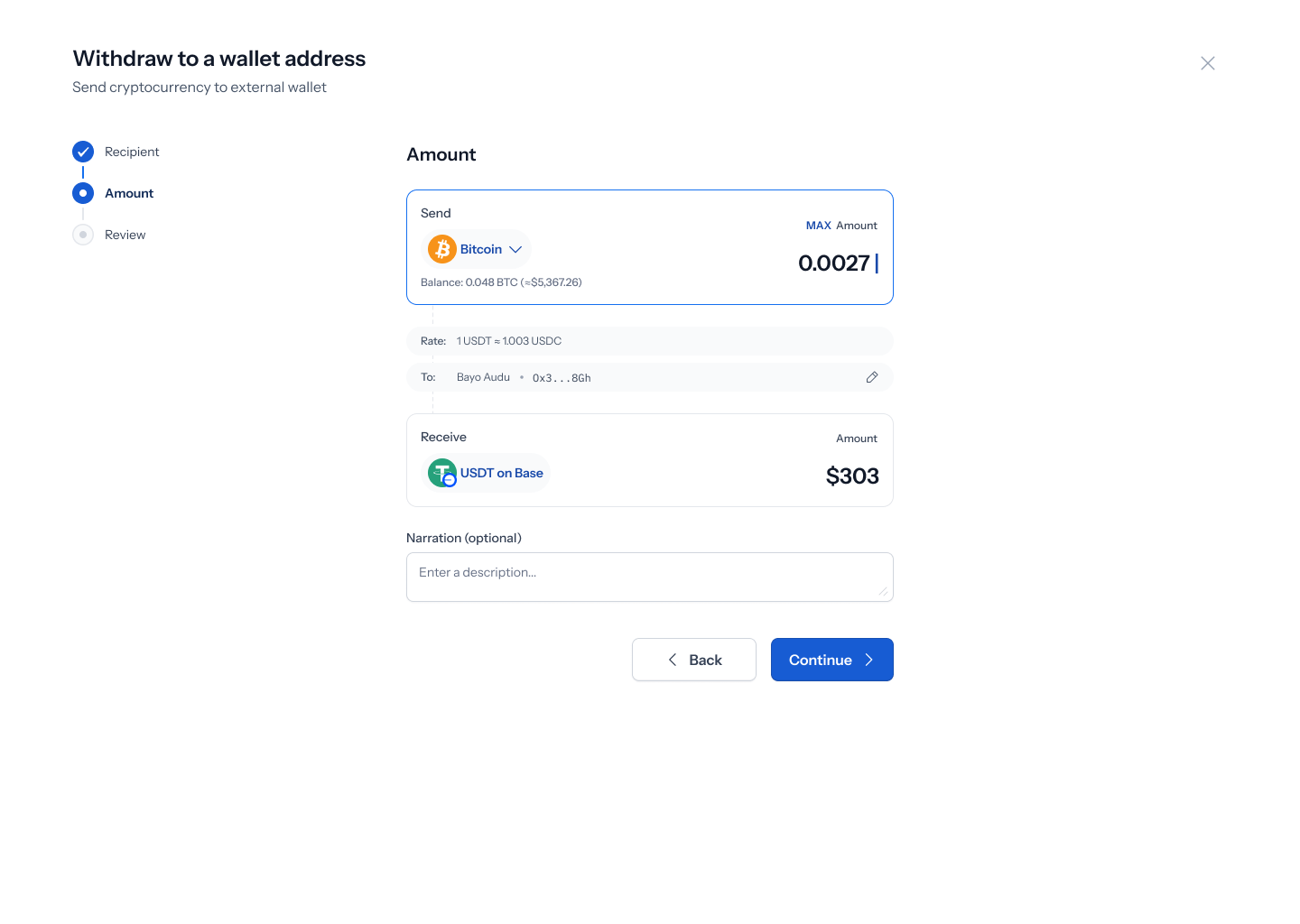
The **Amount** step shows a **Send** card (the asset and network you're withdrawing, your balance, and a **MAX** button) and a **Receive** card confirming what arrives at the other end. A **To** row above them reminds you who you picked, with a pencil icon to go back and change it. As soon as an asset's selected, a live rate appears (e.g. *"1 USDT ≈ 1.003 USDC"*) — before that, it reads *"Rate: Select asset to see rate."* There's also an optional **Narration** field to add a note for your own records.
You can also set (or change) the **Asset** and **Network** manually via their own dropdowns — tap either to search a list of supported assets (USDT, BTC, USDC) and networks (Solana, Base, Optimism, Arbitrum, Polygon for USDT/USDC; Bitcoin or Lightning for BTC).
Sending to a brand-new address (not a beneficiary or recent recipient) shows a caution banner: *"This is a new recipient. Double-check the details to ensure it's the right address."*
Once the address, asset, and network are all set, tap **Continue**.
## 5. Enter an amount
The **Amount** step shows a **Send** card (the asset and network you're withdrawing, your balance, and a **MAX** button) and a **Receive** card confirming what arrives at the other end. A **To** row above them reminds you who you picked, with a pencil icon to go back and change it. As soon as an asset's selected, a live rate appears (e.g. *"1 USDT ≈ 1.003 USDC"*) — before that, it reads *"Rate: Select asset to see rate."* There's also an optional **Narration** field to add a note for your own records.
 Tap **Continue** once the amount looks right.
## 6. Review before you authorize
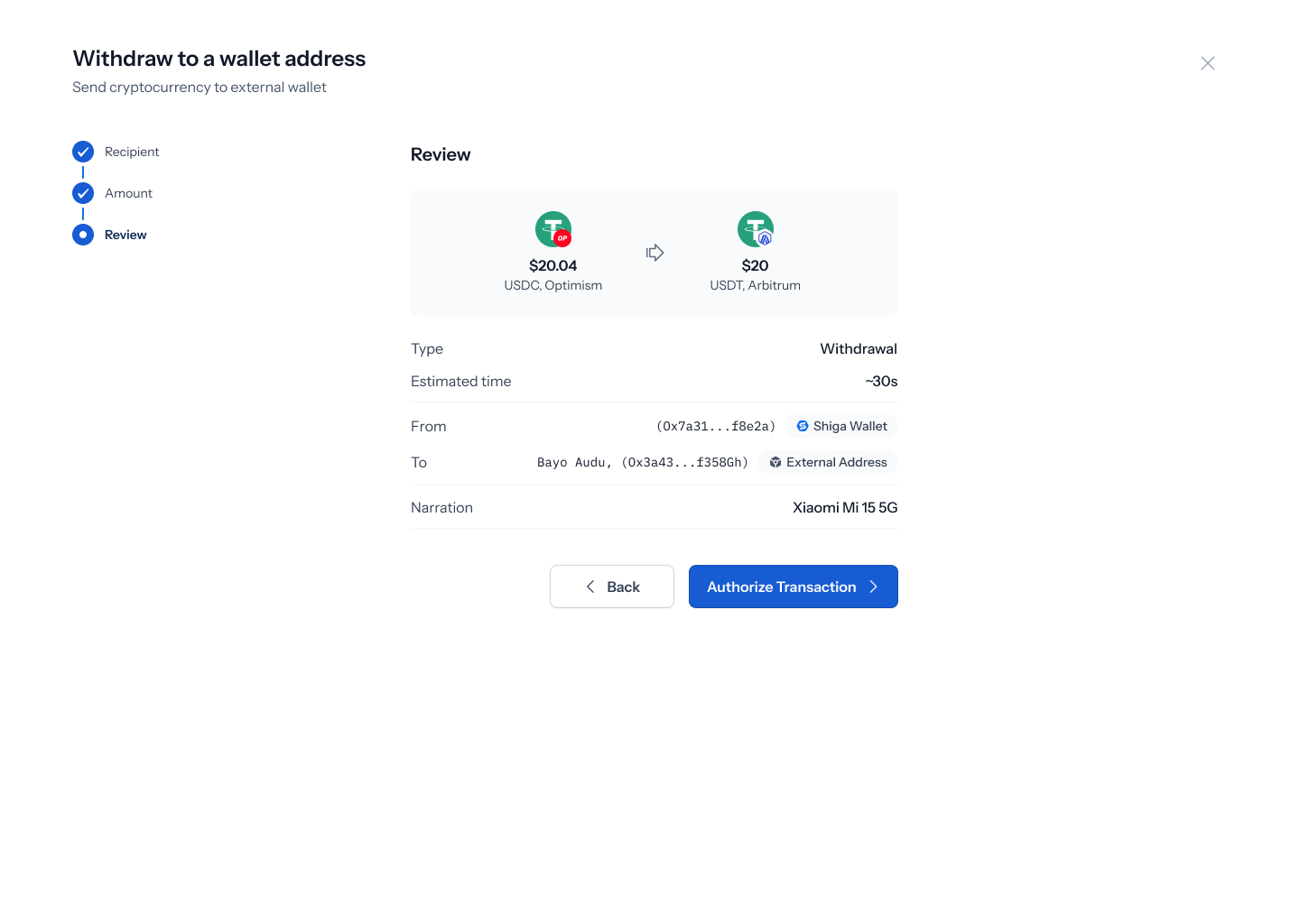
The **Review** screen shows your withdrawal as a single summary — the asset and amount, **Type: Withdrawal**, **Estimated time: \~30s**, **From** (your Enta Wallet), **To** (the recipient, labeled **External Address**), and your **Narration** if you added one. Tap **Back** to change anything, or **Authorize Transaction** to continue.
Tap **Continue** once the amount looks right.
## 6. Review before you authorize
The **Review** screen shows your withdrawal as a single summary — the asset and amount, **Type: Withdrawal**, **Estimated time: \~30s**, **From** (your Enta Wallet), **To** (the recipient, labeled **External Address**), and your **Narration** if you added one. Tap **Back** to change anything, or **Authorize Transaction** to continue.
 ## 7. Authorize the transaction
As with the rest of Move Money, authorization is done with your device's **passkey** — Face ID, Touch ID, or your device's biometric/PIN unlock. There's no code to type in; the native prompt appears on top of the review screen, and confirming it submits the withdrawal.
The authorization screen for this specific flow hasn't been fully designed in Figma yet (it's currently a placeholder), so there's nothing screen-specific to show here beyond the passkey behavior shared across Move Money — worth double-checking with design once it's built out.
## 8. Processing and confirmation
Once you authorize, a loading screen reads **"Processing your withdrawal..."** with your transaction summary still visible underneath.
## 7. Authorize the transaction
As with the rest of Move Money, authorization is done with your device's **passkey** — Face ID, Touch ID, or your device's biometric/PIN unlock. There's no code to type in; the native prompt appears on top of the review screen, and confirming it submits the withdrawal.
The authorization screen for this specific flow hasn't been fully designed in Figma yet (it's currently a placeholder), so there's nothing screen-specific to show here beyond the passkey behavior shared across Move Money — worth double-checking with design once it's built out.
## 8. Processing and confirmation
Once you authorize, a loading screen reads **"Processing your withdrawal..."** with your transaction summary still visible underneath.
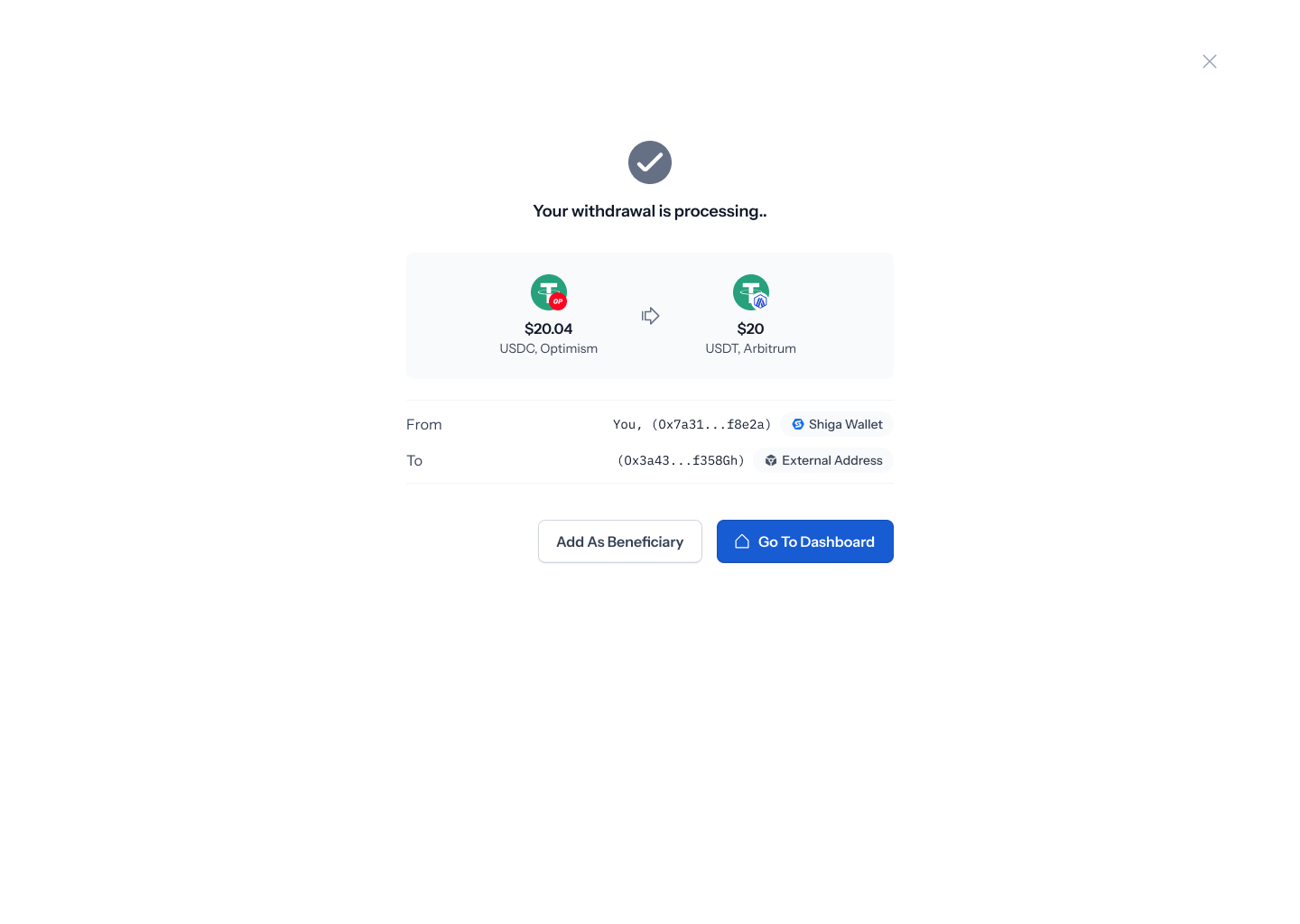
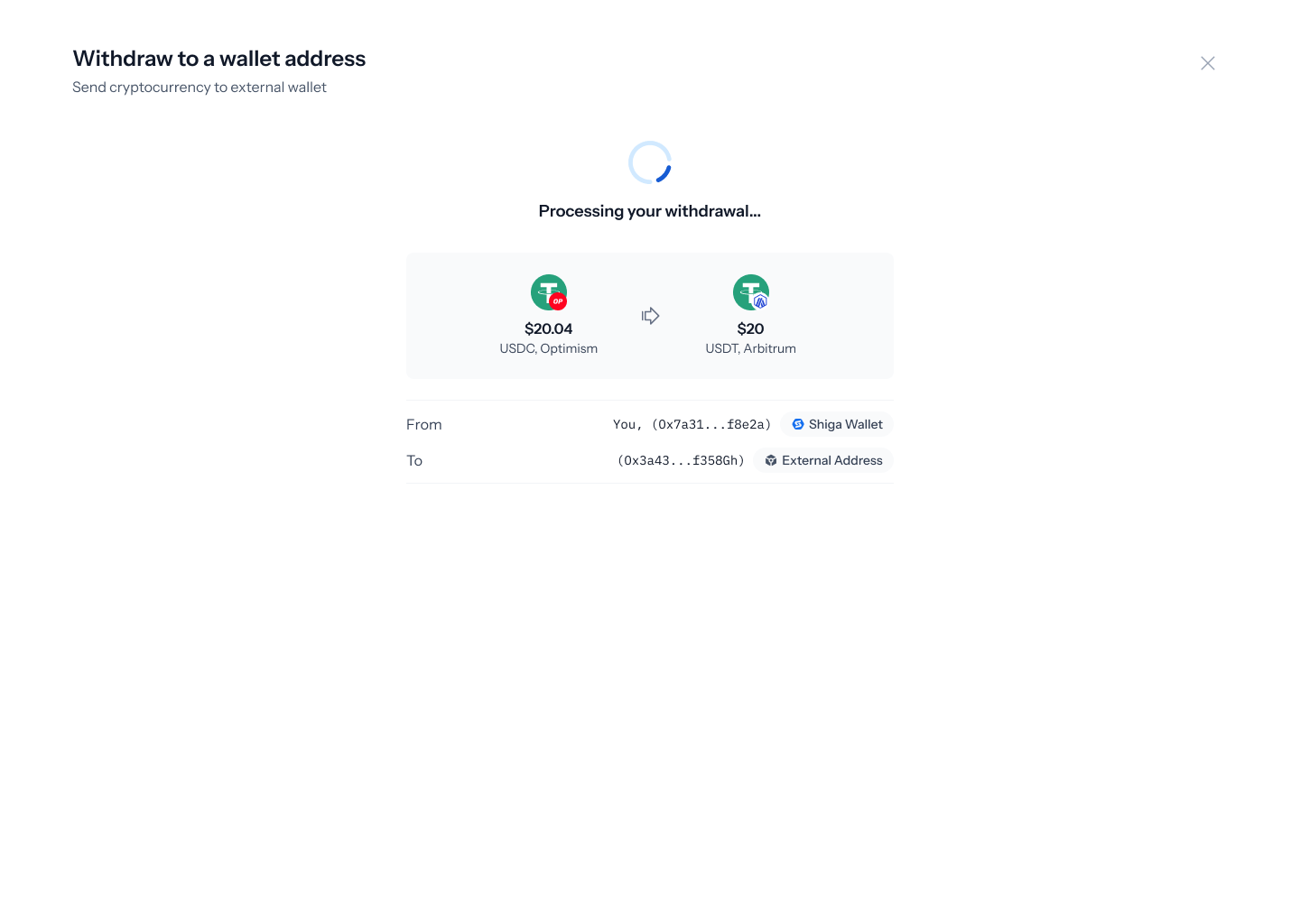 When it's done, you'll land on a confirmation screen — **"Your withdrawal is processing.."** — showing the same summary, with **Add as Beneficiary** (handy if this was a new address) or **Go to Dashboard** to finish up.