> ## Documentation Index
> Fetch the complete documentation index at: https://docs.entashiga.io/llms.txt
> Use this file to discover all available pages before exploring further.
# Move Your Personal Account to Enta
> Sign in once, create a passkey, and your balances, history and verification come with you
Enta is the new home for your Shiga personal account. Migrating takes about two minutes and you only do it once. Your wallets, balances, transaction history and verification status all move across with you — nothing is left behind and nothing needs to be re-submitted.
## **Before You Start**
Have these ready:
1. The **email address** on your existing account — migration is tied to it.
2. Your **authenticator app**, if you have two-factor authentication switched on.
3. A **second email address** to use for recovery. It must be different from your sign-in email.
4. A device that supports **biometrics or a PIN** — a phone, or a laptop with Windows Hello or Touch ID.
You do not need your old password. Enta replaces passwords with a passkey, which is created during migration.
## **Sign In With Your Existing Email**
1. Go to [app.entashiga.io](https://app.entashiga.io).
2. Choose **For me** for your personal account.
3. Enter the email address on your existing account and click **Continue**.
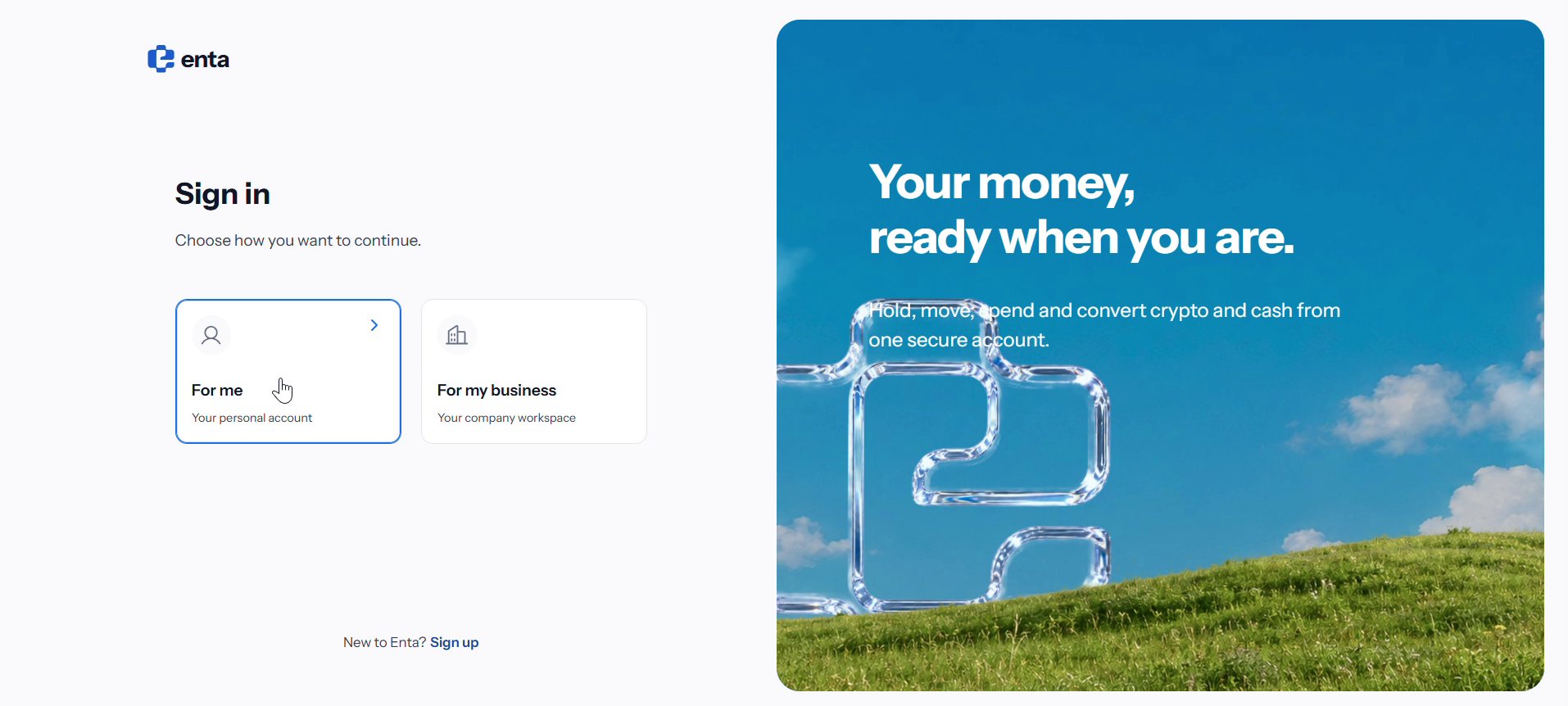 Use the same email address you already sign in with. A different address starts a brand-new account instead of moving your existing one, and your balances and history will not appear.
## **Confirm It Is You**
If you have two-factor authentication enabled, enter the 6-digit code from your authenticator app.
Enta then emails you a verification link. Open your inbox, find the message from Enta, and click **Verify email**.
The verification link is only valid for 15 minutes. If it expires, go back and request a new one — nothing is lost.
## **Create Your Passkey**
This is the step that replaces your password. A passkey is stored on your device and unlocked with your face, fingerprint or PIN, which means it cannot be phished or reused on a fake site.
1. On **Secure your wallet**, click **Create Passkey**.
Use the same email address you already sign in with. A different address starts a brand-new account instead of moving your existing one, and your balances and history will not appear.
## **Confirm It Is You**
If you have two-factor authentication enabled, enter the 6-digit code from your authenticator app.
Enta then emails you a verification link. Open your inbox, find the message from Enta, and click **Verify email**.
The verification link is only valid for 15 minutes. If it expires, go back and request a new one — nothing is lost.
## **Create Your Passkey**
This is the step that replaces your password. A passkey is stored on your device and unlocked with your face, fingerprint or PIN, which means it cannot be phished or reused on a fake site.
1. On **Secure your wallet**, click **Create Passkey**. 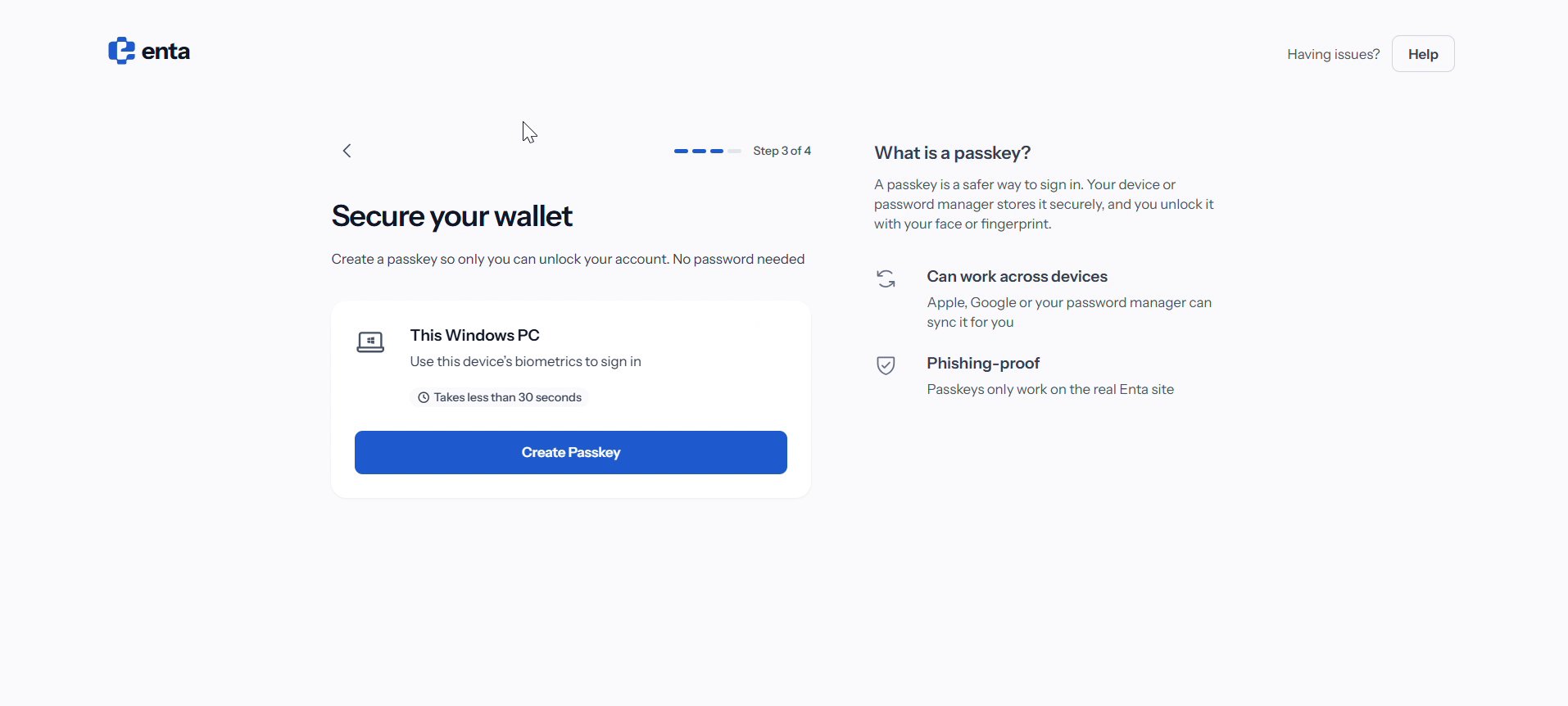 2. Choose where to save it — **Windows Hello or external security key** on a laptop, or your phone's built-in option.
3. Check the details shown, then click **Continue**.
4. Unlock with your device PIN, face or fingerprint.
2. Choose where to save it — **Windows Hello or external security key** on a laptop, or your phone's built-in option.
3. Check the details shown, then click **Continue**.
4. Unlock with your device PIN, face or fingerprint. 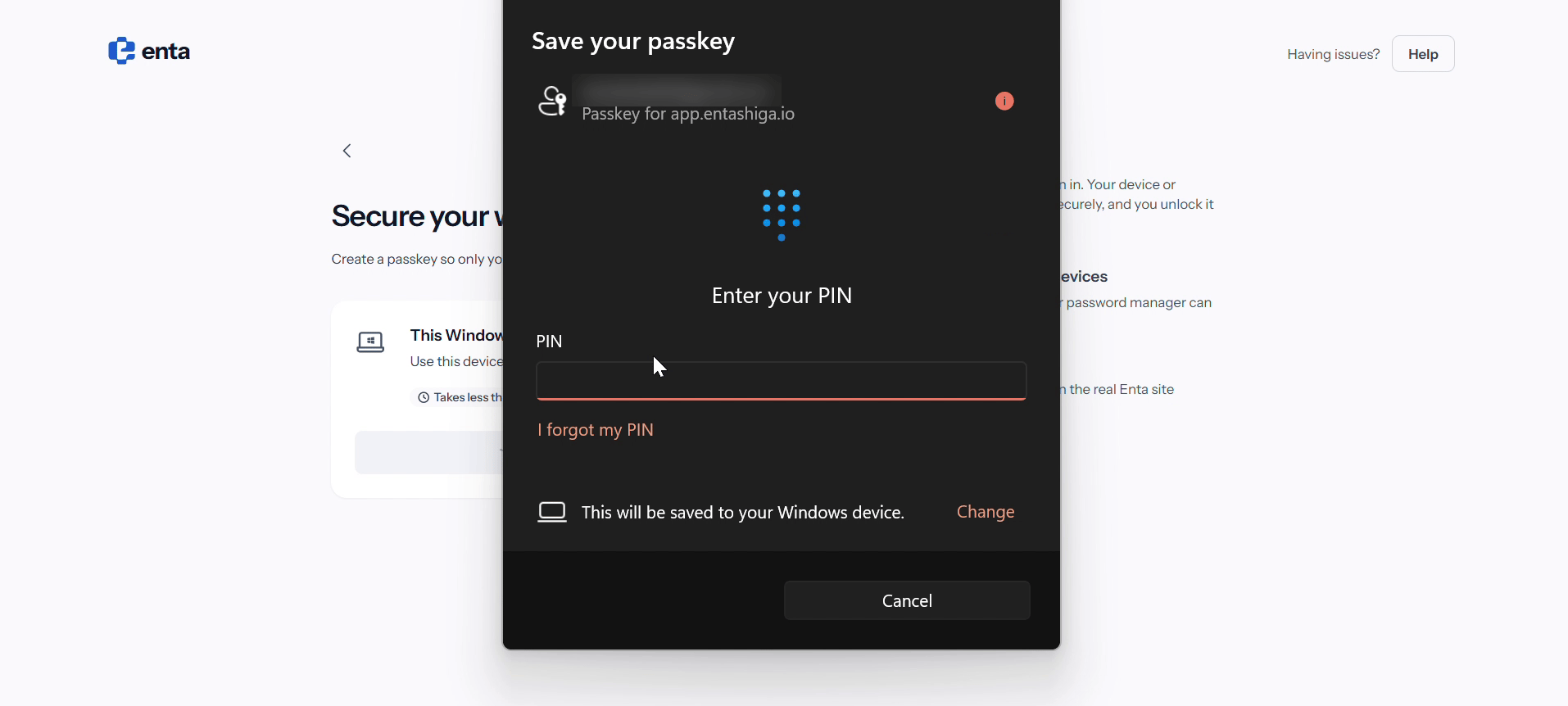 5. Wait while Enta creates the passkey and sets up your wallet. This takes a few seconds.
## **Add a Recovery Email**
Your recovery email is how you get back in if you lose access to your sign-in email or your passkey device.
1. Enter a **recovery email address** and click **Send Code**.
2. Enter the 6-digit code sent to that address.
5. Wait while Enta creates the passkey and sets up your wallet. This takes a few seconds.
## **Add a Recovery Email**
Your recovery email is how you get back in if you lose access to your sign-in email or your passkey device.
1. Enter a **recovery email address** and click **Send Code**.
2. Enter the 6-digit code sent to that address.
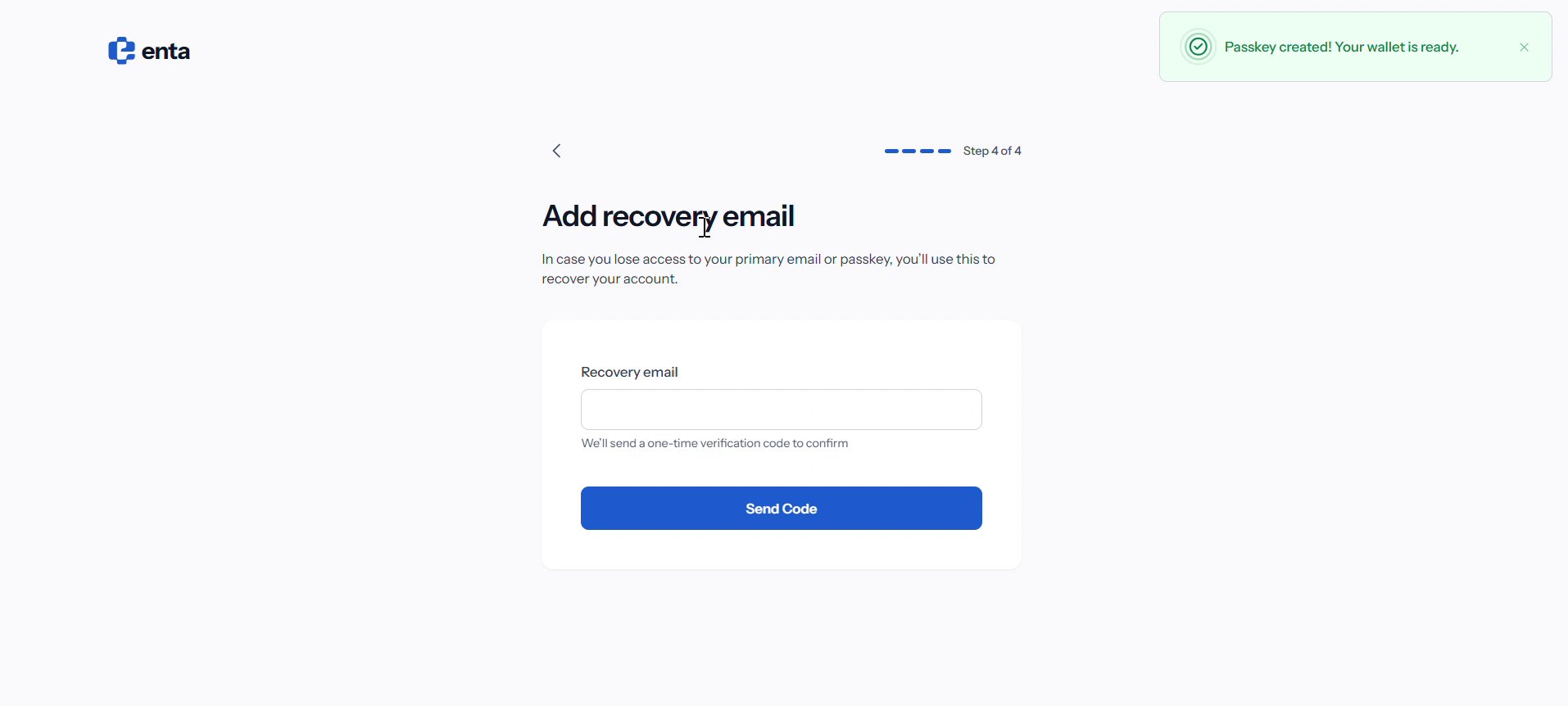 Use an address on a different provider from your sign-in email, and one you will still control in a few years. If you lose both your passkey device and your sign-in email, this is the only way back into your account.
## **You Are In**
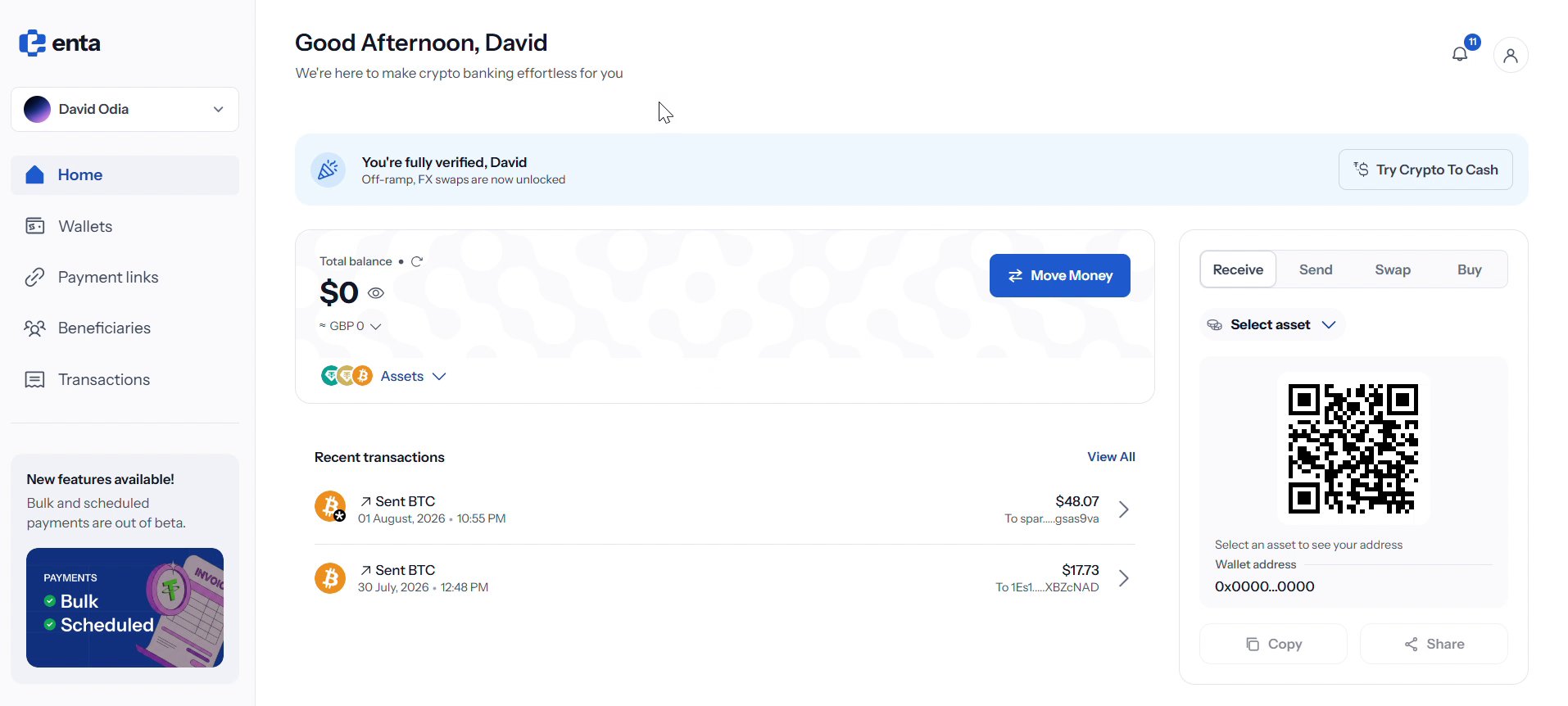
You land on your Enta dashboard. Check that everything came across:
1. **Total balance** matches what you had before.
2. **Recent transactions** shows your existing history.
3. **Wallets** lists your USDT, XAUT and BTC wallets.
4. Your verification status is intact — off-ramp and FX swaps stay unlocked.
Use an address on a different provider from your sign-in email, and one you will still control in a few years. If you lose both your passkey device and your sign-in email, this is the only way back into your account.
## **You Are In**
You land on your Enta dashboard. Check that everything came across:
1. **Total balance** matches what you had before.
2. **Recent transactions** shows your existing history.
3. **Wallets** lists your USDT, XAUT and BTC wallets.
4. Your verification status is intact — off-ramp and FX swaps stay unlocked.
 Next time you sign in, there is no password and no email link. Enter your email and unlock with your passkey.
## **If Something Looks Wrong**
| What you see | What to do |
| ------------------------------------------------------- | ----------------------------------------------------------------------------------------------------------------------------- |
| Balance or history is empty | You most likely signed in with a different email address. Sign out and start again with the address on your existing account. |
| The verification email never arrives | Check spam, then use **Resend**. The button becomes available after the countdown. |
| Your device will not create a passkey | Confirm your screen lock or biometrics are set up in your device settings, then click **Create Passkey** again. |
| You are asked for an authenticator code you do not have | Use **Use a different email** to go back, or contact support — do not delete the authenticator entry. |
Still stuck? Use the **Help** button in the top right of any migration screen, or see [How to contact Enta customer support](/HowTo/UnlocktheFullPotentialofshiga/howtocontactshigacustomersuport).
Next time you sign in, there is no password and no email link. Enter your email and unlock with your passkey.
## **If Something Looks Wrong**
| What you see | What to do |
| ------------------------------------------------------- | ----------------------------------------------------------------------------------------------------------------------------- |
| Balance or history is empty | You most likely signed in with a different email address. Sign out and start again with the address on your existing account. |
| The verification email never arrives | Check spam, then use **Resend**. The button becomes available after the countdown. |
| Your device will not create a passkey | Confirm your screen lock or biometrics are set up in your device settings, then click **Create Passkey** again. |
| You are asked for an authenticator code you do not have | Use **Use a different email** to go back, or contact support — do not delete the authenticator entry. |
Still stuck? Use the **Help** button in the top right of any migration screen, or see [How to contact Enta customer support](/HowTo/UnlocktheFullPotentialofshiga/howtocontactshigacustomersuport).